
TeamViewer Download: How to Get It Safely and Set It Up
TeamViewer is a remote-access and support application that lets people connect to computers and mobile devices over the internet. It can be used to provide technical help, access a work computer remotely, or manage devices when you are away. To get the software safely, download it from TeamViewer’s official website or your device’s official app store.
Where to Download TeamViewer
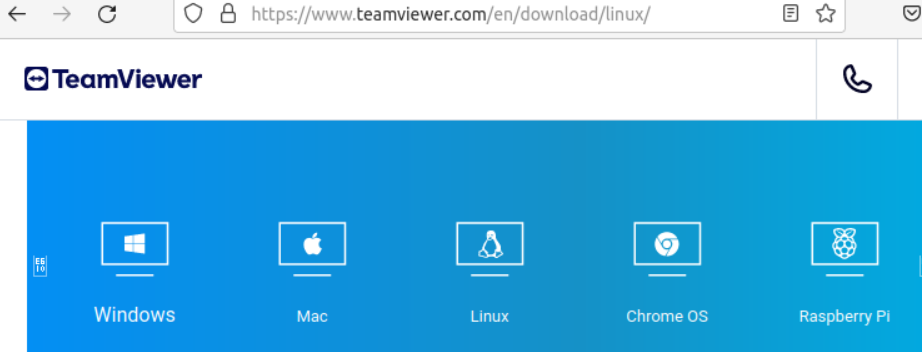
Visit teamviewer.com and select the download option for your device. TeamViewer offers versions for common desktop and mobile platforms, including Windows, macOS, Linux, Android, and iOS. Available products and features may vary by platform.
Avoid unofficial download sites. Third-party installers may be outdated, bundled with unwanted software, or altered. Before installing, check that the website address is correct and that the download is published by TeamViewer.
Choose the Right TeamViewer Option
- Full TeamViewer application: A general-purpose option for connecting to other devices and setting up remote access.
- QuickSupport: Designed for temporary support sessions. The person receiving help can run it and share the session details with a trusted support provider. It may not require a full installation.
- Host: Intended for ongoing, unattended access to a device. Set it up only on a computer you own or are authorized to manage, and protect it with strong security settings.
Product names and download choices can change. Follow the descriptions on TeamViewer’s official download page to select the version that fits your needs.
How to Download and Install TeamViewer on a Computer
- Open the official TeamViewer website and go to its download page.
- Select the version for your operating system.
- Open the downloaded installer from your browser’s downloads list or your computer’s Downloads folder.
- Follow the on-screen prompts. Review the installation and usage options before continuing.
- Launch TeamViewer and follow its instructions to connect to another device or configure remote access.
The exact steps can differ by operating system and software version. If your computer displays a security prompt, confirm that the installer is from TeamViewer before allowing it to run.
Installing TeamViewer on a Phone or Tablet
On Android, find the appropriate TeamViewer app in Google Play. On an iPhone or iPad, use the Apple App Store. Check the app’s publisher and description before installing, since TeamViewer provides different apps for different tasks. Some mobile connections may require a companion app or additional setup on the device being accessed.
Using TeamViewer Safely
- Share a connection code or password only with someone you trust.
- Never give remote access to an unexpected caller or message sender. Scammers sometimes impersonate technical support providers.
- End the session when support is complete, and remove unattended access you no longer need.
- Use a strong, unique password and enable available account security features, such as two-factor authentication.
- Keep TeamViewer and your operating system updated.
- Use remote access only on devices you own or have permission to access.
Is TeamViewer Free?
TeamViewer may offer free use for personal purposes, while business and commercial use may require a paid plan. The applicable terms depend on how the software is used and can change. Review TeamViewer’s current licensing information before using it for work, business support, or other commercial activities.
Common Download and Installation Problems
If the download does not start, try another browser or check your internet connection and browser download settings. If installation fails, make sure you selected the correct version for your operating system, restart your device, and download a fresh installer from TeamViewer’s official site. For organization-managed computers, an administrator may need to approve the installation.
Frequently Asked Questions
Can TeamViewer be used without installing it?
Some TeamViewer options are designed for temporary support and may run without a full installation. Available features depend on the product, operating system, and the connection setup.
Should TeamViewer be downloaded from a third-party site?
No. The safest choice is TeamViewer’s official website or the official app store for your device. This helps reduce the risk of downloading a modified or outdated installer.
What information is needed to connect to another device?
The connection method varies. A support session may require the other person to provide session details, while unattended access requires prior configuration and authorization. Do not connect to a device unless you have permission.
Get Started
For a secure TeamViewer download, choose the version made for your device, get it from an official source, and follow the setup instructions carefully. Take a moment to review the licensing terms and security settings before starting a remote session.
TeamViewer Download FAQs: Safe Downloads, Installation, Pricing, Versions, and Troubleshooting
- Where can I download TeamViewer safely?
- How do I download and install TeamViewer on Windows or Mac?
- Is TeamViewer free to download and use?
- Which TeamViewer version should I download for remote support?
- Why is my TeamViewer download or installation not working?
Where can I download TeamViewer safely?
You can download TeamViewer safely from the official TeamViewer website at teamviewer.com or from your device’s official app store, such as Google Play or the Apple App Store. Check that the publisher is TeamViewer, and avoid third-party download sites, which may offer outdated or modified installers.
How do I download and install TeamViewer on Windows or Mac?
To download and install TeamViewer on Windows or Mac, visit the official TeamViewer website and choose the download for your operating system. Open the downloaded installer, follow the on-screen instructions, and approve any security prompts after confirming the publisher is TeamViewer. When installation is complete, launch the app and follow its setup instructions to connect to another device or configure remote access.
Is TeamViewer free to download and use?
Yes, TeamViewer is free to download, and a free option may be available for personal, noncommercial use. Business or other commercial use generally requires a paid license, and terms can change, so check TeamViewer’s official licensing page to confirm which option fits your needs.
Which TeamViewer version should I download for remote support?
For remote support, download TeamViewer QuickSupport on the device that needs help. It’s designed for temporary support sessions and typically lets the user share connection details with a trusted support provider without setting up permanent, unattended access. The person providing support may need the full TeamViewer application. Choose the version for your device’s operating system from TeamViewer’s official website or your device’s official app store, and share access details only with someone you trust.
Why is my TeamViewer download or installation not working?
A TeamViewer download or installation may fail because of an unstable internet connection, browser settings, insufficient permissions, security software, or an installer that doesn’t match your operating system. Check your connection, confirm you selected the correct version for your device, and download a fresh copy from TeamViewer’s official website or your device’s official app store. Then try running the installer again; on a work or school computer, you may need an administrator’s approval.
Tags: android, app store, commercial use, installation, ios, licensing, linux, macos, official website, personal use, quicksupport, remote access, remote support, secure download, security settings, teamviewer download, teamviewer host, troubleshooting, two-factor authentication, unattended access, windows