
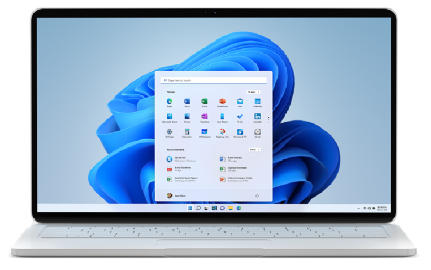
The Legacy of Microsoft Windows 7
Microsoft Windows 7, released in October 2009, quickly became a popular operating system known for its user-friendly interface and enhanced performance. Despite its successor, Windows 10, being the current flagship OS from Microsoft, Windows 7 continues to hold a special place in the hearts of many users.
Features of Windows 7:
- Improved Taskbar: The redesigned taskbar in Windows 7 introduced features like Jump Lists and Aero Peek, making it easier to access frequently used programs and files.
- Libraries: Libraries allowed users to organize and access files from multiple locations seamlessly.
- Snap Feature: The Snap feature enabled users to easily resize and compare windows side by side.
- Enhanced Performance: Windows 7 was praised for its improved speed, stability, and overall performance compared to its predecessor, Windows Vista.
The End of Support:
In January 2020, Microsoft officially ended support for Windows 7, meaning that the OS no longer receives security updates or technical assistance. While some users have migrated to newer versions like Windows 10, others continue to use Windows 7 despite the risks associated with using an unsupported system.
Legacy and Nostalgia:
For many users, Windows 7 represents a golden era of computing when simplicity and functionality were paramount. The familiar Start menu, customizable desktop backgrounds, and overall user experience evoke feelings of nostalgia for those who grew up using this beloved operating system.
In Conclusion:
Microsoft Windows 7 may have reached the end of its official support lifecycle, but its legacy lives on in the hearts of millions of users worldwide. Whether you are a seasoned IT professional or a casual computer user, the impact of Windows 7 on the world of technology is undeniable.
Essential Tips for Optimizing and Securing Your Microsoft Windows 7 Experience
- Regularly update Windows 7 to ensure security and performance improvements.
- Use antivirus software to protect your system from malware and viruses.
- Backup your important files and data regularly to prevent data loss.
- Optimize startup programs to improve boot time and overall system performance.
- Customize power settings to conserve energy and extend battery life on laptops.
- Utilize built-in troubleshooting tools like System File Checker to fix common issues.
Regularly update Windows 7 to ensure security and performance improvements.
Regularly updating Windows 7 is crucial to maintaining the security and performance of your operating system. By installing the latest updates provided by Microsoft, you can ensure that your system is equipped with essential patches and fixes to safeguard against potential security vulnerabilities. Additionally, these updates often include performance enhancements that can optimize the overall functionality of Windows 7, ensuring a smoother and more efficient computing experience. Stay proactive in keeping your system up to date to benefit from improved security measures and enhanced performance capabilities.
Use antivirus software to protect your system from malware and viruses.
To safeguard your Microsoft Windows 7 system from malicious threats such as malware and viruses, it is essential to utilize antivirus software. By installing and regularly updating reliable antivirus programs, you can create a strong defense mechanism that helps prevent potential security breaches and protects your sensitive data. Taking proactive measures to secure your system with antivirus software is a fundamental step in maintaining the integrity and smooth operation of your Windows 7 environment.
Backup your important files and data regularly to prevent data loss.
It is crucial to regularly back up your important files and data on Microsoft Windows 7 to safeguard against potential data loss. By creating backups of your documents, photos, videos, and other essential information, you can ensure that even in the event of system crashes, hardware failures, or accidental deletions, your data remains secure and easily recoverable. Implementing a consistent backup routine is a proactive measure that can provide peace of mind and protect your valuable digital assets.
Optimize startup programs to improve boot time and overall system performance.
Optimizing startup programs on Microsoft Windows 7 can significantly enhance boot time and overall system performance. By managing which programs launch automatically when you start your computer, you can reduce the burden on system resources and ensure a faster and more efficient startup process. This simple tip can lead to a smoother user experience, allowing you to get to work or play on your computer more quickly without unnecessary delays caused by unnecessary startup programs running in the background.
Customize power settings to conserve energy and extend battery life on laptops.
Customizing power settings on Microsoft Windows 7 is a valuable tip to conserve energy and prolong battery life on laptops. By adjusting power options such as screen brightness, sleep mode timing, and processor performance, users can optimize their laptop’s energy usage to maximize efficiency. This simple yet effective tweak not only helps in reducing electricity consumption but also extends the battery life of laptops, allowing users to stay productive for longer periods without needing to recharge frequently.
Utilize built-in troubleshooting tools like System File Checker to fix common issues.
When encountering common issues on Microsoft Windows 7, users can benefit from utilizing built-in troubleshooting tools like System File Checker. This tool helps identify and repair corrupted system files, which can often be the root cause of various problems such as system crashes, errors, and performance issues. By running System File Checker regularly, users can maintain the stability and integrity of their Windows 7 operating system, ensuring a smoother and more reliable computing experience.
Tags: antivirus software, backup data, end of support, enhanced performance, features, legacy, libraries, malware protection, microsoft windows 7, nostalgia, performance improvements, security, snap feature, taskbar, updates