
Rufus Download: How to Download and Use Rufus
Rufus is a free Windows utility for formatting USB drives and creating bootable USB media. It can help you prepare installation media for Windows, Linux, and other operating systems, or create a bootable drive from an ISO image.
For safety, download Rufus from its official website: rufus.ie. Avoid unofficial download pages, which may offer outdated or modified copies.
What Is Rufus?
Rufus writes an image file—usually an ISO—to a USB drive so a computer can start from that drive. This is useful when installing or repairing an operating system, running certain diagnostic tools, or using a live Linux environment.
Rufus is designed for Windows. It is a small utility, and the official site offers standard and portable versions. The portable version can run without a traditional installation.
How to Download Rufus
- Visit the official Rufus website.
- Find the download section and choose the current release that suits your needs. The site may offer a standard build and a portable build.
- Save the file to your computer.
- Open the downloaded file. If Windows displays a security prompt, check that you obtained it from the official site before continuing.
Rufus does not provide the operating system ISO itself. Download the ISO from the operating system’s official source, such as Microsoft’s Windows download page or the Linux distribution’s website.
How to Create a Bootable USB Drive
Important: Creating bootable media usually erases the selected USB drive. Back up any files you want to keep before you begin.
- Connect a USB drive to your Windows computer. Choose one with enough storage for the image file and the intended use.
- Launch Rufus.
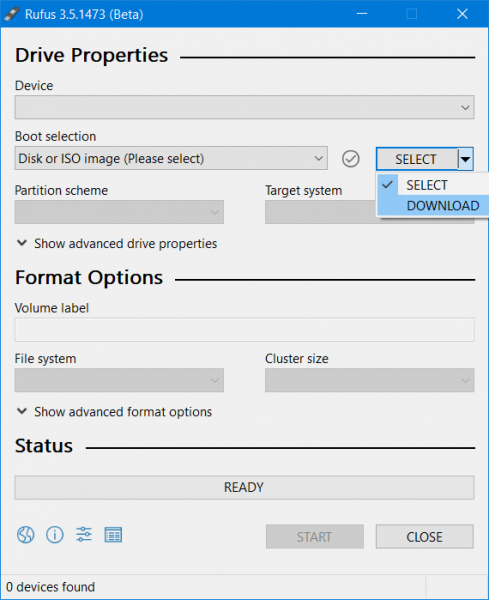
- Check the Device field and make sure the correct USB drive is selected.
- Choose Disk or ISO image under the boot selection options, then select Select to locate your ISO file.
- Review the partition scheme and target system settings. If you are unsure which settings to use, follow the instructions provided by the operating system or device manufacturer.
- Select Start. Review the warning about data deletion, then confirm only if you are ready to erase the USB drive.
- Wait for Rufus to finish, then safely eject the drive.
To boot from the USB drive, connect it to the target computer and open that computer’s boot menu or firmware settings. The key to open the menu varies by manufacturer; check the computer’s documentation if needed.
Tips for Using Rufus Safely
- Download Rufus and ISO files from official sources.
- Double-check the selected USB drive before starting, because its contents may be erased.
- Use an ISO that matches your computer’s architecture and installation needs.
- Follow the ISO provider’s guidance for partition scheme, file system, and other settings.
- Keep a backup of important files before formatting or repartitioning a drive.
Frequently Asked Questions
Is Rufus free?
Yes. Rufus is free to download from its official website.
Is Rufus available for Mac?
Rufus is a Windows utility and does not provide a native macOS version. Mac users can look for a bootable-media tool designed for macOS.
Does Rufus include Windows or Linux?
No. Rufus creates bootable media from an image file, but you generally need to obtain the ISO separately from the relevant operating system’s official source.
Will Rufus erase my USB drive?
Creating bootable media typically reformats the selected drive and removes its existing files. Back up the drive before using Rufus.
Conclusion
Rufus is a straightforward option for creating bootable USB media on Windows. Download it from the official Rufus website, use a trusted ISO, and verify the selected drive before starting. Taking these precautions can help you prepare installation media while protecting your files.
6 Essential Tips for Safely Downloading and Using Rufus
- Download Rufus from its official website or verified GitHub page.
- Choose the latest stable release for your Windows version.
- Use the portable version if you don’t want to install Rufus.
- Avoid third-party download sites and bundled installers.
- Check the downloaded file with your antivirus software.
- Keep Rufus updated to get security fixes and improvements.
Download Rufus from its official website or verified GitHub page.
When downloading Rufus, use its official website or a verified Rufus GitHub page to get a legitimate, up-to-date copy. Avoid third-party download sites, which may provide outdated or modified files. Before opening the download, check that the web address is correct and that the file comes from a trusted source.
Choose the latest stable release for your Windows version.
When downloading Rufus, choose the latest stable release that’s compatible with your version of Windows. A current, compatible version can offer important fixes and improvements while helping avoid issues caused by outdated software. Check the release details on the official Rufus website before downloading.
Use the portable version if you don’t want to install Rufus.
If you don’t want to install Rufus on your computer, choose the portable version from the official Rufus website. Download the file and run it directly from your computer or a USB drive. It offers the same core features as the standard version without requiring a traditional installation.
Avoid third-party download sites and bundled installers.
When downloading Rufus, use its official website and avoid third-party download sites or bundled installers. Unofficial downloads may be outdated, modified, or packaged with unwanted software. Getting Rufus directly from its official source helps you obtain the genuine program and reduces the risk of installing something you didn’t intend.
Check the downloaded file with your antivirus software.
After downloading Rufus, scan the file with your antivirus software before opening it. This extra step can help flag suspicious or modified files, especially if the download came from somewhere other than the official Rufus website. If the scan raises a warning, don’t run the file; delete it and download Rufus again from its official source.
Keep Rufus updated to get security fixes and improvements.
Keep Rufus updated by downloading the latest version from its official website. Updates can include security fixes, bug fixes, and improvements that help the tool work reliably with newer devices and disk images. Before downloading, confirm you’re on the official Rufus site to avoid modified or outdated copies.
Tags: boot menu, bootable usb, data backup, formatting usb drive, iso image, linux installation media, macos compatibility, official rufus website, operating system installation, partition scheme, portable version, rufus, rufus download, usb drive, windows installation media, windows utility