
MATLAB Download: How to Get and Install MATLAB
MATLAB is a programming and numerical computing platform used for data analysis, engineering, scientific research, modeling, and visualization. To download it safely, use the official MathWorks website. MATLAB is commercial software, but eligible users may have access through a school, employer, or trial offer.
Where to Download MATLAB
Download MATLAB from the official MathWorks downloads page. You’ll need a MathWorks account to access the installer. Avoid third-party download sites, which may provide outdated, modified, or unsafe files.
What You Need Before Installing
- A MathWorks account
- A valid MATLAB license, such as a personal, student, or organizational license—or an available trial
- A compatible Windows, macOS, or Linux computer
- A reliable internet connection for downloading and activation
- Enough available storage for MATLAB and any toolboxes you plan to install
System requirements vary by MATLAB release and operating system. Check the requirements for your selected release on the MathWorks website before downloading, especially if you need a particular toolbox or plan to work with large datasets.
How to Download and Install MATLAB
- Sign in or create an account. Visit MathWorks and sign in with your MathWorks account. If your school or employer provides MATLAB, use the account or license instructions supplied by that organization.
- Choose your license. Confirm that your account has access to MATLAB. If you’re eligible for a trial, follow the trial instructions on the MathWorks website.
- Select a release. Choose the MATLAB release you need. If you are working with a course, lab, or project, check whether it requires a specific release.
- Download the installer. Select your operating system and download the official installer. The exact steps may differ slightly between Windows, macOS, and Linux.
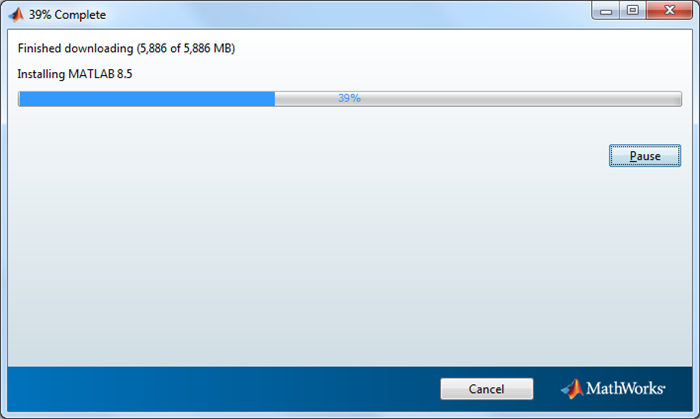
- Run the installer. Open the downloaded file and follow the on-screen instructions. Sign in when prompted, select the products you need, and choose an installation location.
- Activate MATLAB. Complete activation using your MathWorks account or the license information provided by your organization.
Can You Download MATLAB for Free?
MATLAB generally requires a license. MathWorks may offer a trial, and some universities, schools, and employers provide access as part of an institutional license. Students should check with their school to see whether MATLAB is included. Always review the current terms and eligibility requirements on the official MathWorks website.
If you don’t need a desktop installation, MATLAB Online lets eligible users work with MATLAB in a web browser. Availability and features depend on your account and license.
Choosing Toolboxes
MATLAB can be extended with toolboxes for specialized tasks, including machine learning, image processing, signal processing, control systems, and statistics. You don’t necessarily need to install every toolbox. Choose the products required for your work to keep the installation focused, and confirm that your license includes them.
Common MATLAB Download and Installation Issues
- No download access: Sign in with the account linked to your license, or ask your school or employer to confirm that your access is active.
- Installer won’t open: Check that you downloaded the installer for your operating system and that your computer meets the release’s requirements.
- Activation problems: Verify your MathWorks sign-in and license details. For an organization-managed license, contact your institution’s software administrator.
- Not enough disk space: Remove unneeded files or select only the MATLAB products and toolboxes you require.
- Slow or interrupted download: Use a stable internet connection and restart the download through your MathWorks account if necessary.
Download MATLAB Safely
For the latest installer, license information, and troubleshooting guidance, use MathWorks’ official website and support resources. Downloading from the official source helps ensure you get an authentic release that can be installed and activated with your account.
Once installation is complete, open MATLAB and try a sample script or tutorial to confirm that it’s working. If you’re using MATLAB for a class or project, check the required release and toolboxes before getting started.
9 Essential Tips for Downloading and Installing MATLAB
- Download MATLAB from the official MathWorks website.
- Check your system meets MATLAB’s requirements.
- Choose the installer for your operating system.
- Sign in with your MathWorks account.
- Confirm your license or trial eligibility.
- Select only the toolboxes you need.
- Use a stable internet connection during download.
- Verify the installer finishes downloading before opening it.
- Follow the installer prompts to complete setup.
Download MATLAB from the official MathWorks website.
For a safe and reliable MATLAB download, get the installer directly from the official MathWorks website. This helps ensure you receive an authentic, up-to-date version and avoid potentially unsafe or outdated files from third-party sites. Before downloading, sign in to your MathWorks account and confirm that your license, trial, or school or workplace access is active.
Check your system meets MATLAB’s requirements.
Before downloading MATLAB, check that your computer meets the system requirements for the specific release you plan to install. Confirm that your operating system is supported and that you have enough memory, storage, and processing power. Requirements can vary by release and by the toolboxes you need, so reviewing them in advance can help prevent installation problems and ensure MATLAB runs smoothly.
Choose the installer for your operating system.
When downloading MATLAB, choose the installer that matches your computer’s operating system—Windows, macOS, or Linux. Using the correct installer helps ensure a smooth setup and avoids compatibility issues. If you’re unsure which system your computer uses, check its settings before downloading.
Sign in with your MathWorks account.
Sign in with your MathWorks account before downloading MATLAB. Your account helps verify your license or trial eligibility and gives you access to the correct installer and available products. If your school or employer provides MATLAB, use the account linked to its license or follow the sign-in instructions from your organization.
Confirm your license or trial eligibility.
Before downloading MATLAB, confirm that your MathWorks account is linked to an active license or that you qualify for a free trial. Students, educators, and employees may have access through a school or workplace, so check with your organization for sign-in or license instructions. If you’re considering a trial, review MathWorks’ current eligibility requirements and terms before starting. This helps ensure you can download, install, and activate MATLAB without interruptions.
Select only the toolboxes you need.
When downloading MATLAB, select only the toolboxes you need for your current projects. Toolboxes add specialized features for tasks like image processing, statistics, and machine learning, but installing extras can use more storage and take longer. You can check your course or project requirements first, then add other toolboxes later if needed—provided your license includes them.
Use a stable internet connection during download.
Use a stable internet connection when downloading MATLAB to help prevent interruptions, incomplete files, or installation errors. If possible, connect to a reliable Wi-Fi network or use a wired connection, and avoid pausing the download or switching networks until it’s finished.
Verify the installer finishes downloading before opening it.
Before opening the MATLAB installer, make sure the download has finished completely. An incomplete file may fail to launch or cause installation errors. Check your browser’s download list for a completed status, and confirm the file size looks reasonable before running it.
Follow the installer prompts to complete setup.
Follow the installer prompts to complete setup. You may be asked to sign in to your MathWorks account, choose which MATLAB products or toolboxes to install, and select an installation location. Once installation finishes, follow the activation instructions shown on screen, then launch MATLAB to confirm it’s ready to use.
Tags: control systems, download troubleshooting, install matlab, linux, machine learning, macos, matlab account, matlab activation, matlab download, matlab installer, matlab license, matlab online, matlab toolboxes, matlab trial, safe software download, statistics, student license, system requirements, windows