
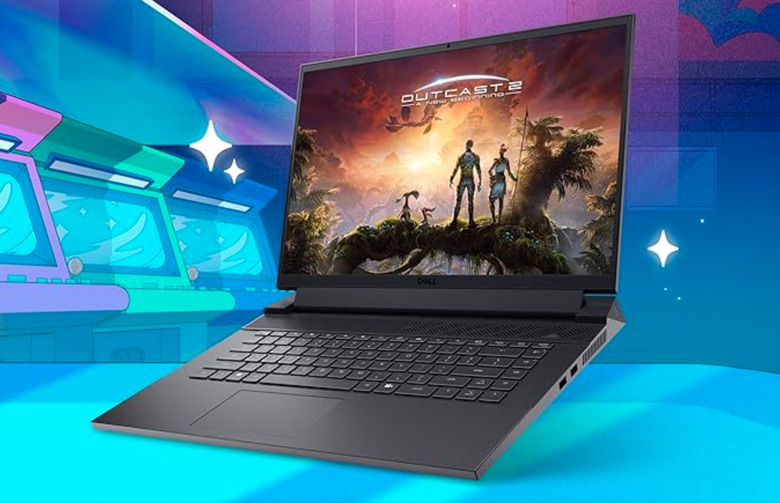
Dell Gaming Laptop: How to Choose the Right One
A Dell gaming laptop can deliver the performance of a gaming PC in a portable design. Whether you want to play competitive online games, explore detailed open worlds, or use one computer for gaming and school or work, Dell offers options across different performance and price levels.
The best choice depends on the games you play, your budget, and how often you plan to take your laptop with you. Here’s what to consider before buying.
Dell Gaming Laptop Families
Dell’s gaming laptops are generally found under two names: Dell G Series and Alienware. They cater to different needs, though the right choice depends on the specific configuration and price.
- Dell G Series: Designed for gamers looking for capable hardware and useful gaming features at a more accessible price. These laptops can be a practical choice for everyday gaming and general use.
- Alienware: Dell’s premium gaming brand, often featuring distinctive designs and high-performance configurations. Alienware models may suit players who want more powerful hardware, advanced displays, or additional customization options.
Compare the specifications of individual laptops rather than choosing by brand name alone. Graphics, cooling, screen quality, and price can vary considerably between configurations.
Choose a Graphics Card for Your Games
The graphics card, also called the GPU, has a major impact on gaming performance. A laptop with a more powerful GPU can generally handle higher graphics settings and demanding games more comfortably. However, performance also depends on cooling, power limits, and the laptop’s overall design.
Before shopping, make a list of the games you play and the resolution you want to use. Players focused on esports titles may prioritize a high-refresh-rate screen, while those who enjoy visually demanding games may prefer a stronger GPU. Checking independent reviews of the exact configuration can help you understand real-world performance.
Pay Attention to the Processor, Memory, and Storage
The processor supports gaming, multitasking, and everyday computing. A recent Intel or AMD processor can provide a responsive experience, but it’s worth comparing the specific processor models rather than relying only on the brand or product family.
Memory and storage matter, too. More memory can help when running games alongside voice chat, a browser, or other applications. A solid-state drive (SSD) helps games and programs load quickly. If you keep a large game library, check the laptop’s storage capacity and whether it can be upgraded.
Look for a Display That Fits Your Play Style
A gaming laptop’s display affects both image quality and responsiveness. Consider these features when comparing models:
- Resolution: Higher resolutions can make images look sharper, but they also place a greater demand on the graphics card.
- Refresh rate: A higher refresh rate can make motion look smoother, especially in fast-paced games.
- Screen size: A larger display can make games more immersive, while a smaller laptop may be easier to carry.
- Brightness and color: These affect how the screen looks in different lighting and how vivid images appear.
Match the display to the laptop’s graphics capability. A high-resolution, high-refresh-rate screen is most useful when the hardware can deliver the performance to take advantage of it.
Consider Cooling, Noise, and Battery Life
Gaming hardware produces heat, so cooling is an important part of a laptop’s design. During demanding games, fans may become noticeable and the chassis may feel warm. Reviews can help show how a particular model handles heat, fan noise, and sustained performance.
Battery life is another practical consideration. Gaming laptops usually perform best when plugged into power, and battery life can vary depending on the display, settings, and workload. If you plan to use the laptop away from an outlet, look for battery tests based on everyday tasks, not just manufacturer estimates.
Think About Portability and Build
A larger gaming laptop can provide more screen space and room for cooling, but it may be heavier and require a larger power adapter. A thinner or smaller laptop is easier to carry, though you should still check its cooling and performance before buying.
Also consider the keyboard, trackpad, webcam, speakers, and available ports. These details can make a difference if the laptop will also be used for classes, video calls, creative projects, or everyday browsing.
Is a Dell Gaming Laptop Right for You?
A Dell gaming laptop may be a good fit if you want a portable computer for gaming and general use, and you value having multiple configurations to compare. A Dell G Series model may be worth considering for a more budget-conscious setup, while an Alienware laptop may appeal to shoppers seeking a premium gaming experience.
Before making a decision, compare the full specifications, check the price of the exact configuration, and read reviews that test gaming performance and thermals. A well-matched laptop is often a better buy than simply choosing the model with the highest price or most impressive headline specification.
Frequently Asked Questions
Can a Dell gaming laptop be used for school or work?
Yes. Gaming laptops can also handle common tasks such as browsing, video calls, document editing, and many creative applications. Their weight, battery life, and power adapter size may be less convenient than those of a lightweight everyday laptop.
Is Alienware better than Dell G Series?
Not in every situation. Alienware is Dell’s premium gaming line, while Dell G Series models often target shoppers looking for gaming performance at a more accessible price. Compare the hardware, screen, cooling, features, and cost of the specific laptops you’re considering.
Can the components in a Dell gaming laptop be upgraded?
Upgrade options depend on the model. Some laptops allow users to replace or expand certain components, such as memory or storage, while other parts may not be upgradeable. Check the official specifications and service documentation for the exact model before buying.
Final Thoughts
The right Dell gaming laptop is the one that suits your games, budget, and daily routine. Focus on the graphics card, display, cooling, memory, storage, and portability—and compare the exact configurations available. With a little research, you can find a Dell laptop that fits your gaming setup without paying for features you don’t need.
5 Essential Tips to Keep Your Dell Gaming Laptop Running Smoothly
- Keep vents clear for better cooling.
- Update graphics drivers regularly.
- Use the charger while gaming.
- Adjust game settings for smoother play.
- Clean the fans and vents periodically.
Keep vents clear for better cooling.
Keep your Dell gaming laptop’s air vents clear to help it cool properly during gameplay. Place the laptop on a hard, flat surface rather than a bed, blanket, or other soft material that can block airflow. Regularly remove dust from the vents with care, and leave space around the laptop so warm air can escape. Good airflow helps manage heat and can support consistent performance during long gaming sessions.
Update graphics drivers regularly.
Keep your Dell gaming laptop’s graphics drivers up to date to improve game compatibility, fix bugs, and get the latest performance optimizations. Check for updates through Dell Support or the software provided by your graphics card manufacturer, such as NVIDIA or AMD. Before installing a driver, confirm that it matches your laptop’s graphics hardware and operating system, then restart your laptop if prompted.
Use the charger while gaming.
For the best performance, keep your Dell gaming laptop plugged into its charger while playing. Gaming can place heavy demands on the processor and graphics card, and running on battery may limit performance or drain the battery quickly. Use the charger that came with your laptop, and make sure it’s connected securely.
Adjust game settings for smoother play.
Adjusting your game settings can help a Dell gaming laptop deliver smoother, more consistent performance. If a game feels choppy, lower demanding options such as shadows, reflections, and anti-aliasing, or reduce the resolution. For faster-paced games, choosing a higher frame rate and lowering visual effects may make gameplay feel more responsive. Change one setting at a time and test the results to find a balance between smooth performance and image quality.
Clean the fans and vents periodically.
Clean your Dell gaming laptop’s fans and vents periodically to help maintain airflow and reduce heat buildup. Turn the laptop off and unplug it before cleaning, then use short bursts of compressed air to clear dust from the vents. Avoid pushing debris deeper into the laptop, and follow Dell’s care instructions for your specific model. If dust has built up inside or the fans remain noisy, consider having the laptop professionally serviced.
Tags: alienware, battery life, budget, cooling, dell g series, dell gaming laptop, display resolution, fan noise, gaming laptop reviews, gaming performance, gpu, graphics card, laptop specifications, memory, portability, processor, refresh rate, school and work use, ssd storage, upgrade options