
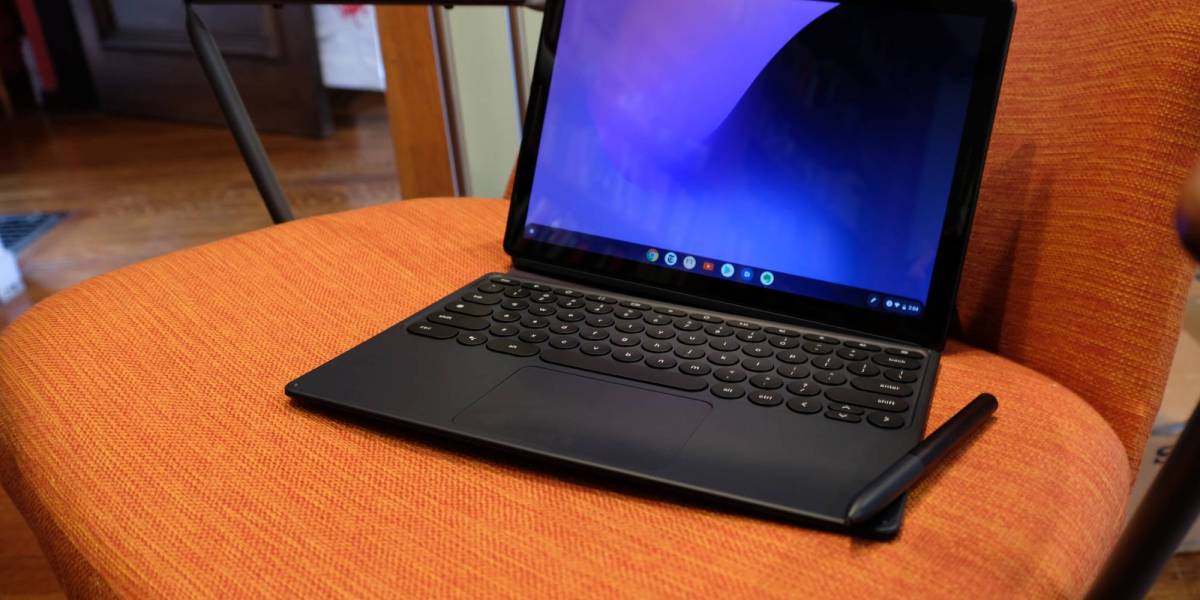
Google Pixel Slate: A ChromeOS Tablet Reviewed
The Google Pixel Slate was an ambitious attempt to combine the portability of a tablet with the productivity of a laptop. Introduced in 2018, it paired a large, high-resolution touchscreen with ChromeOS and optional accessories such as a detachable keyboard and stylus. Google no longer sells the Pixel Slate, but it may still appear on the refurbished and used-device market.
What Is the Pixel Slate?
The Pixel Slate is a 12.3-inch tablet running ChromeOS. Its 3:2 display has a resolution of 3000 × 2000 pixels, making it well suited to reading, browsing, and working with documents. The taller screen shape offers more vertical space than a typical widescreen display, though it can feel less natural for watching some videos.
Unlike a traditional laptop, the Slate’s keyboard is detachable and was sold separately. Google’s Pixel Slate Keyboard added a trackpad and adjustable kickstand, while compatible third-party keyboards offered alternatives. The Pixelbook Pen, also sold separately, let users write and draw on the screen.
Performance and Configurations
Google offered the Pixel Slate in several configurations, with Intel Celeron, Core m3, Core i5, or Core i7 processors, depending on the model. Memory and storage also varied. Entry-level versions were intended for everyday browsing and light tasks, while higher-end models offered more capacity for demanding workloads and multitasking.
That range makes it important to check the exact specifications when considering a used Slate. Two devices with the same name can deliver noticeably different performance, and a budget configuration may feel limited when juggling many tabs or running heavier apps.
ChromeOS on a Tablet
ChromeOS gives the Pixel Slate access to the Chrome browser, Google’s productivity tools, and a wide range of web-based services. Depending on software version and device support, it can also run Android apps and Linux applications. This flexibility makes the Slate useful for tasks such as browsing, email, streaming, note-taking, and working with online documents.
ChromeOS is generally straightforward to use, but the experience is not identical to an iPad or a Windows tablet. Some apps work best with a keyboard and mouse, and not every Android app is optimized for a large tablet screen. Before buying, consider whether the apps and services needed for work or school are compatible.
Design, Ports, and Features
The Pixel Slate has a slim aluminum body, front-facing speakers, and two USB-C ports. Its fingerprint sensor is built into the power button, offering a convenient way to unlock the device. The tablet also has front- and rear-facing cameras for video calls and basic photography.
With the keyboard attached, the Slate can handle many laptop-style tasks. Without it, it works as a large-screen tablet for reading, browsing, and entertainment. However, the keyboard and stylus add to the overall cost, and the tablet-and-keyboard combination is less convenient to use on a lap than many conventional laptops.
Battery Life
Google advertised up to 10 hours of battery life, though real-world results depend on screen brightness, connected accessories, apps, and workload. As with any older device, a used Pixel Slate may have reduced battery capacity. Ask about battery condition or test the device before buying if possible.
Advantages and Disadvantages
Advantages
- Sharp, high-resolution 12.3-inch display
- ChromeOS support for web-based productivity and entertainment
- Detachable design for tablet and laptop-style use
- Two USB-C ports and a built-in fingerprint sensor
- Several processor and memory configurations were available
Disadvantages
- Google has discontinued the device, so it is generally found used or refurbished
- Keyboard and stylus accessories were sold separately
- Performance differs considerably between configurations
- Some apps are less comfortable to use on a large tablet
- Software support and battery condition should be checked before purchase
Is the Pixel Slate Still Worth Buying?
The Pixel Slate may suit someone who wants an inexpensive ChromeOS tablet for browsing, streaming, reading, or light productivity. It is most appealing when sold at a low price and in good condition, especially if the keyboard is included. For heavier work, a newer Chromebook or tablet may offer better performance, longer support, and a more dependable battery.
Because the Pixel Slate is an older, discontinued device, check Google’s current Chromebook update policy for its remaining software-support period before purchasing. Also confirm the processor, memory, storage, battery condition, and included accessories. Those details matter more than the model name alone.
Final Verdict
The Google Pixel Slate remains an interesting ChromeOS device, with a crisp display, flexible form factor, and useful productivity features. Its age and discontinued status make it a cautious buy rather than an easy recommendation. At the right price, it can still handle everyday tasks; for long-term use or demanding work, a newer device is likely the safer choice.
Maximize Your Pixel Slate Experience: 9 Essential Tips for Optimal Use
- Use the Pixel Slate’s detachable keyboard for laptop-style work.
- Switch to Tablet mode for touch-friendly navigation.
- Use the Pixelbook Pen for notes and sketches.
- Adjust display brightness in Quick Settings.
- Use split screen to work with two apps at once.
- Connect Bluetooth headphones in Settings.
- Keep ChromeOS updated for security and new features.
- Use the USB-C ports for charging and accessories.
- Check battery health and charging habits in Settings.
Use the Pixel Slate’s detachable keyboard for laptop-style work.
Attach the Pixel Slate’s detachable keyboard to turn the tablet into a laptop-style workspace for writing, email, and other productivity tasks. The keyboard and trackpad make typing and navigating ChromeOS more comfortable than using the touchscreen alone, while the built-in kickstand helps you find a suitable viewing angle. When you’re done working, detach the keyboard to return to a lighter, tablet-style setup.
Switch to Tablet mode for touch-friendly navigation.
Switching your Pixel Slate to Tablet mode makes ChromeOS easier to use with your fingers. When you detach the keyboard, the interface adapts for touch, with larger controls and more comfortable on-screen navigation. Tablet mode is especially useful for browsing, reading, watching videos, or using apps without a keyboard and trackpad.
Use the Pixelbook Pen for notes and sketches.
The Pixelbook Pen can make the Pixel Slate more useful for handwritten notes, quick sketches, and marking up documents. Its pressure-sensitive tip lets you vary line thickness as you draw, while compatible note-taking and creative apps make it easy to capture ideas directly on the screen. Keep in mind that the pen is a separate accessory, and app support may vary, so check that your preferred apps work with stylus input.
Adjust display brightness in Quick Settings.
To adjust the Pixel Slate’s display brightness, open Quick Settings by swiping down from the top-right corner of the screen. Find the brightness slider, then drag it left to dim the display or right to make it brighter. Lowering brightness can make the screen more comfortable in a dark room and help conserve battery, while increasing it can improve visibility in bright surroundings.
Use split screen to work with two apps at once.
Use split screen on your Pixel Slate to work with two apps at once, such as keeping a document open while browsing the web or taking notes during a video call. Open the first app, then drag its window to the left or right edge of the screen until it snaps into place. Next, select the second app to fill the remaining space. You can adjust the divider between the windows to give either app more room, making it easier to multitask without constantly switching back and forth.
Connect Bluetooth headphones in Settings.
To connect Bluetooth headphones to your Pixel Slate, open Settings and select Bluetooth. Turn Bluetooth on, then put your headphones in pairing mode. When they appear in the list of available devices, select them and follow any on-screen prompts. Once paired, the headphones should connect automatically when Bluetooth is enabled and they’re nearby.
Keep ChromeOS updated for security and new features.
Keep your Pixel Slate updated to get the latest ChromeOS security protections, bug fixes, and features. To check for updates, connect to Wi-Fi, open Settings, and select About ChromeOS, then choose Check for updates. Install any available update and restart your Slate if prompted. Regular updates can help keep your device safer and running smoothly, though the Pixel Slate’s support period may have ended, so check Google’s update policy for your device.
Use the USB-C ports for charging and accessories.
The Pixel Slate’s two USB-C ports make it easy to charge the tablet and connect compatible accessories. Use either port to plug in the included charger, or connect devices such as a USB-C hub, external display, storage drive, or headphones with the appropriate adapter. A hub can be especially useful when you need to connect several accessories at once. Check that your cables and accessories support the functions you need, since charging speed and compatibility can vary.
Check battery health and charging habits in Settings.
Check your Pixel Slate’s battery health and charging habits in Settings to get a better sense of how well the battery is holding up. Review the available battery information and look for patterns such as frequent rapid drain or unexpected shutdowns. ChromeOS settings and battery details can vary by version, so if you don’t see a battery health report, check for system updates or consult Google’s support guidance. To help preserve battery life, avoid exposing the Slate to extreme heat and unplug it once it’s fully charged when convenient.
Tags: 12.3-inch touchscreen, battery life, chromebook, chromeos tablet, detachable keyboard, device configurations, fingerprint sensor, google pixel slate, intel processors, pixel slate, pixelbook pen, refurbished devices, software support, tablet productivity, usb-c ports, used tablet