
Google Mesh Network: How Google Wifi and Nest Wifi Work
A Google mesh network is a home Wi-Fi system that uses a main router and one or more additional access points to spread wireless coverage throughout your home. Google’s mesh products include Google Wifi, Nest Wifi, and Nest Wifi Pro. Instead of relying on a single router to reach every room, a mesh system creates a network of connected devices that work together to provide coverage in more places.
Google mesh Wi-Fi can be useful in larger homes, multistory buildings, or spaces where walls and other obstacles weaken a router’s signal. It can also make it easier to manage your home network through Google Home.
What Is a Mesh Network?
A traditional Wi-Fi setup usually has one router that sends a wireless signal throughout your home. The farther a device is from the router—and the more walls or floors between them—the weaker the connection may become.
A mesh network adds access points, sometimes called points or nodes, around the home. These points communicate with the main router and help carry the network’s signal to areas that may otherwise have poor coverage. Your devices can connect to the mesh point with the strongest available signal as you move around.
With a Google mesh system, the main router connects to your modem. Additional compatible Google Wifi or Nest Wifi devices can then extend the network. The system uses one Wi-Fi network name, so you generally don’t have to switch networks manually as you walk from room to room.
Google Wifi, Nest Wifi, and Nest Wifi Pro
Google’s mesh products come in a few generations. Their features and compatibility differ, so it’s worth checking the exact model before buying or adding a device to an existing setup.
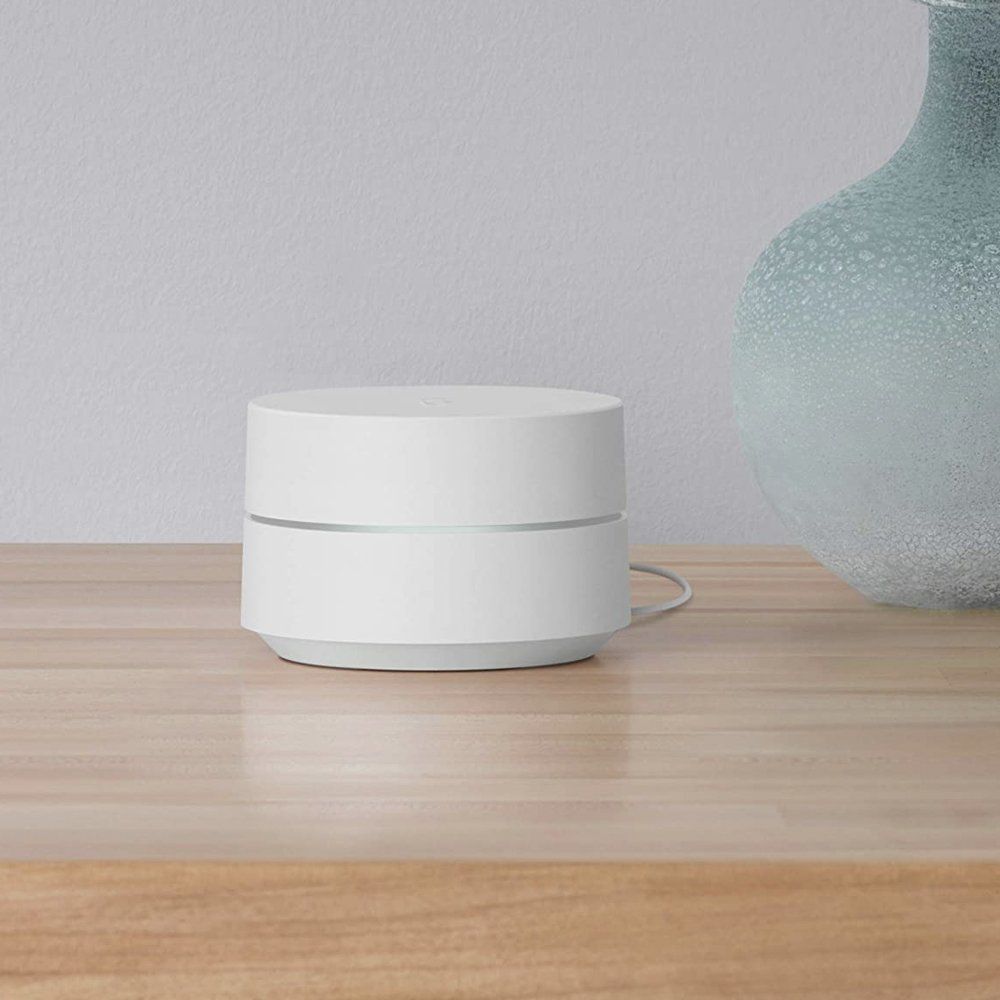
- Google Wifi: A mesh system made up of Google Wifi points. Each point can function as a router or an additional point, depending on how the network is configured.
- Nest Wifi: A system with a Nest Wifi router and optional Nest Wifi points. Nest Wifi points also include a Google Assistant speaker. Google Wifi devices can be added to some Nest Wifi networks, but Nest Wifi points and Google Wifi points are not interchangeable in every configuration.
- Nest Wifi Pro: A newer system that supports Wi-Fi 6E, including the 6 GHz band. Nest Wifi Pro devices form their own mesh network and cannot be combined with Google Wifi or the earlier Nest Wifi system as mesh points.
Supported features, speed, and setup options depend on the specific model and your internet service. Check Google’s current compatibility information before mixing devices from different generations.
Benefits of a Google Mesh Network
More consistent coverage
Adding points in suitable locations can improve Wi-Fi coverage in rooms that are far from the main router. A mesh system may help reduce dead zones, although it cannot guarantee strong service in every building or location.
One network throughout the home
Google mesh systems use a shared network name and password across the mesh. Compatible devices can connect to the system as you move around, rather than requiring separate network names for each point.
Simple management
Google Wifi and Nest Wifi are managed through the Google Home app. Depending on your system, the app can help you set up the network, view connected devices, run connection tests, share the Wi-Fi password, and adjust certain settings.
Room to expand
You can add compatible points to improve coverage, subject to the system’s limits and compatibility requirements. Adding more points is not always better, however. Too many points, or points placed too close together, can make a network less effective.
How to Set Up Google Mesh Wi-Fi
The setup process varies slightly by product, but the general steps are similar:
- Connect the main router. Plug the primary Google Wifi or Nest Wifi router into your modem using an Ethernet cable, then connect it to power.
- Open Google Home. Use the Google Home app and follow the prompts to add the router and create your Wi-Fi network.
- Choose a network name and password. Use a strong password that is difficult to guess. Devices will use these credentials to connect to the network.
- Add additional points. Place compatible points around your home and add them through the app. Follow the app’s connection and placement guidance.
- Test the connection. Use the app or your devices to check whether the points are online and coverage has improved where you need it.
For the best results, place each point in an open area where it can still receive a strong signal from the main router or another point. Putting a point in a Wi-Fi dead zone may not help, because it needs a reliable connection to the rest of the mesh.
Can Google Wifi Points Be Connected With Ethernet?
Some Google mesh setups support wired connections between the router and additional points. This is often called wired backhaul. When supported and configured correctly, Ethernet can give points a more direct connection to the main network and may improve performance, especially in homes with thick walls or long distances between floors.
Ethernet capabilities depend on the model and setup. Check the port layout and product instructions for your specific devices before planning a wired installation.
Tips for Improving a Google Mesh Network
- Position points thoughtfully. Place them in open, central locations rather than behind furniture, inside cabinets, or beside large appliances.
- Keep points within range. A point needs a good connection to the main router or another point to extend the network effectively.
- Avoid unnecessary points. Start with the router and add points only where coverage is weak. Follow the app’s guidance about placement and connection quality.
- Check your internet plan. A mesh system can improve Wi-Fi coverage, but it cannot make your internet service faster than the speed provided by your internet provider.
- Restart the network if needed. If a point goes offline, check its power and placement, then use the Google Home app to review the network or restart equipment.
- Keep software current. Updates can help maintain security and reliability. Google-managed updates and available settings vary by product.
Google Mesh Network vs. a Wi-Fi Extender
A Wi-Fi extender typically rebroadcasts an existing wireless signal, sometimes creating a separate network name. A mesh system is designed to provide a more unified network, with the router and points working together under one network name.
The right choice depends on your home and budget. An extender may be suitable for a small area that needs a modest boost. A mesh system may be a better fit when several rooms or floors need coverage, or when you want centralized management through an app.
Is a Google Mesh Network Right for You?
A Google mesh network may be a good option if your current router leaves parts of your home with weak or unreliable Wi-Fi and you want a system that is managed through Google Home. It can also be convenient for households with many connected devices spread across multiple rooms.
Before purchasing, consider your home’s size and layout, internet plan, device requirements, and the cost of adding extra points. Also confirm that the products you plan to use are compatible. With the right equipment and placement, Google Wifi or Nest Wifi can provide a straightforward way to extend wireless coverage across a home.
Google Mesh Network FAQs: Setup, Compatibility, Coverage, and Speed
- What is a Google mesh network, and how does it work?
- How many Google Wifi or Nest Wifi points do I need for my home?
- Can Google Wifi and Nest Wifi devices work together?
- How do I set up a Google mesh network?
- How can I improve the speed and coverage of my Google mesh network?
What is a Google mesh network, and how does it work?
A Google mesh network is a Wi-Fi system made up of a main router and one or more compatible points that work together to extend wireless coverage throughout your home. The router connects to your modem, while the points communicate with the router or one another to carry the Wi-Fi signal into rooms that may be farther away. Together, they create one network name, allowing your devices to connect as you move around without manually switching networks. Google Wifi and Nest Wifi systems are managed through the Google Home app, though features and device compatibility vary by model.
How many Google Wifi or Nest Wifi points do I need for my home?
The number of Google Wifi or Nest Wifi points you need depends on your home’s size, layout, building materials, and Wi-Fi dead zones. Start with the router and add points only if you still have weak coverage; place each point where it can get a good signal from the router or another point, not in the dead zone itself. Google’s coverage estimates can help guide your choice, but thick walls, multiple floors, and interference may affect real-world performance.
Can Google Wifi and Nest Wifi devices work together?
Yes, some Google Wifi and Nest Wifi devices can work together in the same mesh network. Google Wifi points can be added to certain Nest Wifi networks, but Nest Wifi points can’t be used with Google Wifi routers, and Nest Wifi Pro devices can’t join either older system. Because compatibility depends on the exact models and setup, check Google’s current compatibility guidance before combining devices.
How do I set up a Google mesh network?
To set up a Google mesh network, connect your Google Wifi or Nest Wifi router to your modem and power it on, then open the Google Home app and follow the on-screen instructions to create your Wi-Fi network. Once the router is online, add compatible mesh points through the app and place them in open locations where they can maintain a strong connection to the router or another point. Finish by checking the app to confirm that each point is connected and your coverage has improved. Setup steps and device compatibility can vary by model.
How can I improve the speed and coverage of my Google mesh network?
To improve the speed and coverage of your Google mesh network, place the main router in a central, open location and position additional points between it and areas with weak Wi-Fi—not inside dead zones. Keep points away from thick walls, metal objects, and appliances that can interfere with the signal, and use the Google Home app to check connection quality and adjust placement. If your setup supports it, connecting points with Ethernet can improve performance. Restart your network and check for available updates if problems persist, and remember that mesh Wi-Fi can improve coverage but cannot exceed the speed provided by your internet plan.
Tags: 6 ghz band, access points, connected devices, dead zones, device compatibility, ethernet, google home app, google mesh network, google wifi, home wi-fi system, internet speed, mesh points, mesh wi-fi, nest wifi, nest wifi pro, network management, network setup, point placement, router, wi-fi 6e, wi-fi coverage, wi-fi extender, wi-fi nodes, wired backhaul, wireless coverage