
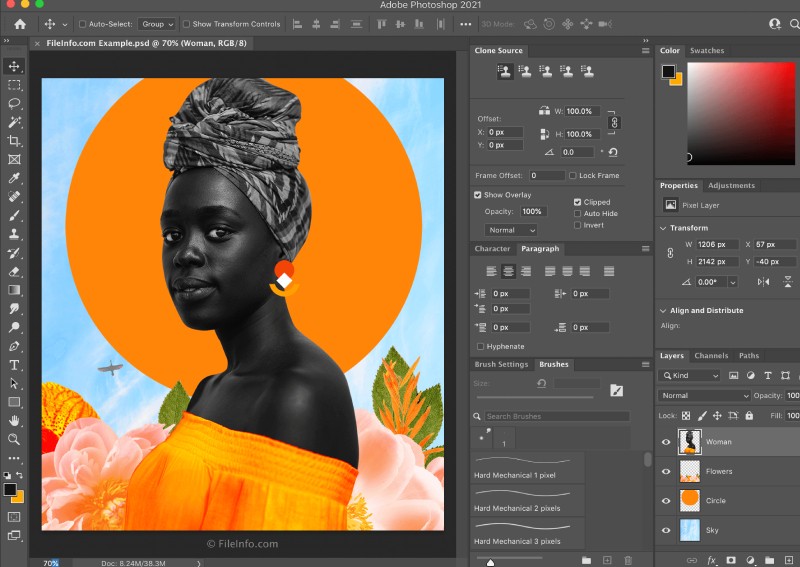
Online Photoshop: How to Edit Photos in Your Browser
Online Photoshop makes it possible to edit images without installing the full desktop application. Whether you want to remove an unwanted object, adjust colors, add text, or create a social media graphic, browser-based editing tools can help you get the job done from a computer with an internet connection.
The phrase “online Photoshop” can mean Adobe Photoshop on the web or any browser-based photo editor with similar features. Knowing the difference can help you choose the right tool for your project.
What Is Adobe Photoshop on the Web?
Adobe Photoshop on the web is a browser-based version of Photoshop. It lets you work with images online and includes familiar editing features such as layers, selections, masks, and adjustments. Your projects can be saved as cloud documents, making it easier to access them across compatible devices.
Photoshop on the web is not a complete copy of the desktop app. Some tools and advanced workflows may only be available in the installed version, and available features can change over time. Access may also depend on your Adobe plan, account, region, and browser.
What Can You Do With an Online Photo Editor?
Depending on the tool you choose, browser-based editors can support a range of common tasks, including:
- Crop, resize, rotate, and straighten images
- Adjust brightness, contrast, color, and exposure
- Remove or retouch small imperfections
- Add text, shapes, filters, and graphic elements
- Work with layers and combine multiple images
- Export finished designs in common image formats
These tools are useful for quick edits, simple designs, and projects that need to be accessed from more than one device. Complex retouching, large files, and professional production work may be better suited to desktop software.
How to Use Photoshop Online
- Check access requirements. Visit Adobe’s official website to see which features are available with your account and plan.
- Sign in. Log in with your Adobe account, or create one if needed.
- Open an image. Upload a file or select a cloud document, where supported.
- Edit a copy. Keep the original file unchanged in case you want to start over.
- Make and review your changes. Use layers when available, and zoom in to check details.
- Save or export. Follow the editor’s options to store your work online or download a finished image.
Online Photoshop vs. Free Alternatives
Several browser-based editors offer tools inspired by Photoshop, and some provide free features. They can be a good fit for basic cropping, color correction, text, or quick graphics. However, their features, file compatibility, export options, and privacy practices vary.
Before choosing an editor, consider the work you need to do. If you rely on Adobe-specific tools or want to continue a project created in Photoshop, Adobe’s web version may be more convenient. For a quick one-time edit, a simpler alternative may be enough. Always check whether an editor adds watermarks, limits file sizes, or requires payment for downloads.
Tips for Better Results
- Use a reliable connection. Uploading and editing large images can take time.
- Keep a backup. Save an untouched copy before editing.
- Choose the right file format. JPEG is commonly used for photos, while PNG can be useful for graphics that need transparency.
- Check image quality before exporting. Avoid reducing resolution if the image will be printed or displayed at a large size.
- Protect sensitive files. Review the service’s privacy and storage policies before uploading personal, confidential, or work-related images.
Frequently Asked Questions
Is Photoshop available online?
Yes. Adobe offers a browser-based Photoshop experience. The features and access available to you may depend on your account, plan, and region.
Can online Photoshop replace the desktop app?
It can handle many everyday edits, but it may not include every desktop feature or support every advanced workflow. Check the current feature list if your project depends on a specific tool.
Do I need to download anything?
A browser-based editor generally runs in a web browser, so you may not need to install the full desktop application. You may still need an account, a compatible browser, and an internet connection.
Is Online Photoshop Right for You?
Online Photoshop can be a convenient option for editing images from a browser, collaborating through cloud-based files, or making quick changes without installing desktop software. For basic edits, many online tools are easy to learn. For advanced projects, compare the available features and choose the editor that fits your workflow, budget, and privacy needs.
Top 5 FAQs About Using Photoshop Online
- Is Photoshop available online?
- Is there a free online version of Photoshop?
- Can I use Photoshop online without downloading software?
- What can I do with Photoshop on the web?
- How do I save or download an image edited in Photoshop online?
Is Photoshop available online?
Yes, Photoshop is available online through Adobe Photoshop on the web, which lets you edit images in a compatible browser without installing the desktop app. You’ll need an Adobe account, and access to specific features may depend on your plan, region, and browser. The web version supports many common editing tasks, though some advanced tools and workflows may require the desktop application.
Is there a free online version of Photoshop?
Yes, Adobe offers a free Photoshop experience on the web in some regions, but access and available features may depend on your account, location, and current Adobe offerings. A free Adobe account may also provide access to other browser-based editing tools, while the full Photoshop feature set generally requires a paid plan. Check Adobe’s official website for the latest availability and terms.
Can I use Photoshop online without downloading software?
Yes, you can use Photoshop online in a web browser without downloading the desktop software. Sign in to your Adobe account and open Photoshop on the web, where you can edit supported files using the features available with your plan. You’ll need a compatible browser and an internet connection, and some advanced tools may still require the desktop app.
What can I do with Photoshop on the web?
With Photoshop on the web, you can edit images right in your browser using tools for cropping, adjusting color and lighting, retouching, selecting and masking areas, and working with layers. You can also add text or combine image elements for simple designs. The exact features available may depend on your Adobe plan and can differ from the desktop app, so check Adobe’s current feature list for details.
How do I save or download an image edited in Photoshop online?
To save or download an image edited in Photoshop online, open the File menu and choose the available save or export option. You can save your work as a cloud document to continue editing later, or export a copy to your device in a supported format, such as JPEG or PNG. Check the export settings—especially file format, image quality, and size—before downloading. The exact options may vary depending on your account and the version of Photoshop on the web.
Tags: adobe photoshop on the web, browser-based photo editor, cloud documents, edit photos in browser, free photoshop alternatives, image editing, image formats, layers, masks, online photo editing, online photoshop, photo editing tools, photo export, photo retouching, privacy and security