
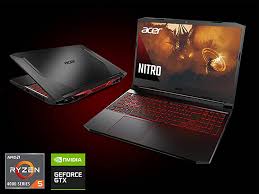
Acer Nitro 5 Gaming Laptop: What to Know Before You Buy
The Acer Nitro 5 is a popular gaming laptop series known for offering dedicated graphics and gaming-focused features at a more accessible price than many premium models. It has been sold in a wide range of configurations, so performance, display quality, battery life, and price can vary significantly from one Nitro 5 to another.
If you’re considering a Nitro 5, the most important step is to check the specifications of the exact model—not just the name on the box. Here’s what to look for and who this laptop may suit.
What Is the Acer Nitro 5?
The Nitro 5 is Acer’s mainstream gaming laptop line. Depending on the model and release year, it may include an Intel or AMD processor, an NVIDIA GeForce or AMD Radeon graphics processor, and a 15.6-inch or 17.3-inch display. Some configurations are designed for entry-level gaming, while others offer more powerful components for demanding games and creative workloads.
Because the Nitro 5 name covers many generations and configurations, two laptops with the same series name may have very different capabilities. Check the full model number and the listed CPU, GPU, memory, storage, and display before comparing prices.
Gaming Performance Depends on the Configuration
The graphics processor has the biggest influence on gaming performance. A Nitro 5 with an entry-level GPU may be well suited to esports games and older titles, while a model with a stronger GPU can handle more demanding games at higher settings. Actual results also depend on the game, resolution, cooling, and the laptop’s graphics power limits.
The processor matters, too. A recent Intel Core or AMD Ryzen chip can help with games that rely heavily on the CPU, multitasking, and everyday use. For a balanced system, compare the CPU and GPU together rather than choosing based on one headline specification.
Before buying, look up performance tests for the exact configuration you’re considering. Reviews of a different Nitro 5 model may not reflect its real-world gaming performance.
Display and Design
Many Nitro 5 models feature a Full HD display, a resolution that can be a practical match for laptop gaming. Some versions offer higher refresh rates, which can make fast movement look smoother—particularly in competitive games—if the hardware can produce enough frames per second.
Display specifications vary, so check the resolution, refresh rate, brightness, and panel type. A high refresh rate is useful, but it doesn’t automatically mean the screen has excellent brightness or color accuracy.
The Nitro 5 has a gaming-focused appearance, often with angular styling and a prominent keyboard. Its design may be less understated than a typical work laptop, and the chassis can be bulkier than an ultraportable notebook. Consider the laptop’s weight and power adapter size if you plan to carry it regularly.
Cooling, Fans, and Noise
Gaming laptops generate heat under load, and the Nitro 5 uses built-in cooling fans to manage it. During demanding games, the fans can become noticeable. Keeping the laptop on a hard, flat surface and allowing air to circulate around its vents can help it cool properly.
Cooling performance and fan behavior can differ between models. For a quieter experience, check reviews of the specific configuration and consider using the laptop’s performance settings to balance speed, temperature, and noise.
Memory, Storage, and Upgrades
Some Nitro 5 configurations allow users to upgrade memory or storage, but upgrade options depend on the exact model. Check Acer’s documentation or the laptop’s service information before buying components or opening the system.
For a smoother experience, pay attention to the amount of installed memory and the storage capacity. Modern games can take up substantial space, so a smaller drive may fill quickly. If the laptop supports additional storage, an upgrade may be an option, but verify compatibility first.
Battery Life and Everyday Use
Like most gaming laptops, the Nitro 5 is generally best used while plugged in for demanding games. Gaming on battery can reduce performance and drain the battery quickly. Battery life during lighter tasks—such as browsing or writing—varies by model, screen settings, battery condition, and workload.
The Nitro 5 can also serve as a general-purpose laptop for school, work, streaming, and creative projects. However, its size, fan noise, and battery life may be less convenient than those of a thin-and-light laptop.
Pros and Cons
Potential advantages
- Many configurations offer dedicated graphics at a more affordable price than premium gaming laptops.
- Some models include high-refresh-rate displays suited to fast-paced games.
- Depending on the configuration, memory or storage may be upgradeable.
- It can handle everyday computing as well as gaming.
Potential drawbacks
- Performance and features vary widely across Nitro 5 generations and configurations.
- Fans may be loud during gaming or other demanding tasks.
- Battery life is typically limited during gaming.
- The design and size may be less suitable for users seeking a lightweight, understated laptop.
- Some configurations may have modest displays, memory, or storage for their price.
How to Choose the Right Acer Nitro 5
Use this checklist when comparing models:
- Graphics: Confirm the exact GPU and look for gaming benchmarks for that configuration.
- Processor: Compare the CPU generation and model, especially if you play CPU-intensive games or use demanding applications.
- Display: Check resolution, refresh rate, brightness, and color characteristics.
- Memory: Make sure the installed amount suits your games and multitasking needs, and verify whether it can be upgraded.
- Storage: Consider how many games you plan to install and whether the laptop supports additional storage.
- Price: Compare the full specification with similarly priced laptops, rather than relying on the Nitro 5 name alone.
- Condition and warranty: For refurbished or used systems, check the battery, return policy, and warranty coverage.
Is the Acer Nitro 5 Worth Buying?
The Acer Nitro 5 can be a good choice for gamers looking for a capable laptop without moving into the most expensive gaming category. It may be especially appealing when a particular configuration is discounted and offers the graphics performance, display, and storage you need.
It isn’t one single laptop with one fixed set of specifications. Before purchasing, confirm the exact model number, compare independent tests, and make sure the configuration fits your games and budget. That research is the best way to find out whether a specific Acer Nitro 5 is the right gaming laptop for you.
9 Essential Tips for Better Gaming on Your Acer Nitro 5
- Keep vents clear to prevent overheating.
- Use a hard, flat surface while gaming.
- Plug in the charger for best gaming performance.
- Update graphics drivers regularly.
- Use NitroSense to monitor temperatures and fan speeds.
- Lower graphics settings if games stutter.
- Clean dust from vents periodically.
- Use a headset for clearer game audio.
- Check your exact model before buying upgrades.
Keep vents clear to prevent overheating.
Keep the Acer Nitro 5’s air vents clear to help prevent overheating and maintain consistent performance. Use the laptop on a hard, flat surface rather than a bed, blanket, or cushion that could block airflow, and leave space around the vents while gaming. Regularly remove dust from the vent openings, following Acer’s care instructions, so the cooling system can circulate air effectively.
Use a hard, flat surface while gaming.
When gaming on your Acer Nitro 5, place it on a hard, flat surface, such as a desk or table. Soft surfaces like beds, couches, or blankets can block the air vents and restrict airflow, causing the laptop to run hotter and its fans to work harder. Keeping the vents clear helps the cooling system manage heat during demanding games.
Plug in the charger for best gaming performance.
For the best gaming performance, plug your Acer Nitro 5 into its charger before launching a game. Gaming laptops often limit processor and graphics performance when running on battery to conserve power, so playing while plugged in can help deliver smoother frame rates and more consistent performance. Keep the laptop on a hard, flat surface to allow airflow, and use the power mode that best balances performance, fan noise, and temperature.
Update graphics drivers regularly.
Keep your Acer Nitro 5’s graphics drivers up to date to help maintain game compatibility, fix known bugs, and get performance improvements when available. Download drivers through Acer’s support website or the official NVIDIA or AMD software for your laptop’s graphics card, and confirm they match your exact model and operating system. Before installing, close games and other demanding apps; afterward, restart the laptop and check that your games run as expected.
Use NitroSense to monitor temperatures and fan speeds.
Use NitroSense to keep an eye on your Acer Nitro 5’s temperatures and fan speeds while gaming or running demanding apps. The utility can help you see how hard the cooling system is working and, on supported models, adjust fan or performance settings. If temperatures climb or the laptop becomes unusually loud, make sure its vents are clear and place it on a hard, flat surface to improve airflow.
Lower graphics settings if games stutter.
If games stutter on your Acer Nitro 5, try lowering the graphics settings to reduce the load on the laptop’s GPU and processor. Start with demanding options such as shadows, anti-aliasing, and effects, or switch to a lower resolution or performance preset. Apply the changes and test the game again; a steadier frame rate can make gameplay feel smoother, even if the image looks a little less detailed.
Clean dust from vents periodically.
Clean dust from your Acer Nitro 5’s vents periodically to help maintain airflow and keep the laptop from overheating during gaming. Power it off and unplug it first, then gently clear dust from the vents with compressed air, following Acer’s care instructions. Avoid inserting objects into the vents, and don’t open the laptop unless you’re comfortable doing so and it won’t affect your warranty.
Use a headset for clearer game audio.
Use a headset with your Acer Nitro 5 to hear game audio more clearly, from quiet footsteps to important dialogue and sound cues. A headset can also help reduce background noise and make voice chat easier for teammates to understand. For the best experience, choose a comfortable model with a microphone and connect it using the laptop’s compatible audio jack, USB port, or Bluetooth.
Check your exact model before buying upgrades.
Before buying upgrades for your Acer Nitro 5, check the exact model number and consult its specifications or service manual. Nitro 5 models can differ in memory type, storage slots, supported capacities, and upgrade access, so parts that fit one version may not work with another. Confirm compatibility before purchasing RAM or a drive to avoid unnecessary costs and installation problems.
Tags: acer gaming laptop, acer nitro 5, acer nitro 5 gaming laptop, amd radeon, amd ryzen, battery life, cooling fans, cpu, display quality, full hd display, gaming benchmarks, gaming laptop, gaming laptop price, gaming performance, gpu, graphics processor, intel core, laptop buying guide, laptop noise, laptop specifications, memory upgrades, model number, nvidia geforce, pros and cons, refresh rate, refurbished laptop, storage upgrades, warranty coverage