
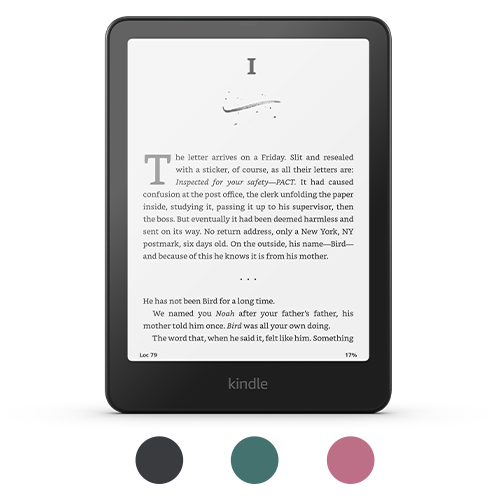
Amazon Kindle Scribe: An E-Reader That Lets You Write
The Amazon Kindle Scribe combines the familiar experience of reading on a Kindle with a large screen and a stylus for handwriting. It’s designed for people who want to read books and documents, jot down notes, or mark up pages—all on one device.
What Is the Kindle Scribe?
The Kindle Scribe is an e-reader with a built-in writing surface. Like other Kindle devices, it uses an electronic ink display designed for reading without the look of a traditional tablet screen. The larger format gives books, PDFs, and other documents more room, while the included stylus lets you write directly on the screen.
Instead of trying to replace a laptop or tablet, the Scribe focuses on reading and handwritten notes. Its simple interface and e-ink display can make it a comfortable option for long reading sessions and distraction-light writing.
Reading on the Kindle Scribe
The Scribe supports Kindle books and offers common e-reader features such as adjustable text size, bookmarks, and notes. The larger display can be especially useful for readers who prefer bigger text or want to see more of a page at once.
It can also be useful for reading certain documents, including PDFs. A larger screen gives document pages more space than a standard Kindle, though the experience may depend on the document’s layout and the tools available on your particular model.
Writing and Taking Notes
The stylus makes it possible to write by hand on the screen. You can create notebooks for lists, meeting notes, journaling, or planning. Depending on the software and document type, you may also be able to add handwritten notes to documents or use writing features alongside your Kindle books.
Handwriting on an e-ink screen feels different from writing on paper or a glass tablet. The Scribe is best suited to people who want a straightforward digital notebook for reading-related notes and everyday writing, rather than a full-featured drawing or design tool.
What Makes It Different From a Tablet?
A conventional tablet is built for a wide range of activities, including video, games, web browsing, and productivity apps. The Kindle Scribe is more focused. Its e-ink display is designed primarily for reading, and its software centers on books, documents, and notes.
- Reading-focused display: The e-ink screen is designed to resemble printed pages more than a typical tablet display.
- Long-form reading: Kindle’s reading environment is built around books and other text-based content.
- Handwritten notes: The stylus adds a note-taking option without turning the device into a general-purpose tablet.
- Fewer distractions: Its more focused design may appeal to readers who want fewer entertainment features.
Who Should Consider the Kindle Scribe?
The Kindle Scribe may be a good fit if you read frequently and want a larger Kindle screen, or if you’d like to keep reading and handwritten notes in one place. Students, professionals, and avid readers may appreciate the ability to organize notebooks alongside a digital library.
It may be less suitable if you need a device for color-heavy documents, advanced drawing, extensive app use, or fast-paced web browsing. A tablet or laptop may be a better choice for those tasks. It’s also worth considering whether you’ll use the writing features enough to justify choosing a larger, more specialized e-reader.
Things to Consider Before Buying
- Screen size: A larger display is helpful for documents and handwriting, but it can be less compact than a smaller Kindle.
- Writing needs: Think about whether you want basic notebooks and annotations or more advanced productivity tools.
- Document compatibility: Check that the file types and document features you rely on work well with the Scribe.
- Model differences: Features, included accessories, and software capabilities can vary by version and may change over time.
Is the Amazon Kindle Scribe Worth It?
The Kindle Scribe stands out by bringing reading and handwriting together in a dedicated e-reader. It can be a practical choice for people who want to read books, review documents, and keep handwritten notes without carrying separate devices.
Its value depends on how often you’ll use both sides of the experience. If you mainly want a compact device for reading, a smaller Kindle may be enough. But if a large e-ink screen and stylus-based note-taking sound useful, the Scribe offers a distinctive alternative to both a basic e-reader and a conventional tablet.
6 Amazon Kindle Scribe Tips for Better Note-Taking and Organization
- Use notebooks to organize handwritten notes by topic.
- Write directly on compatible PDFs and documents.
- Try different pen and highlighter settings for clearer notes.
- Convert handwritten notes to text when sharing them.
- Use folders to keep notebooks easy to find.
- Sync your content so it’s available across supported devices.
Use notebooks to organize handwritten notes by topic.
Use notebooks on your Amazon Kindle Scribe to keep handwritten notes organized by topic. Create separate notebooks for things like work meetings, school subjects, personal projects, or daily planning, so your notes are easier to find later. A clear naming system can make organization even simpler—for example, add a date to meeting notes or use a consistent title for each class.
Write directly on compatible PDFs and documents.
One of the Kindle Scribe’s most useful features is the ability to write directly on compatible PDFs and documents. Use the included stylus to underline key passages, jot down comments, or add quick notes without switching to another app or device. This can make reviewing reports, study materials, and other documents more convenient, though writing features may vary depending on the file type.
Try different pen and highlighter settings for clearer notes.
Experiment with the Kindle Scribe’s pen and highlighter settings to make your notes easier to read and review. Try different stroke thicknesses to find what works best for your handwriting, and use highlighter styles or colors to distinguish key ideas from supporting details. A little customization can make handwritten notes neater, improve contrast on the page, and help important information stand out.
Convert handwritten notes to text when sharing them.
When you’re ready to share a handwritten note from your Kindle Scribe, convert it to text first so it’s easier for others to read, copy, or edit. Open the note and look for the handwriting-to-text or conversion option, then review the result and fix any recognition mistakes before sharing. Clear handwriting and a quick proofread can help ensure your message comes through accurately.
Use folders to keep notebooks easy to find.
Use folders to keep your Kindle Scribe notebooks organized and easy to find. Create folders for different parts of your life—such as work, school, personal notes, or projects—then move each notebook into the right place. A simple folder system saves time when you need to revisit an idea and helps keep your notebook library from becoming cluttered.
Sync your content so it’s available across supported devices.
Sync your Kindle Scribe content to keep your books, notes, and reading progress available across supported devices linked to the same Amazon account. When your device is connected to Wi-Fi, syncing can help you pick up where you left off on a compatible Kindle or Kindle app. For the smoothest experience, make sure sync is enabled and allow your Scribe to connect before switching devices.
Tags: adjustable text size, amazon kindle scribe, avid readers, bookmarks, digital notebook, document annotation, document compatibility, e-ink display, e-reader, handwriting, handwritten notes, kindle books, large screen, note-taking, pdf reading, professionals, reading-focused device, screen size, students, stylus, tablet alternative