
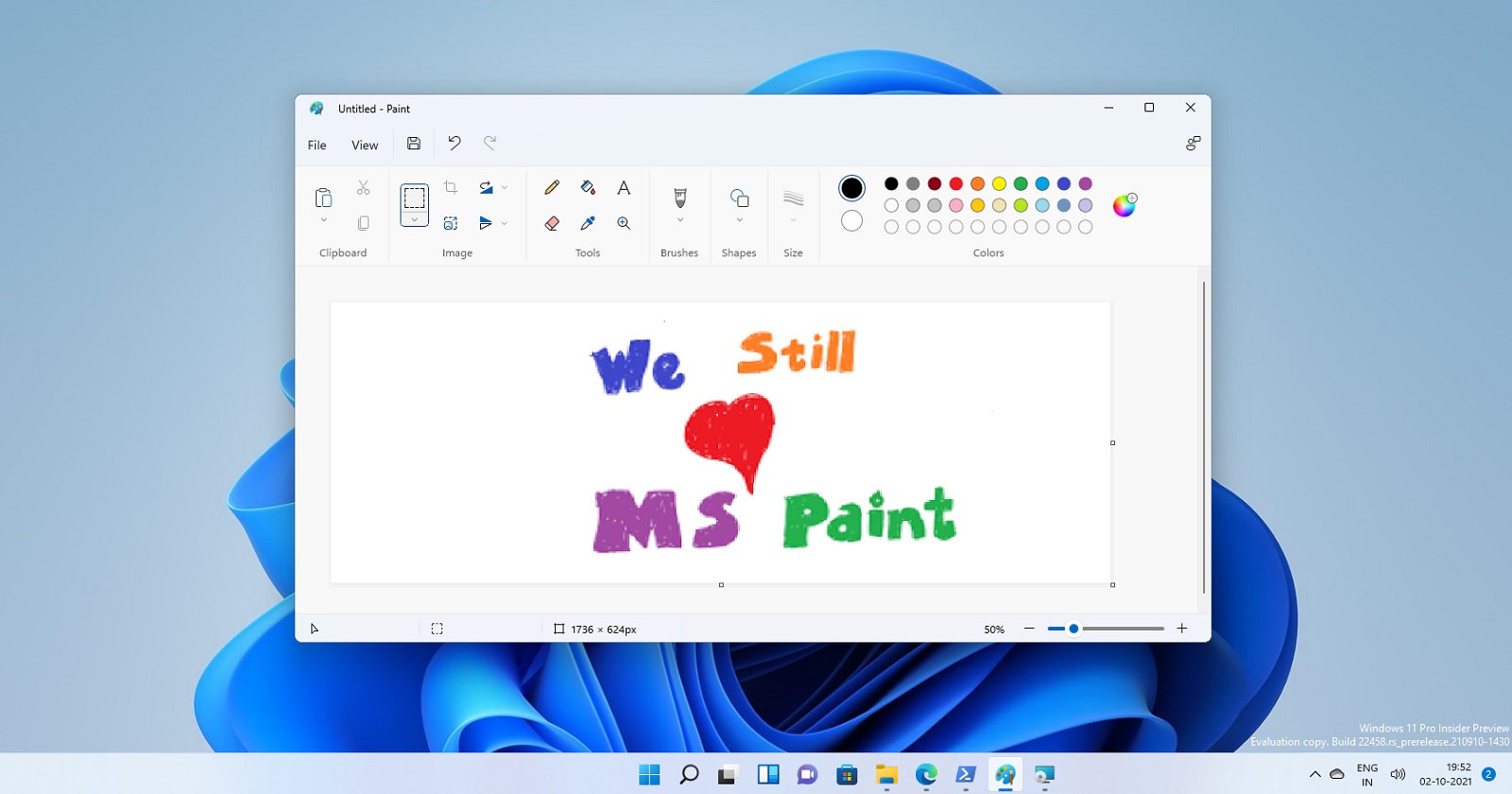
The Legacy of Microsoft Paint
Microsoft Paint, often fondly referred to as MS Paint, has been a staple in the Windows operating system for decades. Since its introduction in 1985 with the release of Windows 1.0, this simple yet versatile graphics program has captured the hearts of users worldwide.
Despite its basic features and limited capabilities compared to professional graphic design software, Microsoft Paint remains a popular choice for quick image editing, doodling, and creating simple graphics. Its intuitive interface and ease of use make it accessible to users of all ages and skill levels.
Over the years, Microsoft has made several updates and enhancements to Paint, adding new tools and functionalities while retaining its signature simplicity. From drawing tools like brushes, shapes, and text to basic image manipulation features such as cropping, resizing, and color adjustments, MS Paint continues to serve as a go-to tool for quick creative tasks.
One of the most iconic features of Microsoft Paint is its “Undo” button, allowing users to easily backtrack and correct mistakes—a feature that has saved many artworks from accidental mishaps.
While more advanced graphic design software exists in the market today, Microsoft Paint holds a special place in the hearts of many users who grew up using it. Its nostalgic charm and straightforward approach make it a beloved software that continues to be used for various creative projects.
In recent years, Microsoft has introduced modern alternatives to MS Paint such as Paint 3D with enhanced 3D modeling capabilities. However, the classic version of Microsoft Paint remains available in Windows operating systems for those who appreciate its simplicity and familiarity.
Whether you’re a seasoned graphic designer or simply looking to unleash your creativity through digital art, Microsoft Paint offers a timeless platform for unleashing your imagination and creating visual masterpieces one pixel at a time.
6 Essential Tips for Mastering Microsoft Paint
- Use the ‘Undo’ feature (Ctrl + Z) to correct mistakes.
- Explore different brush sizes and colors for more variety in your drawings.
- Utilize the ‘Fill’ tool to quickly color in shapes or areas.
- Try using the ‘Text’ tool to add text or labels to your images.
- Experiment with the ‘Resize’ option to adjust the dimensions of your canvas or image.
- Save your work regularly to prevent losing any progress.
Use the ‘Undo’ feature (Ctrl + Z) to correct mistakes.
In Microsoft Paint, a valuable tip for users is to utilize the ‘Undo’ feature by pressing Ctrl + Z on the keyboard. This handy shortcut allows you to quickly revert any mistakes or changes made while working on your artwork. Whether you accidentally delete a portion of your drawing or apply the wrong color, simply press Ctrl + Z to undo the action and restore your canvas to its previous state. Mastering this simple yet powerful feature can save you time and frustration, ensuring a smoother and more efficient creative process in Microsoft Paint.
Explore different brush sizes and colors for more variety in your drawings.
To enhance your drawings in Microsoft Paint, consider exploring different brush sizes and colors to add variety and depth to your artwork. By experimenting with a range of brush sizes, you can create intricate details or bold strokes, depending on your creative vision. Additionally, playing with a diverse palette of colors allows you to infuse your drawings with personality and vibrancy. Don’t hesitate to mix and match brush sizes and colors to unlock endless possibilities and elevate your artistic expression in Microsoft Paint.
Utilize the ‘Fill’ tool to quickly color in shapes or areas.
When using Microsoft Paint, a handy tip is to make use of the ‘Fill’ tool to efficiently color in shapes or areas with a single click. This tool saves time and effort by allowing you to quickly fill enclosed areas with the selected color, making it ideal for coloring backgrounds, shapes, or creating solid blocks of color in your artwork. Mastering the ‘Fill’ tool in Microsoft Paint can streamline your creative process and help you achieve polished results with ease.
Try using the ‘Text’ tool to add text or labels to your images.
When using Microsoft Paint, a helpful tip is to utilize the ‘Text’ tool to easily add text or labels to your images. This feature allows you to personalize your creations, annotate pictures, or create graphics with custom text. By selecting the ‘Text’ tool and clicking on the desired area of your image, you can type in text, choose font styles, sizes, and colors to enhance your design. Incorporating text using this tool adds a professional touch to your images and makes them more engaging and informative. Experimenting with the ‘Text’ tool in Microsoft Paint can unlock a whole new level of creativity and customization for your visual projects.
Experiment with the ‘Resize’ option to adjust the dimensions of your canvas or image.
When using Microsoft Paint, don’t hesitate to experiment with the ‘Resize’ option to tailor the dimensions of your canvas or image to your specific needs. Whether you’re looking to create a custom-sized graphic or adjust the proportions of an existing image, the ‘Resize’ feature in MS Paint allows you to easily modify the size of your artwork with precision and flexibility. By mastering this tool, you can fine-tune the dimensions of your creations and achieve the desired visual impact effortlessly.
Save your work regularly to prevent losing any progress.
It is crucial to save your work regularly while using Microsoft Paint to prevent the risk of losing any progress. By saving your file periodically, you can safeguard your creative efforts and ensure that any unexpected computer issues or software crashes do not erase your hard work. Make it a habit to save your work at frequent intervals to maintain a backup of your project and enjoy a stress-free creative process without the fear of losing important changes.
Tags: brush sizes, colors, creative projects, digital art, doodling, drawing tools, fill tool, graphic design software, graphics program, image editing, image manipulation features, intuitive interface, legacy, microsoft paint, nostalgic charm, paint 3d modeling capabilities, simple graphics, text tool, undo button, windows operating system