
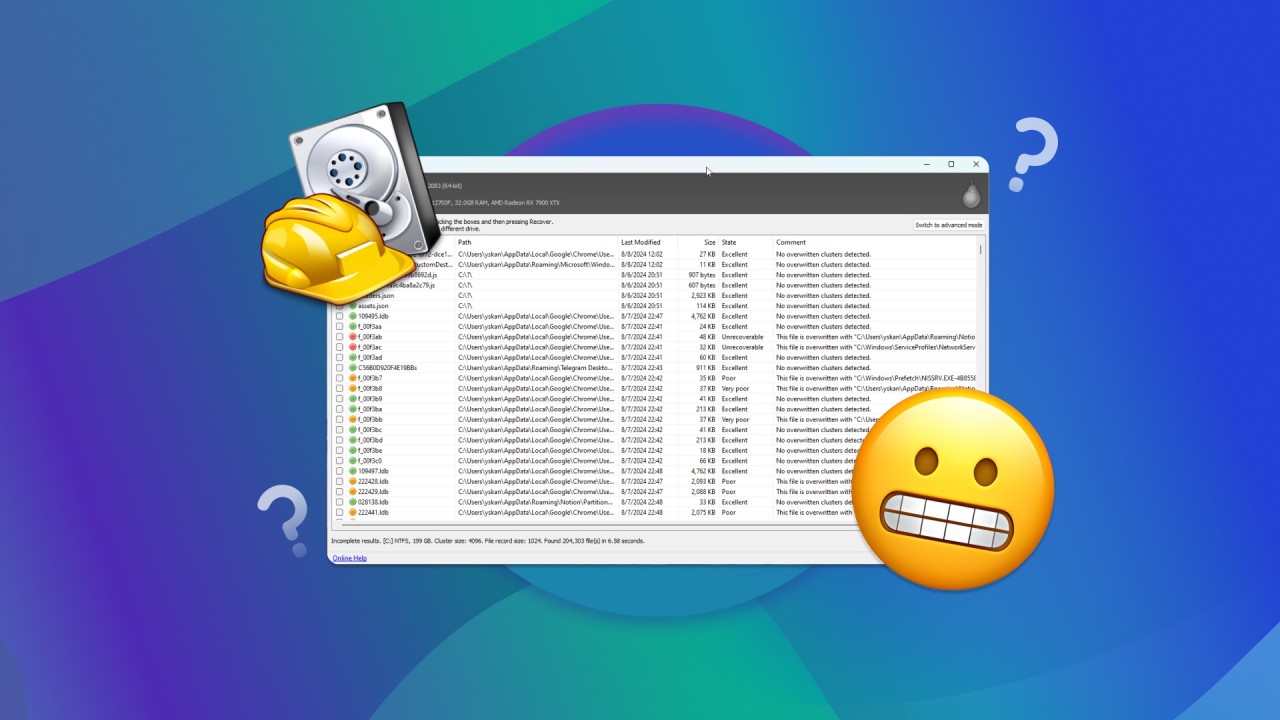
Recuva Download: How to Download and Use Recuva for File Recovery
If you accidentally deleted a file, Recuva may help you recover it. This Windows file-recovery program can scan storage devices for deleted photos, documents, videos, and other files. This guide explains where to download Recuva safely, how to install it, and what to do to improve the chances of recovering your data.
What Is Recuva?
Recuva is a file-recovery utility from Piriform, a CCleaner brand. It scans a computer’s storage for files that have been deleted but may not yet have been overwritten. It can also scan supported removable media, such as memory cards and USB drives.
Recovery is not guaranteed. When a file is deleted, its data may remain on the drive until new information replaces it. The sooner you stop using the affected storage device, the better the chance that the data has not been overwritten.
Where to Download Recuva
Download Recuva from the official CCleaner website:
https://www.ccleaner.com/recuva/download
Use the official site rather than third-party download pages, which may offer outdated installers or bundle unwanted software. Check the download page for the latest version, available editions, and current system requirements before installing.
How to Download and Install Recuva
- Visit the official Recuva download page.
- Choose the edition that meets your needs and download the installer.
- Open the downloaded file and follow the installation instructions.
- Review each setup screen carefully and select only the options you want.
- Launch Recuva when installation is complete.
If you are trying to recover files from your computer’s main drive, avoid installing Recuva on that same drive. Installation writes new data, which could overwrite files you are trying to recover. When possible, download and install the program on a different drive or use another computer.
How to Recover Files With Recuva
- Stop using the affected device. Avoid downloading, installing, copying, or saving files to the drive or memory card where the deleted data was stored.
- Open Recuva. Its guided setup can help you choose the type of file to look for, such as pictures, music, documents, or videos.
- Select a location. Choose the drive, folder, or removable device where the file was last stored. If you are unsure, you can select an option that searches the entire computer.
- Run a scan. Start with a standard scan. If the file does not appear, try Recuva’s deeper scanning option, if available.
- Review the results. Select the files you want to restore. The program may indicate whether a file appears recoverable, but this is not a guarantee that it will open correctly.
- Save recovered files somewhere else. Choose a different drive or storage device as the destination. Saving them back to the original location could overwrite other recoverable data.
Tips for Better Recovery Results
- Act quickly and minimize use of the affected storage device.
- Do not format the drive or memory card before trying recovery.
- Recover files to a separate storage location.
- Try a deeper scan if a standard scan does not find the file.
- Keep regular backups so you have another copy of important files.
Recuva Free and Paid Options
Recuva has offered a free edition as well as paid options with additional features or support. What is included can change, so check the official product page for current pricing and edition details. Downloading the program does not mean every file can be recovered; results depend on the condition of the storage device and whether the deleted data has been overwritten.
Is Recuva Safe to Download?
For a safer download, get Recuva directly from the official CCleaner website and review the installer screens before continuing. Be cautious of sites that advertise “cracked” or modified versions, since they may contain harmful software or unwanted changes.
When Recuva May Not Be Enough
Recuva may not be able to restore files that have been overwritten, severely corrupted, or stored on a failing device. If a drive is making unusual noises, disconnecting, or showing signs of physical damage, stop using it. Repeated scans or recovery attempts can make the situation worse; consider contacting a reputable data-recovery professional, especially if the files are valuable.
Frequently Asked Questions
Can Recuva recover permanently deleted files?
Sometimes. “Permanently deleted” files may still remain on a drive until their storage space is reused. Recovery depends on whether that data has been overwritten and on the condition of the device.
Can Recuva recover files from a USB drive or memory card?
Recuva can scan supported removable storage devices. Connect the device, select it as the scan location, and save any recovered files to a different drive.
Why should recovered files be saved to another drive?
Saving files to the same device can write over data that has not yet been recovered. Using a separate destination helps reduce that risk.
Final Thoughts
Recuva can be a useful option for attempting to recover recently deleted files on Windows. Download it from the official website, stop using the affected storage device as soon as possible, and restore recovered files to a separate location. For damaged drives or irreplaceable data, professional recovery help may be the safer choice.
5 Tips for Downloading Recuva Safely on Windows
- Download Recuva from the official Piriform website.
- Avoid third-party download sites and bundled installers.
- Choose the version that matches your Windows system.
- Review installation options and decline unwanted extras.
- Save the installer from a trusted source and scan it before running.
Download Recuva from the official Piriform website.
When downloading Recuva, use the official Piriform website to get the legitimate installer and reduce the risk of outdated or altered software. Avoid third-party download sites, which may bundle unwanted programs or provide unsafe files. Before installing, review the setup screens carefully and confirm that you’re downloading the version you need.
Avoid third-party download sites and bundled installers.
When downloading Recuva, use the official CCleaner website and avoid third-party download sites or bundled installers. Unofficial downloads may be outdated, modified, or packaged with unwanted software. Check each installation screen carefully, too, so you can decline optional offers you don’t need.
Choose the version that matches your Windows system.
When downloading Recuva, choose a version that’s compatible with your Windows system. Check the program’s current system requirements and confirm whether your PC runs a 32-bit or 64-bit version of Windows before selecting an installer. Choosing the right version can help prevent installation or compatibility problems.
Review installation options and decline unwanted extras.
During Recuva installation, take a moment to review each setup screen before clicking “Next” or “Install.” Some installers may offer optional software, browser changes, or other extras that aren’t needed to use Recuva. Leave those options unchecked or choose “Decline” if you don’t want them, and make sure you’re accepting only the components you intended to install.
Save the installer from a trusted source and scan it before running.
When downloading Recuva, save the installer from the official CCleaner website or another trusted source. Before opening it, scan the downloaded file with your security software to check for potential threats. This extra step can help you avoid modified installers, bundled unwanted programs, and malware.
Tags: ccleaner, data backup, data overwritten, data recovery, deep scan, file recovery software, memory card recovery, official recuva download, piriform, professional data recovery, recover deleted files, recover documents, recover photos, recover videos, recovered files, recuva download, recuva file recovery, recuva for windows, recuva installation, recuva scan, safe download, usb drive recovery