
PDF Editor: How to Edit, Sign, and Manage PDF Files
A PDF editor makes it easier to update documents without rebuilding them from scratch. Whether you need to correct a typo, add a signature, fill out a form, or combine several files, the right tool can help you get the job done efficiently.
What Is a PDF Editor?
A PDF editor is software or an online service that lets you make changes to a Portable Document Format (PDF) file. Depending on the tool, you may be able to edit text and images, add notes, complete forms, reorganize pages, or export the document in another format.
Basic PDF viewers usually let you open and read files. PDF editors provide additional tools for working with the document itself. Some editors run in a web browser, while others are desktop or mobile apps.
Common PDF Editing Features
PDF editors vary, but many include some or all of these features:
- Edit text and images: Correct wording, update details, or replace images in a document.
- Annotate and comment: Highlight passages, add notes, draw shapes, or leave feedback for collaborators.
- Fill out forms: Enter information into interactive fields or add text to a form that is not fillable.
- Add signatures: Insert a typed, drawn, or saved signature where appropriate.
- Organize pages: Rotate, reorder, remove, or extract pages.
- Merge and split files: Combine several PDFs or separate selected pages into a new file.
- Convert documents: Export a PDF to a format such as Word or an image, or create a PDF from another file.
- Protect files: Apply password protection or permissions when the editor supports those options.
When Do You Need a PDF Editor?
A PDF editor can be useful at home, at school, and at work. Students might annotate readings or submit assignments. Businesses can use editors to review proposals, update forms, and prepare contracts for signature. Individuals may use them to complete applications, combine receipts, or redact sensitive information before sharing a file.
The features you need depend on the task. Adding a comment is different from changing the original text, and signing a document is different from applying a digital certificate. Check that the editor supports the specific action you need.
How to Choose the Right PDF Editor
Before choosing a tool, consider how often you edit PDFs and what kind of files you handle. The following questions can help narrow your options:
- Which features are essential? If you only need to add comments, a basic editor may be enough. Frequent document work may call for advanced editing, conversion, or page-management tools.
- Where will you use it? Browser-based tools can be convenient across devices, while desktop apps may offer more features or allow offline work.
- Is it easy to use? Look for clear controls and a workflow that suits your experience level.
- What does it cost? Compare free features, subscription plans, one-time purchases, and any limits on file size or usage.
- How does it handle privacy? Review the service’s privacy policy and consider where files are processed and stored.
- Will it preserve the layout? Editing or converting a PDF can change fonts, spacing, or images. Test the results before relying on the tool for an important document.
Online PDF Editors and Desktop Software
An online PDF editor can be convenient when you need to make a quick change without installing software. Many work directly in a browser, which can be helpful when switching between devices. However, uploading a document to an online service means you should understand how the provider handles your files.
Desktop PDF software may be a better fit for frequent editing, large files, or tasks that need to be completed offline. It can also provide more advanced tools, depending on the product. Before installing an app, check its system requirements, pricing, and update policy.
Tips for Editing PDFs Safely
- Keep an unchanged copy of the original file before making edits.
- Use a trusted editor, especially when working with personal, financial, or business information.
- Review a document’s sharing and password settings before sending it.
- Use a proper redaction feature to permanently remove sensitive text; placing a black shape over text may not erase the underlying information.
- Check the finished document on another device or in a separate PDF viewer to confirm that formatting and changes appear correctly.
- Only sign documents you have reviewed and are authorized to sign.
Final Thoughts
A PDF editor can turn a read-only document into a file you can update, review, sign, and organize. The best option depends on your workflow, budget, privacy needs, and the features you use most. Compare a few tools, test them with a non-sensitive document, and confirm that the final PDF looks and works as expected before sharing it.
Top 6 Frequently Asked Questions About PDF Editors
- Does Microsoft 365 have a PDF editor?
- Which PDF editor is best?
- Can you download a PDF and edit it?
- What is the best free PDF editor?
- How can I edit a PDF file for free?
- How do you edit text in a PDF?
Does Microsoft 365 have a PDF editor?
Yes, Microsoft 365 offers several ways to work with PDFs, though its editing capabilities depend on the app and platform. In Microsoft Word, you can open a PDF, convert it into an editable Word document, make changes, and save or export it as a PDF again; complex layouts may not convert perfectly. Microsoft Edge also lets you view PDFs, add notes, highlight text, and fill out many forms, but it doesn’t provide full editing of existing PDF text. For advanced editing, you may need a dedicated PDF editor.
Which PDF editor is best?
The best PDF editor depends on what you need to do. For occasional tasks like filling out forms, adding comments, or signing documents, a simple free editor may be enough. If you regularly edit text and images, convert files, organize pages, or work with sensitive documents, look for a more advanced editor with the features, security, and privacy controls you need. Compare pricing, ease of use, device compatibility, and how the tool handles your files, then test it with a sample PDF before choosing.
Can you download a PDF and edit it?
Yes, you can download a PDF and edit it with a PDF editor. Open the file in a trusted desktop app or upload it to an online editor, then use the available tools to change text, add comments, fill out forms, or sign the document. Editing options vary, and some PDFs—such as scanned documents—may require optical character recognition (OCR) before their text can be changed. Save a copy of the edited file and review it to make sure the changes and formatting look right.
What is the best free PDF editor?
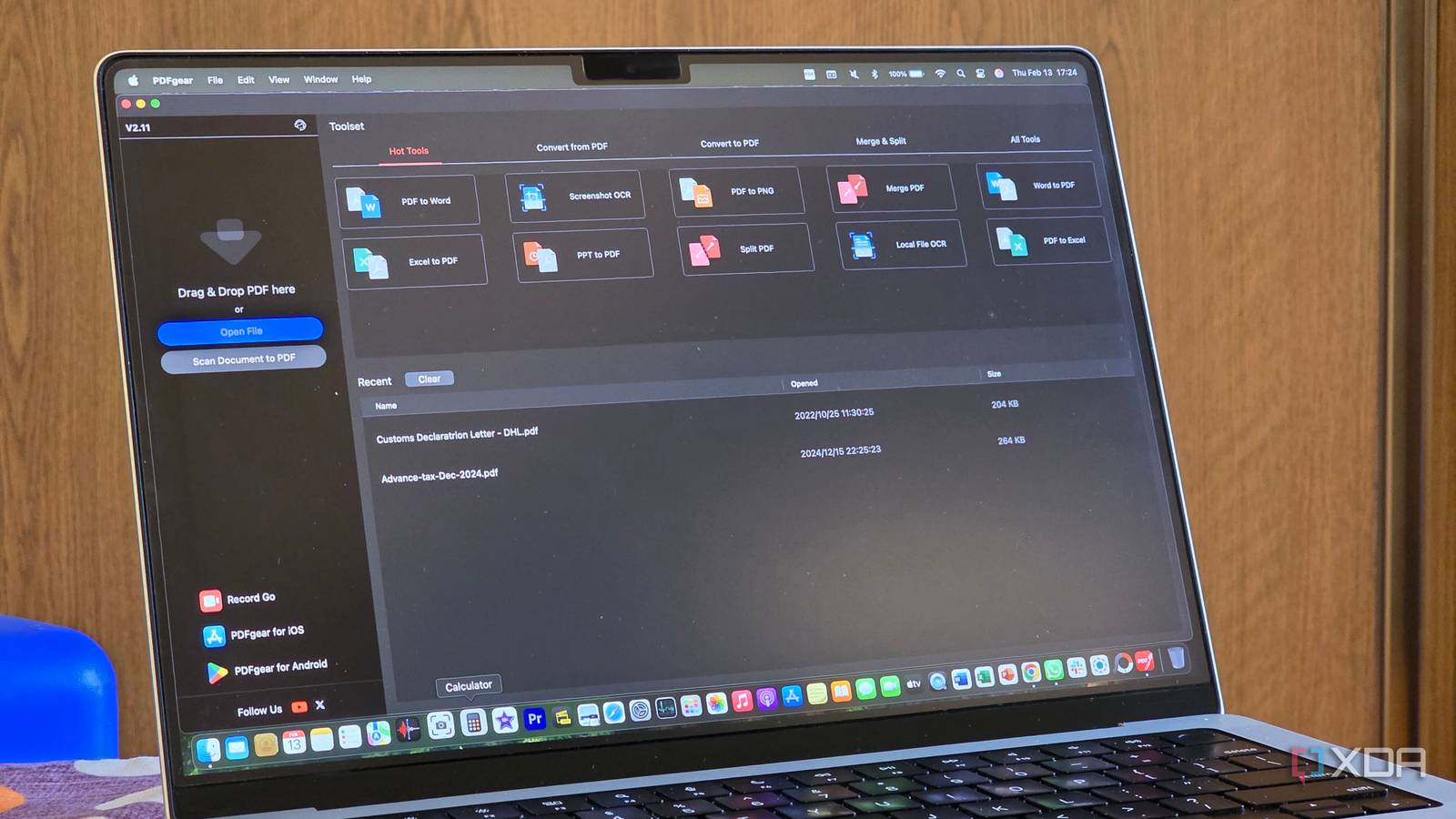
There’s no single best free PDF editor for everyone; the right choice depends on what you need to do. For more complete desktop editing, PDFgear is a popular free option, while LibreOffice Draw can be useful for offline edits. Browser-based editors are convenient for quick tasks such as adding comments or filling out forms, but free plans may limit features or file sizes. Before uploading a document, check the service’s privacy practices, and review the finished PDF to make sure its formatting is intact.
How can I edit a PDF file for free?
You can edit a PDF for free using a free online PDF editor or a desktop app with no-cost editing features. Depending on the tool, you may be able to add text, comments, signatures, or form entries, and rearrange or remove pages. Choose a reputable service, check its file-size and feature limits, and review its privacy policy before uploading sensitive documents. When you’re done, save or download the edited file and check that the formatting looks right.
How do you edit text in a PDF?
To edit text in a PDF, open the file in a PDF editor that supports text editing, then choose its “Edit PDF” or similar tool. Select the text you want to change and type your updates; you may also be able to adjust the font, size, or alignment. When finished, save a new copy and review it to make sure the formatting looks right. If the text is part of a scanned image, run OCR (optical character recognition) first, if available, so the editor can recognize it as editable text.
Tags: add signatures, annotate pdf, convert pdf, desktop pdf software, document management, edit pdf, edit text and images, fill out forms, manage pdf files, merge pdfs, online pdf editor, organize pages, password protection, pdf editing software, pdf editor, pdf privacy, pdf security, redact sensitive information, sign pdf, split pdf files