
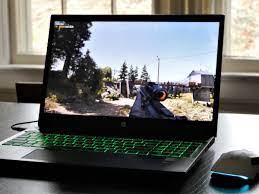
HP Gaming Laptops: How to Choose the Right One
An HP gaming laptop can deliver the performance needed for modern games while still being practical for school, work, or travel. HP’s gaming lineup includes affordable options for everyday play as well as higher-performance systems designed for demanding games and creative work.
The right laptop depends on what you play, how much you want to spend, and whether portability or performance matters most. This guide covers HP’s main gaming laptop families, the features to compare, and what to consider before buying.
HP’s Main Gaming Laptop Families
HP Victus
HP Victus laptops are generally positioned as more accessible gaming systems. They can be a good fit for casual and mainstream gaming, students, and buyers who want a laptop that can handle games as well as everyday tasks. Depending on the configuration, a Victus model may include a dedicated graphics processor, a high-refresh-rate display, and a range of processor and memory options.
Victus models vary, so check the specifications of the exact laptop you’re considering. Two laptops with the same family name can have different graphics hardware, screens, memory, and storage.
HP OMEN
HP OMEN laptops are aimed at gamers looking for stronger performance and more advanced features. Depending on the model and configuration, an OMEN laptop may offer more powerful graphics, higher-resolution or faster displays, upgraded cooling, and additional performance controls.
OMEN systems can also suit people who use demanding creative software, such as video-editing or 3D-design programs. For gaming, however, the graphics processor and display are especially important, so compare those specifications rather than relying on the product name alone.
What to Look for in an HP Gaming Laptop
Graphics processor
The graphics processing unit (GPU) has a major impact on gaming performance. A dedicated GPU is usually preferable for modern PC games, but performance differs considerably between GPU models. Look up independent performance tests for the games and resolution you care about, and compare laptops with similar power and cooling limits where possible.
Processor
The central processing unit (CPU) handles game logic, background tasks, and many everyday workloads. A recent midrange processor is suitable for many players, while demanding games, streaming, and content creation may benefit from a higher-performance option. The best balance depends on the GPU and the laptop’s overall design.
Memory and storage
Memory, or RAM, helps games and apps run smoothly when several tasks are open. For a new gaming laptop, 16GB is a practical starting point for many users; more may be useful for heavy multitasking or creative work. Also check whether the memory can be upgraded.
Solid-state storage (SSD) helps a laptop start quickly and load games faster than a traditional hard drive. Consider how much space your game library needs. Some models allow storage upgrades, but access and compatibility can vary.
Display
Look beyond screen size. Resolution affects image detail, while refresh rate affects how often the display can update each second. A higher refresh rate can make fast-moving games appear smoother, especially when the laptop can produce enough frames per second. Also consider brightness, color quality, and whether the screen suits your preferred games.
Cooling and noise
Gaming hardware produces heat, so cooling affects comfort and sustained performance. Reviews can help reveal how hot a laptop gets and how loud its fans become during long gaming sessions. A laptop may perform differently when plugged in than when running on battery.
Ports, keyboard, and portability
Check for the connections you need, such as USB ports, HDMI, and an Ethernet connection. A comfortable keyboard can matter during both gaming and everyday use. Larger gaming laptops may offer more cooling capacity or a bigger display, but they can be heavier and less convenient to carry.
Advantages and Trade-Offs
HP gaming laptops combine gaming components with the convenience of a portable computer. They can run games, school or work software, and media applications on a single device. HP’s Victus and OMEN families also provide options at different performance and price levels.
As with gaming laptops from any brand, there are trade-offs. Powerful components can increase cost, fan noise, heat, and battery use. Gaming performance is typically best when the laptop is connected to its charger, and battery life during gameplay is usually limited compared with light browsing or document work.
How to Choose the Right Model
- Set a budget. Decide how much you can spend, including any accessories or extra storage.
- List the games you play. Check their recommended requirements and consider the resolution you want to use.
- Compare full configurations. Review the exact GPU, CPU, memory, storage, and display—not just the Victus or OMEN label.
- Read reviews. Look for testing of performance, temperatures, fan noise, screen quality, and battery life.
- Check upgrade options and warranty terms. Confirm what can be upgraded and what support is included in your region.
Frequently Asked Questions
Is an HP Victus laptop good for gaming?
It can be, depending on the configuration. Check the specific model’s graphics processor, display, memory, and performance reviews to see whether it suits your games.
Is HP OMEN better than HP Victus?
OMEN is generally positioned as HP’s more performance-focused gaming family, while Victus offers a range of more accessible options. The best choice depends on the price and specifications of the particular models being compared.
Can an HP gaming laptop be used for school or work?
Yes. Gaming laptops can handle everyday productivity, video calls, web browsing, and many creative applications. Consider the laptop’s weight, battery life, keyboard, and appearance if you plan to carry it regularly.
Can you upgrade an HP gaming laptop?
Some models allow memory or storage upgrades, while others may have limits. Check the maintenance guide or product specifications for the exact model before buying parts or opening the laptop.
Final Thoughts
An HP gaming laptop can be a versatile choice for gaming and everyday computing. Victus models may appeal to buyers seeking a balance of price and performance, while OMEN models are worth considering for more demanding workloads. Since specifications differ across configurations, compare the exact hardware, display, cooling, and upgrade options before making a decision.
8 Tips to Optimize Your HP Gaming Laptop’s Performance
- Keep graphics drivers updated.
- Use the original HP power adapter for gaming.
- Place the laptop on a hard, flat surface.
- Keep vents clear to prevent overheating.
- Use Performance mode when plugged in.
- Adjust game settings for smoother frame rates.
- Clean dust from vents regularly.
- Check HP Support Assistant for updates.
Keep graphics drivers updated.
Keep your HP gaming laptop’s graphics drivers updated to help games run smoothly and maintain compatibility with new releases. Driver updates may also fix bugs, improve performance, and address security issues. Check for updates through HP Support Assistant or the graphics card maker’s official software, and restart your laptop if prompted. Before installing, make sure the update matches your graphics hardware and download it only from a trusted source.
Use the original HP power adapter for gaming.
Use the original HP power adapter when gaming to help your laptop receive the power its components need for stable performance. A compatible third-party charger may not provide the correct wattage or specifications, which can limit performance or cause charging issues during demanding games. For the best results, connect the adapter recommended for your specific HP model, and check its wattage and compatibility if you need a replacement.
Place the laptop on a hard, flat surface.
Place your HP gaming laptop on a hard, flat surface, such as a desk, so its vents can draw in cool air and release heat properly. Soft surfaces like beds, blankets, or your lap can block airflow, causing the laptop to run hotter, become noisy, or reduce performance during gaming.
Keep vents clear to prevent overheating.
Keep the vents on your HP gaming laptop clear to help prevent overheating. Use the laptop on a hard, flat surface rather than a bed, blanket, or cushion, which can block airflow. Regularly check the vents for dust and gently clean them according to HP’s care instructions. Good airflow helps the cooling system work effectively and can support steady performance during long gaming sessions.
Use Performance mode when plugged in.
Use Performance mode when your HP gaming laptop is plugged in to help it deliver stronger gaming performance. This setting may increase fan speed and power use, so the laptop can run louder and warmer than it does in quieter modes. For the best results, keep it on a hard, flat surface with clear airflow, and switch to a quieter power mode when you’re browsing, studying, or working away from an outlet.
Adjust game settings for smoother frame rates.
Adjusting in-game settings can help your HP gaming laptop deliver smoother frame rates, especially in graphics-intensive games. If gameplay stutters, lower demanding options such as shadow quality, reflections, anti-aliasing, and effects, or reduce the display resolution. You can also enable a performance preset or use an upscaling option if the game offers one. Change a few settings at a time and test the results so you can find a good balance between smooth gameplay and visual quality.
Clean dust from vents regularly.
Clean dust from your HP gaming laptop’s vents regularly to help maintain airflow and prevent excess heat. Turn the laptop off and unplug it first, then gently clear visible dust with compressed air, following HP’s care instructions. Avoid pushing debris farther into the vents or using a vacuum directly on the laptop. Keeping the vents clear can help the cooling system work effectively during gaming.
Check HP Support Assistant for updates.
Keep your HP gaming laptop running smoothly by checking HP Support Assistant for updates. The app can help you find available driver, firmware, and software updates for your specific device. Installing relevant updates may improve stability, compatibility, and performance, so review them regularly and follow HP’s instructions—especially before updating BIOS or firmware.
Tags: battery life, cooling, cpu, display, fan noise, gaming laptop, gaming laptop features, gaming laptop reviews, gaming performance, gpu, graphics processor, hp gaming laptop, hp gaming laptops, hp omen, hp victus, laptop specifications, memory, portability, price and performance, processor, ram, refresh rate, school and work use, ssd storage, upgrade options, warranty terms