
Apple HomeKit Devices: A Guide to Building a Smarter Home
Apple HomeKit devices let you control compatible lights, locks, thermostats, cameras, and other smart-home products through the Apple Home app and Siri. Whether you want to dim the lights with a voice command or check a door lock while away, HomeKit can bring everyday devices together in one system.
Apple now refers to its smart-home platform and app as Apple Home. HomeKit remains a familiar name for the technology that helps compatible accessories work with Apple devices. Here’s what to know before choosing and setting up your smart-home gear.
What Are Apple HomeKit Devices?
HomeKit-compatible devices are smart accessories designed to work with Apple’s home platform. Once added to the Home app, they can be controlled from an iPhone, iPad, Apple Watch, Mac, or through Siri, depending on the accessory and device.
Compatible products can also work together in scenes and automations. For example, a “Good Night” scene might turn off selected lights, lower the thermostat, and lock the front door with one command.
Common Types of HomeKit Devices
Smart Lights and Switches
Smart bulbs, light strips, plugs, and in-wall switches can help you adjust lighting from the Home app or with Siri. Many products let you set schedules, change brightness, or create scenes for different activities. Before buying bulbs, check their fitting, brightness, and whether they require a separate hub.
Smart Thermostats
A compatible thermostat can let you adjust the temperature remotely and include heating or cooling in automations. Features vary by model, so check compatibility with your heating and cooling system as well as the manufacturer’s HomeKit support.
Door Locks and Garage Controllers
Smart locks can let you check a door’s status, lock it remotely, or include it in a scene. Some models support features such as temporary access codes, while others may require a keypad or bridge. Garage-door controllers can offer similar app-based control, but availability and remote features depend on the product.
Cameras and Video Doorbells
Compatible cameras and doorbells can provide live video in the Home app, along with alerts and other features supported by the accessory. Some devices work with HomeKit Secure Video, which can store supported camera recordings in iCloud. This feature requires a compatible camera, a qualifying iCloud+ plan, and a supported home hub. Check Apple’s and the manufacturer’s current requirements before purchasing.
Sensors and Smart Plugs
Motion, contact, temperature, humidity, and water-leak sensors can help your home respond to changes. A smart plug can add app control to certain lamps and small appliances. Always follow the plug manufacturer’s guidance about electrical ratings and which devices are safe to connect.
How to Choose HomeKit-Compatible Accessories
- Look for clear compatibility details. Check the product packaging or manufacturer’s specifications for Apple Home or HomeKit support.
- Check for Matter support. Matter is a smart-home connectivity standard supported by Apple Home and other platforms. A Matter logo can offer broader platform compatibility, but features may differ between ecosystems.
- Find out whether a bridge is needed. Some accessories connect directly to your network, while others require a manufacturer-provided hub or bridge.
- Review network requirements. Devices may depend on Wi-Fi, Bluetooth, Thread, or a combination. Confirm that your home network and any required border router meet the product’s needs.
- Compare ongoing costs. Some features, such as cloud recording or advanced alerts, may require a subscription.
- Consider privacy and security. Review account requirements, data practices, update policies, and the security features offered by the manufacturer.
Do You Need an Apple Home Hub?
You can control many accessories while you’re at home using the Home app, but a home hub enables features such as remote access, certain automations, and some camera functions. Compatible HomePod and Apple TV models can act as home hubs. Requirements can vary by feature and software version, so check Apple’s current guidance when setting up your home.
How to Set Up a HomeKit Device
- Set up the accessory using the manufacturer’s instructions, including any required app, account, or bridge.
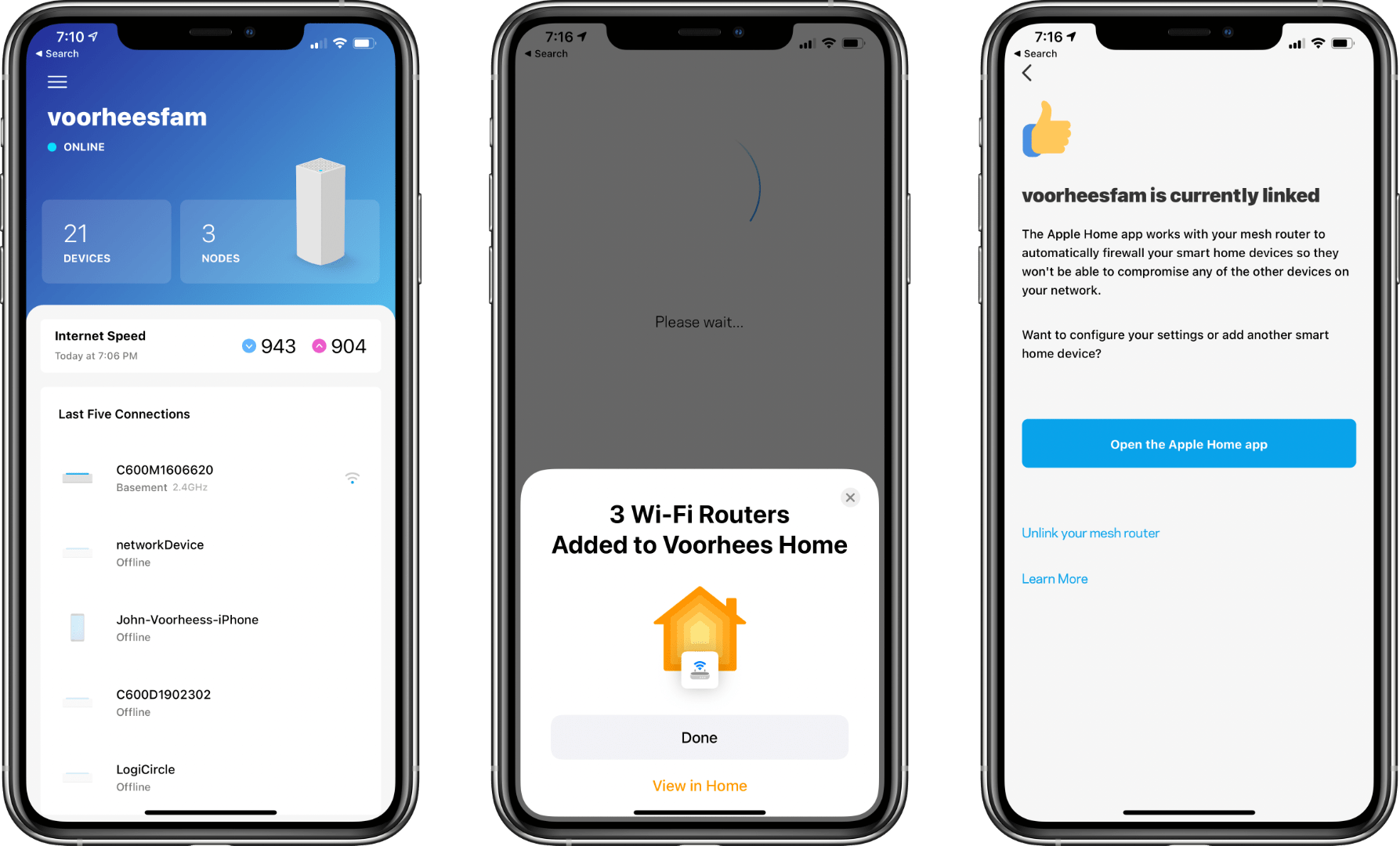
- Open the Apple Home app and choose the option to add an accessory.
- Scan the setup code or follow the on-screen steps. For Matter devices, use the Matter setup code or instructions provided with the product.
- Assign the accessory to a room and give it a name that’s easy to recognize.
- Test the controls, then create scenes or automations if you want devices to work together.
Keep your Apple devices and accessory firmware up to date. If a device stops responding, check its power, network connection, manufacturer app, and any required bridge before removing and adding it again.
Make Everyday Tasks Easier with Scenes and Automations
Scenes let you control several accessories at once. Automations can trigger actions based on conditions such as time of day, a sensor detecting motion, or someone arriving home. Available triggers depend on your accessories, settings, and home hub configuration.
Start with a small routine, such as turning on a hallway light at sunset or switching off selected lights at bedtime. Simple automations are easier to test and adjust as you learn what works in your home.
Is Apple HomeKit Right for Your Home?
Apple Home can be a good choice for households that already use iPhone, Apple Watch, HomePod, or Apple TV. Its app provides a central place to manage compatible accessories, and Siri offers convenient voice control. The main consideration is compatibility: not every smart-home product supports Apple Home, and features can vary even among compatible devices.
Before buying, confirm that each accessory supports the features you need, works with your network, and fits your budget. Starting with a few useful devices—such as a smart plug, light, or sensor—can help you build a reliable smart home at your own pace.
5 Essential Tips for a Secure, Organized Apple HomeKit Setup
- Use a strong Wi-Fi password to protect your smart home.
- Enable two-factor authentication for your Apple Account.
- Place a HomePod or Apple TV at home as a hub for remote access.
- Name devices clearly, like “Kitchen Lights.”
- Keep your Apple devices and HomeKit accessories updated.
Use a strong Wi-Fi password to protect your smart home.
Use a strong, unique Wi-Fi password to help protect your Apple Home devices from unauthorized access. Choose a password that’s difficult to guess, avoid reusing it for other accounts, and update it if you think it has been exposed. For added protection, keep your router’s software up to date and use a separate guest network for visitors and devices that don’t need access to your smart home.
Enable two-factor authentication for your Apple Account.
Enable two-factor authentication for your Apple Account to add an extra layer of security to your Apple Home setup. With this feature turned on, signing in on a new device requires your password and a verification code sent to a trusted device or phone number. This can help protect access to your Home app, connected accessories, and smart-home settings if someone learns your password. To turn it on or check its status, open Settings on your iPhone or iPad, tap your name, then go to Sign-In & Security.
Place a HomePod or Apple TV at home as a hub for remote access.
Place a HomePod or compatible Apple TV at home to act as an Apple Home hub. A home hub lets you control supported HomeKit accessories remotely through the Home app when you’re away, and it can enable features such as automations. Make sure the device is signed in with the Apple Account used for your home, connected to the internet, and running up-to-date software. Check Apple’s current requirements, since hub support can vary by device and feature.
Name devices clearly, like “Kitchen Lights.”
Give each Apple HomeKit device a clear, specific name, such as “Kitchen Lights” or “Bedroom Lamp.” Descriptive names make it easier to find accessories in the Home app and tell Siri exactly what to control. If you have several similar devices, include their room or purpose in the name to avoid confusion.
Keep your Apple devices and HomeKit accessories updated.
Keep your Apple devices and HomeKit accessories updated to help your smart home run smoothly and securely. Software and firmware updates can fix bugs, improve reliability, and add features or compatibility improvements. Turn on automatic updates when available, or check the Home app, your device settings, and the accessory manufacturer’s app regularly. Before updating, make sure important devices have power and a stable network connection.
Tags: apple home, apple homekit devices, apple tv, automations, bluetooth, compatibility, device setup, garage controllers, home app, home hub, homekit secure video, homepod, icloud, matter, privacy, remote access, scenes, security, security cameras, sensors, siri, smart home, smart home accessories, smart plugs, smart thermostats, thread, video doorbells, wi-fi