
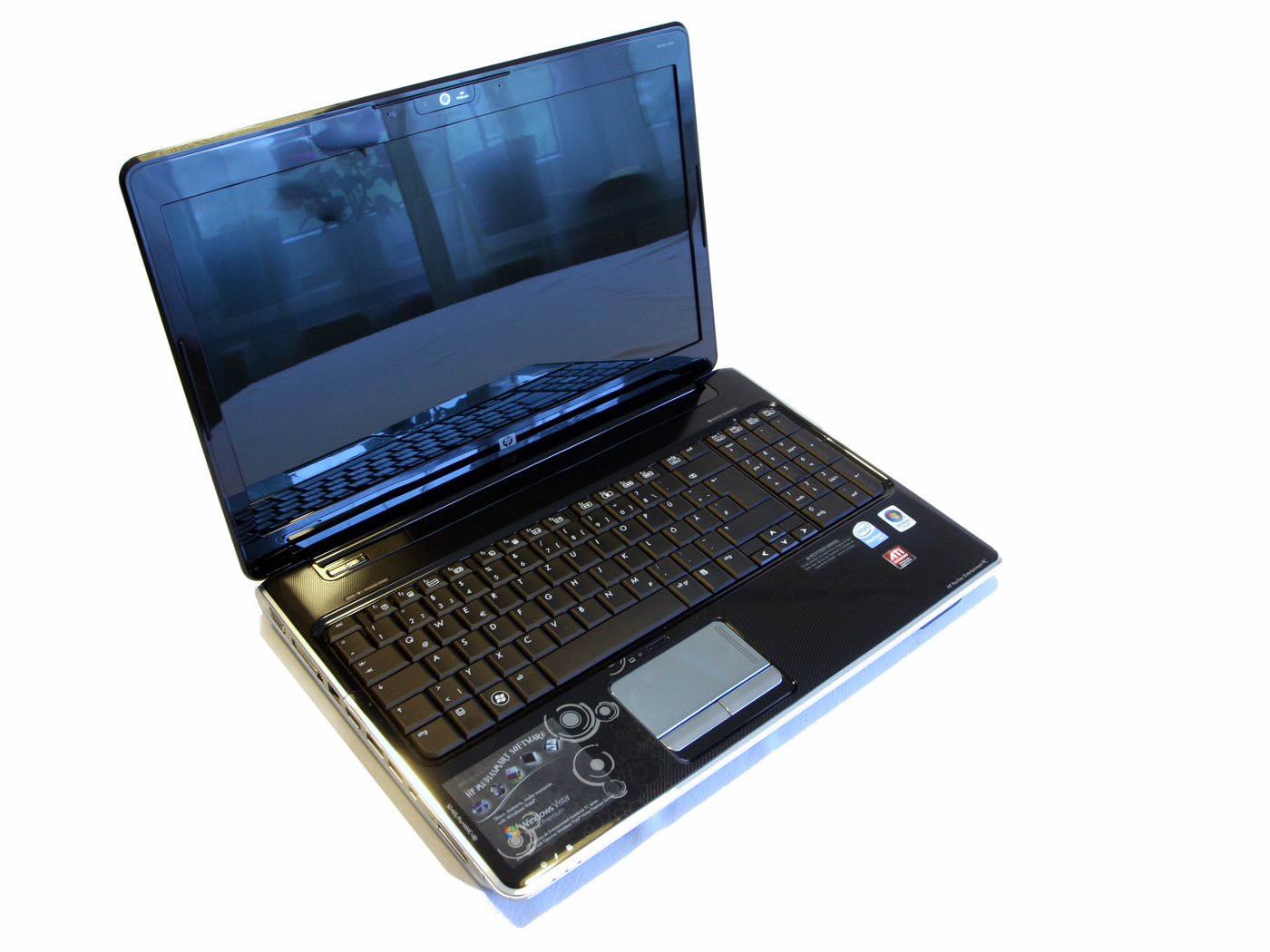
HP Pavilion Entertainment PC: Features, Performance, and What to Know
The HP Pavilion Entertainment PC name refers to a range of HP laptops designed for everyday computing and multimedia use. These computers were marketed for activities such as watching movies, listening to music, browsing the web, and handling school or home-office tasks. Because HP used the Pavilion name across many generations and configurations, the features and performance of a particular model can vary significantly.
What Is an HP Pavilion Entertainment PC?
“Entertainment PC” was a product description used for Pavilion models with features aimed at media and home use. Depending on the model and year, a laptop might include a widescreen display, built-in speakers, a webcam, a DVD drive, or dedicated media controls. Some models were also equipped with graphics hardware suited to casual gaming or photo and video tasks.
The label does not identify one specific computer. For accurate information about a particular device, check its full model number, product number, or serial number. These details can help identify its original specifications and compatible accessories or replacement parts.
Common Features
Features differed across the Pavilion lineup, but many entertainment-focused models offered some combination of the following:
- Widescreen display: Useful for watching videos, viewing photos, and working with multiple windows.
- Built-in audio: Integrated speakers and a headphone jack for music, movies, and video calls.
- Optical drive: Some older models included a DVD drive for watching discs or installing software.
- Webcam and microphone: Available on many models for basic video communication.
- Windows operating system: The version depended on the computer’s release date and configuration.
- Multiple ports: Common connections could include USB, HDMI or VGA, Ethernet, and memory-card slots, depending on the model.
Everyday Performance
A Pavilion Entertainment PC can still be useful for basic tasks, but its capabilities depend on the age and hardware of the individual computer. A model with a solid-state drive and enough memory may feel responsive for web browsing, document editing, and streaming. An older computer with a traditional hard drive or limited memory may take longer to start and may struggle with modern websites or demanding applications.
Before buying or continuing to use one, consider the processor, installed memory, storage type, display condition, battery health, and operating system. Streaming quality and software compatibility can also depend on the model’s graphics hardware, browser, and available system updates.
Can You Upgrade an HP Pavilion Entertainment PC?
Some Pavilion laptops allow memory or storage upgrades, while others have components that are difficult or impossible to replace. Upgrade options vary by exact model. Check the maintenance and service guide for the computer before purchasing parts or opening the case.
Replacing an older hard drive with a compatible solid-state drive can make some computers feel faster. Adding memory may also help if the model supports it. However, an upgrade cannot overcome every limitation: an aging processor, unsupported operating system, damaged battery, or incompatible software may still restrict how useful the computer is.
Support and Troubleshooting
If an HP Pavilion Entertainment PC is having problems, start with the basics:
- Restart the computer and install available updates for its supported operating system.
- Check the power adapter, battery, and charging connection if it will not turn on or charge.
- Free up storage space and remove applications that are no longer needed.
- Use HP’s support resources to search by the exact product number or model.
- Back up important files before troubleshooting, upgrading, or reinstalling software.
Older Pavilion models may no longer receive operating-system or driver updates. If a computer cannot run a supported operating system, avoid using it for sensitive activities such as online banking, and consider whether repair, replacement, or recycling is the safest option.
Is an HP Pavilion Entertainment PC Right for You?
An HP Pavilion Entertainment PC may be a practical choice for light tasks if it is in good condition and meets the requirements of the software you need. It may also be useful as a secondary computer for offline work or basic media playback. For current productivity applications, modern games, demanding creative projects, or secure everyday internet use, a newer computer is generally a better choice.
The most important step is identifying the exact Pavilion model. Once you know its specifications and support status, you can make a more informed decision about using, upgrading, repairing, or replacing it.
5 Essential Tips for Optimizing Your HP Pavilion Entertainment PC
- Keep Windows and HP drivers up to date.
- Use the original charger when possible.
- Keep vents clear to prevent overheating.
- Back up important files regularly.
- Adjust screen brightness to save battery.
Keep Windows and HP drivers up to date.
Keep Windows and your HP drivers up to date to help your Pavilion Entertainment PC run smoothly, stay secure, and work properly with connected devices. Install updates through Windows Update, and use HP’s support website or HP Support Assistant to find drivers made for your exact model. Before updating, save your work and connect the laptop to power.
Use the original charger when possible.
Use the original charger for your HP Pavilion Entertainment PC whenever possible. It is designed to provide the correct power output for your specific model, helping ensure reliable charging and reducing the risk of power or compatibility issues. If you need a replacement, choose an HP-approved adapter that matches your laptop’s model and required voltage, wattage, and connector type.
Keep vents clear to prevent overheating.
Keep the vents on your HP Pavilion Entertainment PC clear to help prevent overheating. Place the computer on a hard, flat surface rather than a bed, couch, or blanket, which can block airflow. Regularly remove dust from the vents with gentle bursts of compressed air, following the manufacturer’s care instructions. Good airflow helps the laptop run reliably and may reduce heat-related slowdowns.
Back up important files regularly.
Back up important files regularly to protect photos, documents, and other valuable data on your HP Pavilion Entertainment PC. Save copies to an external hard drive, USB drive, or trusted cloud storage service, and check occasionally that the backups can be accessed. Regular backups make it easier to recover your files if the computer fails, is lost, or needs repair.
Adjust screen brightness to save battery.
Adjusting the screen brightness is a simple way to help extend your HP Pavilion Entertainment PC’s battery life. Lower the brightness to a comfortable level when you’re working indoors or in dim lighting, and increase it only when you need better visibility in bright surroundings. You can usually change it with the keyboard’s brightness keys or through the display settings.
Tags: battery health, built-in speakers, computer repair, dvd drive, ethernet, everyday performance, graphics hardware, hard drive, hdmi, hp pavilion entertainment pc, hp pavilion laptop, hp support, laptop replacement, laptop upgrades, memory, memory-card slots, microphone, model number, multimedia computing, operating-system updates, processor, product number, serial number, software compatibility, solid-state drive, troubleshooting, usb, vga, webcam, widescreen display, windows operating system