
Exploring the Software Reporter Tool
The Software Reporter Tool is a diagnostic tool created by Google that comes bundled with the Chrome browser. Its primary function is to scan and report on any software that may be causing issues with Chrome’s performance.
When you run the Software Reporter Tool, it scans your computer for software that may interfere with Chrome, such as malware, unwanted programs, or conflicting software. It then generates a report detailing its findings.
This tool can be particularly useful in identifying and resolving issues like frequent crashes, slow performance, or unexpected behavior in Chrome. By analyzing the report generated by the Software Reporter Tool, users can take necessary actions to improve their browsing experience.
How to Run the Software Reporter Tool:
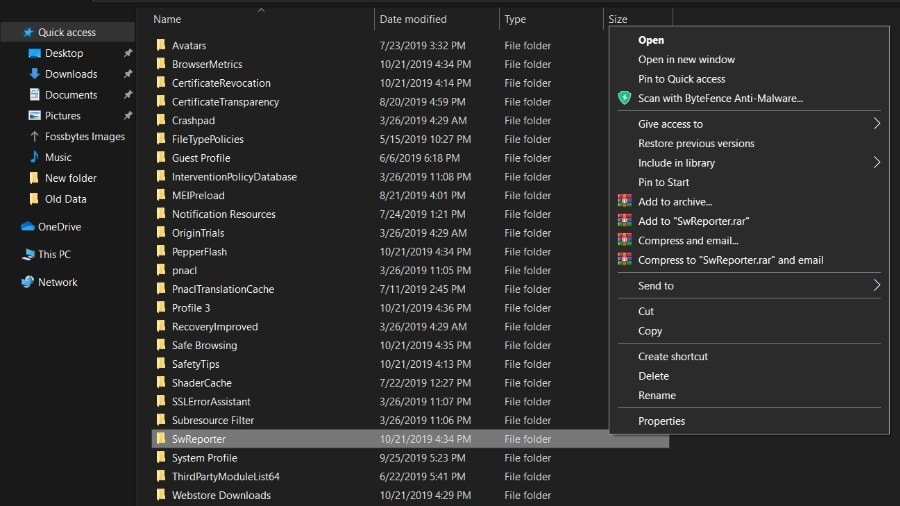
- Locate the Software Reporter Tool executable file on your system (commonly found at C:\Users\%username%\AppData\Local\Google\Chrome\User Data\SwReporter).
- Double-click on the executable file to run the tool.
- Allow the tool to scan your system for software-related issues.
- Review the generated report to identify any problematic software.
- Take appropriate actions based on the report’s findings to resolve any conflicts or issues.
It’s important to note that while the Software Reporter Tool can be a valuable resource for troubleshooting Chrome-related problems, it does not remove or fix detected software automatically. Users will need to address identified issues manually based on the information provided in the report.
In conclusion, the Software Reporter Tool serves as a helpful utility for diagnosing and addressing software conflicts that may impact Chrome’s performance. By utilizing this tool and taking corrective actions as needed, users can enhance their browsing experience and ensure optimal functionality of their browser.
8 Essential Tips for Managing and Optimizing Google Chrome’s Software Reporter Tool
- 1. The Software Reporter Tool is a tool developed by Google Chrome to scan and remove harmful software that may be causing issues with the browser.
- 2. It helps in identifying unwanted software and notifying users about any potential threats to their system.
- 3. The tool runs as a separate process when Chrome is not running and does not collect personal information.
- 4. Users can find the Software Reporter Tool executable file named ‘software_reporter_tool.exe’ in the Chrome application folder on Windows systems.
- 5. If you encounter high CPU usage by the Software Reporter Tool, you can disable it by changing its permissions or removing it from your system.
- 6. Regularly check for updates to ensure that you have the latest version of the Software Reporter Tool for optimal performance.
- 7. Use the tool’s scan results to troubleshoot issues with Chrome, such as frequent crashes or unresponsive tabs caused by unwanted software.
- 8. If you suspect false positives or inaccuracies in the tool’s reports, you can provide feedback to Google through their official channels.
1. The Software Reporter Tool is a tool developed by Google Chrome to scan and remove harmful software that may be causing issues with the browser.
The Software Reporter Tool, developed by Google Chrome, is a valuable utility designed to scan and eliminate potentially harmful software that could be disrupting the browser’s performance. By running this tool, users can proactively identify and address any malicious or unwanted programs that may be impacting their browsing experience. With its ability to detect and remove such software, the Software Reporter Tool plays a crucial role in maintaining the security and smooth operation of the Chrome browser.
2. It helps in identifying unwanted software and notifying users about any potential threats to their system.
The Software Reporter Tool plays a crucial role in identifying unwanted software and alerting users to potential threats that may compromise the security and performance of their system. By scanning the computer for malicious programs, adware, or other unwanted software, the tool helps users take proactive measures to safeguard their system and data. This feature provides users with valuable insights into any potential risks lurking on their system, empowering them to address these issues promptly and maintain a secure computing environment.
3. The tool runs as a separate process when Chrome is not running and does not collect personal information.
The Software Reporter Tool operates as an independent process even when Chrome is not active, ensuring that it functions autonomously to scan for potential software issues without relying on the browser itself. Importantly, users can rest assured that the tool does not gather any personal information during its diagnostic processes, prioritizing user privacy and security while providing valuable insights into software-related challenges that may impact Chrome’s performance.
4. Users can find the Software Reporter Tool executable file named ‘software_reporter_tool.exe’ in the Chrome application folder on Windows systems.
Users can easily locate the Software Reporter Tool executable file, named ‘software_reporter_tool.exe’, in the Chrome application folder on Windows systems. By navigating to the Chrome application folder, users can access this essential diagnostic tool and run it to scan for any software issues that may be affecting their Chrome browser’s performance. This straightforward tip empowers users to proactively identify and address potential conflicts, ultimately improving their browsing experience and ensuring smooth functionality of Chrome on their Windows devices.
5. If you encounter high CPU usage by the Software Reporter Tool, you can disable it by changing its permissions or removing it from your system.
If you find that the Software Reporter Tool is causing high CPU usage on your system, you can take steps to address this issue. One option is to disable the tool by adjusting its permissions or removing it from your system altogether. By modifying the tool’s settings or uninstalling it, you can mitigate the impact of high CPU usage and potentially improve the overall performance of your computer. It’s important to weigh the benefits of having the Software Reporter Tool running against the potential drawbacks of increased resource consumption and take appropriate action based on your specific needs and preferences.
6. Regularly check for updates to ensure that you have the latest version of the Software Reporter Tool for optimal performance.
To ensure optimal performance and effectiveness of the Software Reporter Tool, it is essential to regularly check for updates. By keeping the tool up to date with the latest version, users can benefit from improvements, bug fixes, and enhanced features that contribute to a smoother diagnostic process. Staying current with updates also helps ensure compatibility with the latest software and operating system changes, maximizing the tool’s efficiency in identifying and resolving potential issues with Chrome browser performance.
7. Use the tool’s scan results to troubleshoot issues with Chrome, such as frequent crashes or unresponsive tabs caused by unwanted software.
Utilize the scan results generated by the Software Reporter Tool to effectively troubleshoot common issues with Chrome, such as frequent crashes or unresponsive tabs that may be attributed to unwanted software. By carefully reviewing the tool’s findings, users can pinpoint any problematic software that is impacting Chrome’s performance and take necessary steps to address these issues. This proactive approach enables users to identify and resolve conflicts promptly, ultimately enhancing their browsing experience and ensuring a smoother operation of the Chrome browser.
8. If you suspect false positives or inaccuracies in the tool’s reports, you can provide feedback to Google through their official channels.
If you suspect false positives or inaccuracies in the Software Reporter Tool’s reports, it is recommended to provide feedback to Google through their official channels. By sharing your concerns with Google, you can help improve the tool’s accuracy and effectiveness for all users. Providing feedback allows Google to investigate and address any potential issues, ensuring that the Software Reporter Tool continues to serve its intended purpose of identifying software-related problems in Chrome. Your input can contribute to enhancing the overall user experience and reliability of this diagnostic tool.
Tags: chrome, conflicting software, conflicts, crashes, diagnostic tool, google, malware, performance issues, report, scan, slow performance, software, software reporter tool, troubleshooting, unwanted programs