
The Versatility of Adobe Reader for PDF Files
Adobe Reader has long been a staple tool for viewing, editing, and managing PDF files. With its user-friendly interface and powerful features, it has become the go-to software for handling all things PDF-related.
One of the key strengths of Adobe Reader is its ability to open and display PDF files with precision and clarity. Whether you’re viewing a simple text document or a complex graphic-intensive file, Adobe Reader ensures that your content is rendered accurately.
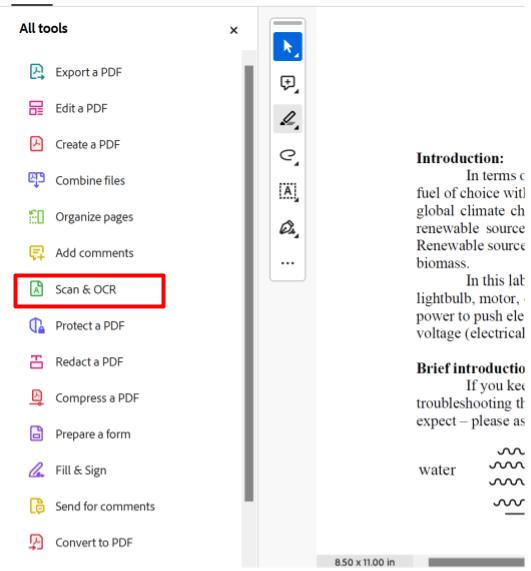
But Adobe Reader is not just about viewing PDFs. It also offers a range of editing tools that allow users to annotate, highlight, and comment on PDF documents. This makes it easy to collaborate with others and provide feedback on shared files.
Furthermore, Adobe Reader provides robust security features to protect your sensitive information. You can encrypt your PDF files, set permissions for viewing and editing, and add digital signatures to ensure the integrity of your documents.
For those who work with forms, Adobe Reader simplifies the process of filling out interactive PDF forms. You can easily input text, check boxes, and select options within the form fields, making it convenient to complete and submit forms online.
In addition to its core functionalities, Adobe Reader offers integration with other Adobe products such as Acrobat DC for more advanced PDF editing capabilities. This seamless integration allows users to create dynamic PDFs with multimedia elements like videos and interactive buttons.
Overall, Adobe Reader continues to be a versatile tool for handling all aspects of PDF files. Whether you’re a student reviewing lecture notes, a professional collaborating on business documents, or an individual filling out tax forms online, Adobe Reader provides the essential features you need for working with PDFs efficiently.
Top 5 FAQs About Using Adobe Reader for PDF Files
- How do I download and install Adobe Reader?
- Can Adobe Reader open PDF files created by other software?
- Is Adobe Reader free to use, or do I need to purchase a subscription?
- How can I update Adobe Reader to the latest version?
- Does Adobe Reader offer features for editing and annotating PDF files?
How do I download and install Adobe Reader?
To download and install Adobe Reader, simply visit the official Adobe website and navigate to the “Products” section. Look for Adobe Reader in the list of available software and click on the download link. Follow the on-screen instructions to complete the download process. Once the installation file is downloaded, double-click on it to start the installation wizard. Follow the prompts to install Adobe Reader on your device. After installation is complete, you can launch Adobe Reader and start viewing, editing, and managing your PDF files with ease.
Can Adobe Reader open PDF files created by other software?
Yes, Adobe Reader is designed to be compatible with PDF files created by other software. Whether the PDF file was generated by Microsoft Word, Excel, or any other application that can export to PDF format, Adobe Reader can open and display these files without any issues. This interoperability ensures that users can seamlessly access and view PDF documents created from various sources using Adobe Reader’s reliable rendering capabilities.
Is Adobe Reader free to use, or do I need to purchase a subscription?
One common question that users often ask about Adobe Reader is whether it is free to use or requires a subscription. The good news is that Adobe Reader is available for free to all users, allowing you to view, annotate, and interact with PDF files without any cost. While Adobe does offer premium subscription plans with additional features and capabilities through Acrobat DC, the basic functionality of Adobe Reader remains accessible to everyone at no charge. This makes it easy for individuals and businesses alike to leverage the power of Adobe Reader for their PDF needs without having to worry about any financial commitment.
How can I update Adobe Reader to the latest version?
To update Adobe Reader to the latest version, you can follow a simple process. First, open Adobe Reader on your computer and navigate to the “Help” menu. From there, select the option for “Check for Updates.” Adobe Reader will then automatically check for any available updates and prompt you to download and install the latest version if one is available. Alternatively, you can visit the official Adobe website and look for the “Downloads” section to find the most recent version of Adobe Reader. By regularly updating your Adobe Reader software, you ensure that you have access to the latest features, security enhancements, and bug fixes provided by Adobe.
Does Adobe Reader offer features for editing and annotating PDF files?
Yes, Adobe Reader offers a range of features for editing and annotating PDF files. Users can easily annotate PDF documents by adding comments, highlighting text, drawing shapes, and inserting sticky notes. In addition, Adobe Reader allows for text editing, enabling users to modify text within the PDF file. These editing and annotation tools provide users with the flexibility to collaborate on documents, provide feedback, and make necessary changes to their PDF files efficiently.
Tags: adobe products integration, adobe reader, adobe reader pdf, annotate, clarity, comment, digital signatures, editing, editing tools, encrypt, highlight, interactive buttons, interactive forms, managing, multimedia elements, pdf files, permissions, powerful features, precision, security features, user-friendly interface, videos, viewing