
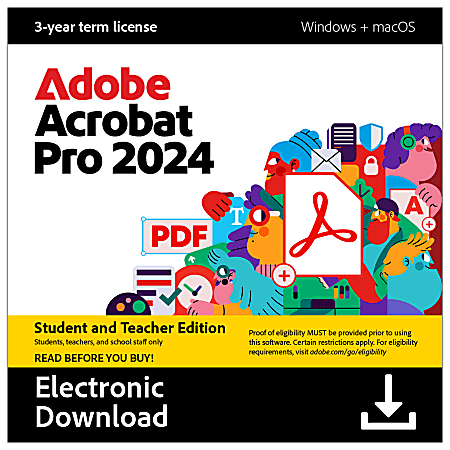
The Power of Adobe Acrobat for Mac Users
Adobe Acrobat is a versatile software tool that offers a wide range of features for Mac users. Whether you are a student, professional, or simply someone who wants to enhance their productivity, Adobe Acrobat on Mac can be a game-changer.
One of the key benefits of using Adobe Acrobat on Mac is its seamless integration with the macOS environment. The software is optimized to work efficiently on Mac systems, providing users with a smooth and intuitive experience.
With Adobe Acrobat, Mac users can easily create, edit, and convert PDF files. Whether you need to merge multiple documents into a single PDF file or annotate an existing PDF with comments and markups, Adobe Acrobat offers robust tools to streamline your workflow.
Another standout feature of Adobe Acrobat for Mac is its ability to securely sign and protect PDF documents. You can add digital signatures to your PDF files, ensuring their authenticity and integrity. Additionally, you can set permissions and passwords to restrict access to sensitive information.
For professionals who deal with large volumes of documents, Adobe Acrobat’s batch processing capabilities are a real time-saver. You can automate repetitive tasks such as converting multiple files to PDF or extracting text from scanned documents with just a few clicks.
Furthermore, Adobe Acrobat on Mac supports cloud storage services like Dropbox and Google Drive, allowing you to access your PDF files from anywhere and collaborate with others in real-time.
In conclusion, Adobe Acrobat is a must-have tool for Mac users who work with PDF documents regularly. Its powerful features, user-friendly interface, and seamless integration with macOS make it an invaluable asset for enhancing productivity and efficiency.
Top 7 Advantages of Using Adobe Acrobat on Mac for Enhanced Productivity and Security
- Seamless integration with macOS environment
- Efficient tools for creating, editing, and converting PDF files
- Securely sign and protect PDF documents with digital signatures and passwords
- Batch processing capabilities for automating repetitive tasks
- Support for cloud storage services like Dropbox and Google Drive
- User-friendly interface that enhances productivity
- Robust features for annotating and collaborating on PDF documents
Challenges of Using Adobe Acrobat on Mac: Cost, Performance, Editing Limitations, and Learning Curve
- High subscription cost for full features
- Can be resource-intensive and slow on older Mac systems
- Limited advanced editing capabilities compared to other professional PDF editors
- Complex interface may require some time to learn for new users
Seamless integration with macOS environment
Adobe Acrobat’s seamless integration with the macOS environment is a standout feature that enhances the user experience for Mac users. By optimizing its software to work harmoniously with macOS, Adobe Acrobat ensures a smooth and intuitive workflow. This integration allows users to leverage familiar macOS functionalities and shortcuts, making it easier to navigate and utilize Adobe Acrobat’s powerful tools effectively. The seamless integration not only increases productivity but also provides a cohesive user experience that aligns well with the Mac ecosystem, ultimately simplifying tasks and boosting efficiency for users.
Efficient tools for creating, editing, and converting PDF files
Adobe Acrobat for Mac offers a suite of efficient tools for creating, editing, and converting PDF files, making it a versatile solution for users seeking to manage their documents effectively. With Adobe Acrobat’s intuitive interface and robust features, Mac users can effortlessly create professional-looking PDFs from various file formats, edit existing documents with precision, and convert files seamlessly without compromising quality. This pro of Adobe Acrobat on Mac empowers individuals and professionals alike to streamline their workflow and enhance productivity when working with PDF files.
Securely sign and protect PDF documents with digital signatures and passwords
Adobe Acrobat for Mac offers a robust feature that allows users to securely sign and protect PDF documents with digital signatures and passwords. This capability ensures the authenticity and integrity of the files, providing peace of mind when sharing sensitive information. By adding digital signatures, users can verify the identity of the signer and prevent unauthorized alterations to the document. Additionally, setting passwords for PDF files adds an extra layer of security, restricting access only to those with the correct credentials. With this pro feature of Adobe Acrobat on Mac, users can confidently protect their valuable data and maintain confidentiality in their digital workflows.
Batch processing capabilities for automating repetitive tasks
Adobe Acrobat for Mac offers a valuable pro with its batch processing capabilities, allowing users to automate repetitive tasks efficiently. This feature is a time-saving boon for professionals dealing with large volumes of documents. With just a few clicks, users can convert multiple files to PDF format or extract text from scanned documents in bulk. By streamlining these tedious tasks, Adobe Acrobat empowers Mac users to focus on more critical aspects of their work, boosting productivity and efficiency.
Support for cloud storage services like Dropbox and Google Drive
Adobe Acrobat for Mac offers seamless support for popular cloud storage services such as Dropbox and Google Drive. This feature enables users to access their PDF files from anywhere, at any time, and collaborate with others in real-time. By integrating with cloud storage platforms, Adobe Acrobat enhances convenience and flexibility, allowing users to work on their documents across multiple devices effortlessly. The ability to store and share PDF files in the cloud ensures data security, accessibility, and efficient collaboration, making Adobe Acrobat a valuable tool for modern workflows.
User-friendly interface that enhances productivity
The user-friendly interface of Adobe Acrobat for Mac is a significant pro that greatly enhances productivity. With its intuitive design and easy-to-navigate features, users can efficiently create, edit, and manage PDF documents without any steep learning curve. The streamlined interface allows users to focus on their tasks rather than getting bogged down by complex menus or settings, ultimately saving time and boosting efficiency. This user-centric approach makes Adobe Acrobat on Mac a valuable tool for professionals and individuals looking to maximize their productivity when working with PDF files.
Robust features for annotating and collaborating on PDF documents
Adobe Acrobat for Mac offers robust features for annotating and collaborating on PDF documents, making it a valuable tool for individuals and teams alike. With a variety of annotation tools such as highlight, underline, strikethrough, and comments, users can easily mark up PDFs with feedback or additional information. The software also enables seamless collaboration through shared review features, allowing multiple users to comment on and review the same document simultaneously. This functionality enhances communication and productivity, making Adobe Acrobat an essential choice for those who require efficient document collaboration on Mac systems.
High subscription cost for full features
One significant drawback of using Adobe Acrobat on Mac is the high subscription cost required to access the full range of features. While Adobe Acrobat offers a free version with basic functionalities, users looking to unlock advanced tools and capabilities must subscribe to a paid plan, which can be costly for individuals or small businesses on a tight budget. The high subscription cost may deter some users from fully utilizing the software’s potential, limiting their ability to leverage all the powerful features that Adobe Acrobat has to offer.
Can be resource-intensive and slow on older Mac systems
One drawback of Adobe Acrobat on Mac is that it can be resource-intensive and slow on older Mac systems. Due to the software’s robust features and advanced functionalities, older Mac computers may struggle to keep up with the demands of Adobe Acrobat, resulting in sluggish performance and longer processing times. Users with older Mac systems may experience delays when opening or working with large PDF files, which can hinder productivity and lead to frustration. It is important for users with older Mac systems to consider the hardware requirements of Adobe Acrobat before using the software to ensure a smoother experience.
Limited advanced editing capabilities compared to other professional PDF editors
One notable con of Adobe Acrobat for Mac is its limited advanced editing capabilities when compared to other professional PDF editors. While Adobe Acrobat offers basic editing features such as text and image manipulation, users may find themselves wanting more sophisticated tools for tasks like advanced graphic design, complex layout adjustments, or detailed content restructuring. For those requiring intricate and precise editing functions, exploring alternative PDF editing software options tailored for professional use may be necessary to meet specific project requirements effectively.
Complex interface may require some time to learn for new users
One notable con of Adobe Acrobat for Mac is its complex interface, which may pose a learning curve for new users. Navigating through the various features and tools within the software can be overwhelming initially, requiring some time and effort to fully grasp its functionalities. The abundance of options and settings available in Adobe Acrobat may intimidate users who are not familiar with PDF editing software, potentially hindering their efficiency and productivity until they become more accustomed to the interface.
Tags: adobe acrobat, adobe acrobat mac, converting pdf files, creating, digital signatures, editing, efficient tools, mac users, macos environment, passwords, protect pdf documents, seamless integration