
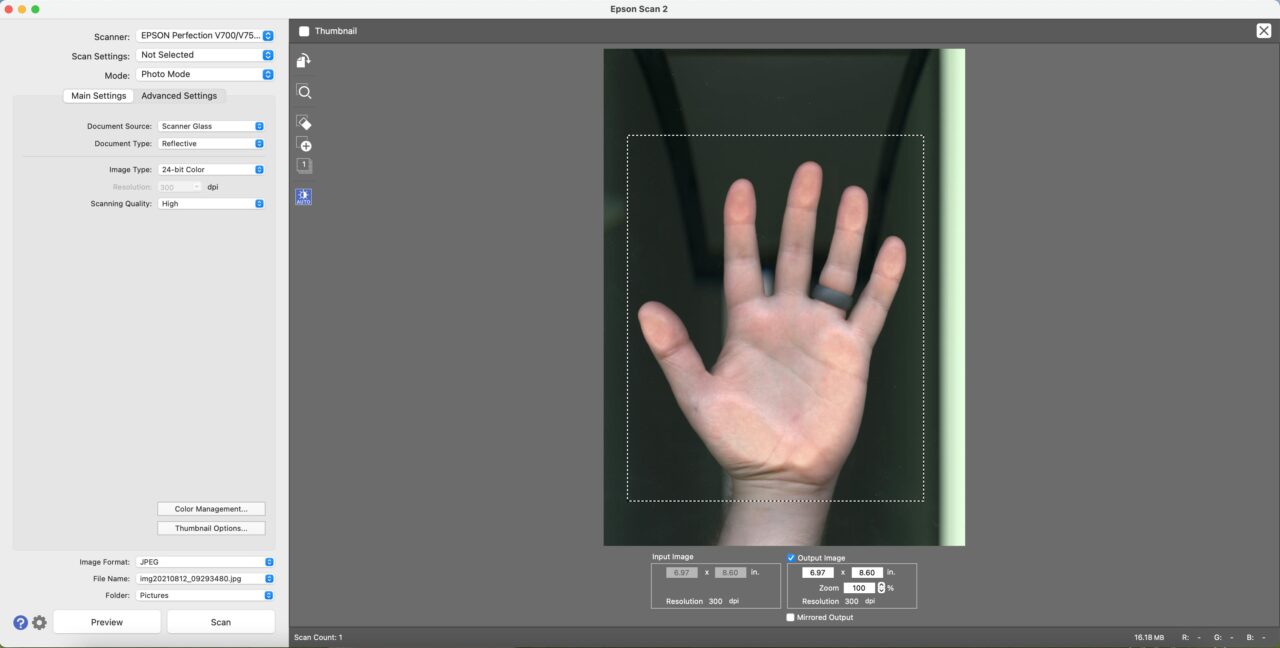
The Power of Epson Scan Software: Simplifying Your Scanning Experience
Scanning documents and photos can be a breeze with the right software, and Epson Scan is a prime example of how technology can simplify your scanning experience.
Epson Scan software is designed to work seamlessly with Epson scanners, offering a user-friendly interface and powerful features that enhance the quality and efficiency of your scans.
Key Features of Epson Scan Software:
- Easy Navigation: The intuitive interface of Epson Scan makes it easy to navigate through settings and options, allowing you to quickly set up and initiate your scans.
- Customizable Settings: From resolution and color depth to scan area and file format, Epson Scan offers a wide range of customizable settings to suit your specific scanning needs.
- Enhancement Tools: With features like dust removal, color correction, and image restoration, Epson Scan helps you enhance the quality of your scanned images with just a few clicks.
- Batch Scanning: Save time by scanning multiple documents or photos in one go with Epson Scan’s batch scanning feature, which streamlines the process and boosts productivity.
- OCR Support: Convert scanned documents into editable text with Optical Character Recognition (OCR) support in Epson Scan, making it easy to digitize physical documents for editing or archiving purposes.
Why Choose Epson Scan Software?
Whether you’re a student digitizing study materials, a professional archiving important documents, or a photography enthusiast preserving memories, Epson Scan software offers the tools you need to achieve high-quality scans with ease.
The combination of user-friendly interface, advanced features, and compatibility with Epson scanners makes Epson Scan a valuable asset for individuals and businesses alike looking to simplify their scanning workflow.
If you haven’t experienced the power of Epson Scan software yet, now is the perfect time to explore its capabilities and unlock new possibilities in scanning technology.
Epson Scan Software: Download, Compatibility, and Usage FAQs
- How do I download and install Epson Scan software?
- What are the system requirements for using Epson Scan software?
- Can I use Epson Scan software with scanners from other brands?
- How do I adjust the scan settings such as resolution and color depth in Epson Scan?
- Does Epson Scan software support batch scanning of multiple documents?
How do I download and install Epson Scan software?
To download and install Epson Scan software, simply visit the official Epson website and navigate to the support or downloads section. Locate the specific software for your Epson scanner model and operating system. Once you find the correct software version, click on the download link and follow the on-screen instructions to complete the installation process. Make sure to carefully read any prompts or agreements during the installation to ensure a successful setup of Epson Scan software on your computer. If you encounter any issues or need further assistance, refer to the user manual or contact Epson customer support for guidance.
What are the system requirements for using Epson Scan software?
To use Epson Scan software efficiently, it is essential to meet the system requirements specified by Epson. Typically, the system requirements for using Epson Scan software include having a compatible operating system such as Windows or macOS, sufficient storage space on your computer for installing the software, and a compatible Epson scanner model. Additionally, it is recommended to have a stable internet connection for downloading any necessary updates or driver software. By ensuring that your system meets these requirements, you can maximize the functionality and performance of Epson Scan software for your scanning needs.
Can I use Epson Scan software with scanners from other brands?
When it comes to using Epson Scan software with scanners from other brands, compatibility may be limited. Epson Scan software is specifically designed to work seamlessly with Epson scanners, leveraging the unique features and functionalities of Epson devices. While some third-party scanning software may offer broader compatibility across different scanner brands, using Epson Scan with non-Epson scanners may not guarantee optimal performance or full functionality. It is recommended to check the specifications and compatibility requirements of both the software and scanner to ensure a smooth scanning experience.
How do I adjust the scan settings such as resolution and color depth in Epson Scan?
To adjust scan settings such as resolution and color depth in Epson Scan, simply launch the software and select the “Home” or “Professional” mode, depending on your preference for basic or advanced settings. Within the scanning interface, locate the “Resolution” and “Color Depth” options, usually found under the settings or preferences menu. Here, you can adjust the resolution to determine the level of detail in your scans and modify the color depth to control the richness and accuracy of colors captured. Experiment with different settings to achieve optimal results based on your scanning requirements, whether it’s for crisp text documents or vibrant photos. Epson Scan provides users with the flexibility to fine-tune these parameters easily, ensuring that your scanned images meet your quality standards.
Does Epson Scan software support batch scanning of multiple documents?
Epson Scan software indeed supports batch scanning of multiple documents, making it a convenient and efficient tool for users looking to streamline their scanning process. With this feature, you can save time and effort by scanning multiple documents or photos in a single operation. Epson Scan’s batch scanning capability allows you to set up the parameters once and scan all your documents consecutively, enhancing productivity and simplifying the task of digitizing multiple items quickly and easily.
Tags: batch scanning, customizable settings, easy navigation, enhancement tools, epson scan software, epson scanners, ocr support, operating system compatibility, powerful features, quality scans, scanning experience, simplifying, system requirements, user-friendly interface