
The Power of Word Processing Software
Word processing software has revolutionized the way we create, edit, and format documents. From simple letters to complex reports, word processing tools have become essential in both professional and personal settings.
One of the key advantages of word processing software is its ability to streamline the writing process. With features like spell check, grammar check, and auto-correct, users can produce error-free documents with ease. Additionally, the ability to cut, copy, and paste text allows for quick editing and rearranging of content.
Formatting options in word processing software enable users to customize their documents according to their preferences. From font styles and sizes to colors and alignment settings, these tools make it easy to create visually appealing and professional-looking documents.
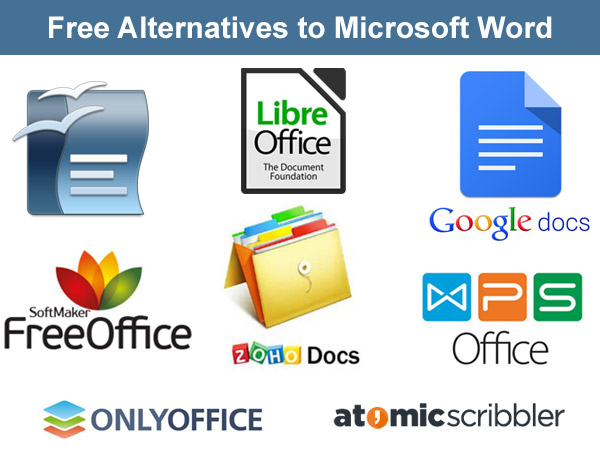
Collaboration is another major benefit of word processing software. With cloud-based platforms like Google Docs and Microsoft Word Online, multiple users can work on a document simultaneously, making real-time edits and comments. This feature enhances teamwork and efficiency in group projects.
Word processing software also offers templates for various types of documents, such as resumes, newsletters, and invoices. These templates provide a starting point for users who may be unsure of how to structure their documents effectively.
In conclusion, word processing software has transformed the way we write and manage documents. Its user-friendly interface, robust features, and collaborative capabilities make it an indispensable tool in today’s digital age.
Essential FAQs About Using Word Processing Software
- What is word processing software?
- What are the key features of word processing software?
- How do I insert images and tables in a document using word processing software?
- Can I track changes and collaborate with others using word processing software?
- How can I format text and customize styles in a document?
- Are there any shortcuts or tips to improve efficiency when using word processing software?
What is word processing software?
Word processing software is a computer application designed to create, edit, format, and print text-based documents. It provides users with a digital platform to compose written content efficiently, offering features such as spell check, grammar check, formatting tools, and the ability to insert images and tables. Word processing software simplifies the writing process by allowing users to manipulate text easily, customize layouts, and collaborate with others on documents. Whether used for drafting emails, creating reports, or designing flyers, word processing software plays a crucial role in enhancing productivity and organization in both professional and personal environments.
What are the key features of word processing software?
One of the most frequently asked questions about word processing software is, “What are the key features of word processing software?” Word processing software offers a range of essential features that simplify document creation and editing. These include tools for text formatting, spell check, grammar check, cut and paste functionality, and the ability to insert images and tables. Additionally, word processing software often provides templates for various document types, collaboration options for team projects, version history tracking, and the ability to export files in different formats. These key features combine to make word processing software a versatile and indispensable tool for both personal and professional use.
How do I insert images and tables in a document using word processing software?
Inserting images and tables in a document using word processing software is a common task that enhances the visual appeal and organization of your content. To insert an image, you can usually find an “Insert” or “Image” option in the toolbar menu. Click on this option, browse for the image file on your computer, and select it to insert it into your document. For tables, look for a “Table” option in the toolbar menu and choose the number of rows and columns you need. You can then customize the table by adjusting its size, borders, and cell formatting to suit your document’s layout. By following these simple steps, you can easily incorporate images and tables into your document to make it more engaging and structured.
Can I track changes and collaborate with others using word processing software?
Many word processing software programs offer a robust “Track Changes” feature that allows users to monitor and review modifications made to a document. This feature is especially useful for collaboration, as it enables multiple users to make edits while preserving the original content. By tracking changes, users can easily see who made specific revisions, accept or reject modifications, and maintain a clear record of the document’s evolution. Collaborating with others using word processing software becomes more efficient and transparent with the track changes functionality, fostering seamless teamwork and enhancing overall productivity.
How can I format text and customize styles in a document?
When it comes to formatting text and customizing styles in a document using word processing software, the process is typically straightforward and user-friendly. Most word processing programs offer a variety of options to modify text appearance, such as changing font styles, sizes, colors, and alignment. Users can also apply formatting features like bold, italic, underline, and strikethrough to emphasize or highlight specific content. Additionally, customizing styles allows for consistent formatting throughout the document by creating and applying predefined styles for headings, subheadings, body text, and more. By mastering these tools within word processing software, users can enhance the visual appeal and readability of their documents with ease.
Are there any shortcuts or tips to improve efficiency when using word processing software?
Many users often wonder if there are any shortcuts or tips to enhance efficiency when using word processing software. The answer is yes! Utilizing keyboard shortcuts can significantly speed up tasks such as copying, pasting, formatting, and navigating within a document. Learning these shortcuts can save time and streamline your workflow. Additionally, taking advantage of features like auto-correct, templates, and styles can also improve efficiency by reducing manual input and formatting efforts. Exploring the customization options within the software to tailor it to your specific needs can further boost productivity. By incorporating these shortcuts and tips into your routine, you can optimize your use of word processing software and work more efficiently.
Tags: alignment settings, auto-correct, cloud-based platforms, collaboration, colors, copy, create, customize, cut, documents, edit, font styles, format, formatting options, google docs, grammar check, microsoft word online, paste, resumes newsletters invoices, sizes, spell check, templates, text, word processing software