
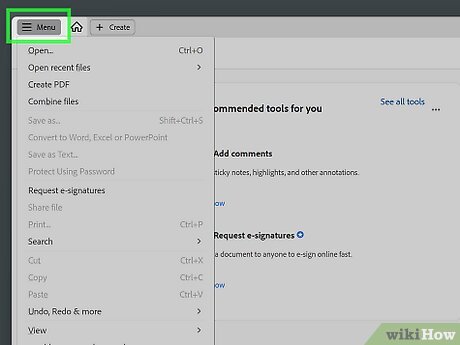
Exploring Acrobat Reader for Mac: A Comprehensive Guide
Adobe Acrobat Reader is a versatile tool that allows Mac users to view, create, edit, and manage PDF documents with ease. Whether you’re a student, professional, or just someone who frequently works with PDF files, Acrobat Reader for Mac offers a range of features to streamline your workflow.
Key Features of Acrobat Reader for Mac:
- Viewing and Annotating: With Acrobat Reader, you can easily view PDF documents and add annotations such as comments, highlights, and sticky notes to collaborate with others or make notes for yourself.
- Creating PDFs: Convert various file formats into PDFs directly within the application. This feature is especially useful when you need to create professional-looking documents from different sources.
- Editing Tools: Edit text and images in your PDF files effortlessly. You can also rearrange pages, crop images, and add watermarks to your documents.
- Fill & Sign: Electronically fill out forms and sign documents without the need for printing or scanning. This feature simplifies paperwork processes and saves time.
- Sharing and Collaboration: Share your PDF files securely via email or cloud storage services. Collaborate with others by sharing comments and annotations in real-time.
How to Get Adobe Acrobat Reader for Mac:
To download Adobe Acrobat Reader on your Mac, simply visit the official Adobe website and locate the “Download” section. Follow the on-screen instructions to install the application on your device. Adobe offers a free version of Acrobat Reader with basic features, while a subscription-based Adobe Acrobat DC provides additional functionalities for power users.
In Conclusion
Acrobat Reader for Mac is a valuable tool for anyone who deals with PDF documents regularly. Its intuitive interface, comprehensive features, and seamless integration make it a top choice among Mac users looking to enhance their productivity when working with PDF files.
Essential Tips for Optimizing Your Acrobat Reader Experience on Mac
- To search for a specific word or phrase in a PDF document, use the ‘Find’ feature by pressing Command + F.
- You can customize your viewing preferences by adjusting settings such as zoom level and page layout under the ‘View’ menu.
- Use the ‘Tools’ menu to access features like adding comments, highlighting text, and filling out forms in your PDF files.
- To quickly navigate through a document, utilize the sidebar navigation panel on the left side of the Acrobat Reader window.
- Make use of keyboard shortcuts such as Command + N to open a new PDF file or Command + W to close the current file.
- Ensure you have the latest version of Acrobat Reader installed to benefit from performance improvements and security updates.
To search for a specific word or phrase in a PDF document, use the ‘Find’ feature by pressing Command + F.
To efficiently locate a specific word or phrase within a PDF document using Acrobat Reader on your Mac, utilize the convenient ‘Find’ feature by simply pressing Command + F. This handy shortcut allows you to quickly search through the content of the PDF, making it easier to pinpoint the information you are looking for without having to manually scan through each page. By mastering this tip, you can streamline your document navigation and enhance your overall user experience with Acrobat Reader on Mac.
You can customize your viewing preferences by adjusting settings such as zoom level and page layout under the ‘View’ menu.
To enhance your reading experience on Acrobat Reader for Mac, take advantage of the customizable viewing options available under the ‘View’ menu. By adjusting settings like zoom level and page layout, you can tailor the display to suit your preferences and improve readability. Whether you prefer a closer look at details with a higher zoom level or a multi-page view for easier navigation, exploring these settings allows you to optimize your viewing experience while working with PDF documents on your Mac.
Use the ‘Tools’ menu to access features like adding comments, highlighting text, and filling out forms in your PDF files.
To enhance your PDF file management experience on Acrobat Reader for Mac, utilize the ‘Tools’ menu to access a range of essential features. From adding comments and highlighting text to filling out forms seamlessly, the ‘Tools’ menu provides convenient access to key functionalities that can streamline your workflow and improve collaboration. By exploring the options available in the ‘Tools’ menu, you can efficiently annotate documents, make important notes, and interact with PDF files in a more interactive and productive manner.
To quickly navigate through a document, utilize the sidebar navigation panel on the left side of the Acrobat Reader window.
To efficiently navigate through a document in Acrobat Reader for Mac, take advantage of the sidebar navigation panel located on the left side of the application window. This handy feature allows users to easily jump between pages, sections, or bookmarks within the document, enhancing overall productivity and user experience. Simply click on the desired section in the sidebar to instantly navigate to that specific part of the document, saving time and effort when working with lengthy PDF files.
Make use of keyboard shortcuts such as Command + N to open a new PDF file or Command + W to close the current file.
Utilizing keyboard shortcuts can significantly enhance your efficiency when using Acrobat Reader on Mac. For instance, by simply pressing Command + N, you can swiftly open a new PDF file without the need to navigate through menus. Similarly, employing Command + W allows you to quickly close the current file, streamlining your workflow and saving valuable time. Incorporating these keyboard shortcuts into your routine can help you navigate Acrobat Reader with ease and boost your productivity while managing PDF documents on your Mac.
Ensure you have the latest version of Acrobat Reader installed to benefit from performance improvements and security updates.
To maximize the efficiency and security of your experience with Acrobat Reader on Mac, it is crucial to ensure that you have the latest version of the software installed. By regularly updating Acrobat Reader, you not only gain access to performance improvements but also receive essential security updates that help safeguard your PDF documents and data. Keeping your software up-to-date guarantees a smooth and secure user experience while utilizing the full range of features that Acrobat Reader has to offer.
Tags: acrobat reader, acrobat reader mac, adobe, annotating, collaboration, command f shortcut, comprehensive guide, creating pdfs, document navigation, download, editing tools, features, fill sign, installation instructions, mac, official adobe website, page layout settings customization, pdf documents, productivity, sharing, subscription-based adobe acrobat dc, tools menu access, user experience, viewing, viewing preferences, zoom level adjustment