
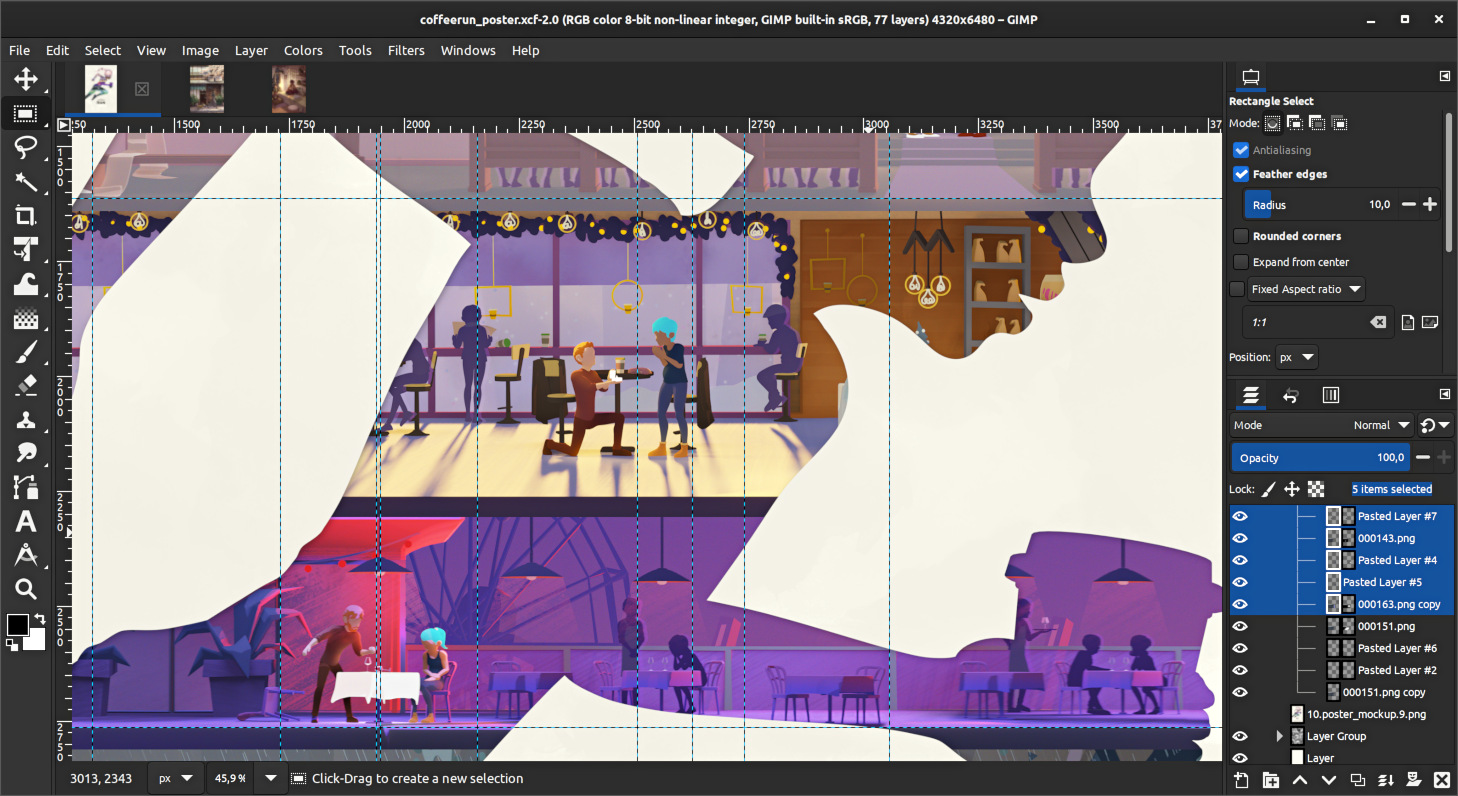
The Power of GIMP Software: A Comprehensive Guide
When it comes to graphic design and image editing, GIMP stands out as a powerful and versatile software that offers a wide range of features and tools. Short for GNU Image Manipulation Program, GIMP is a free and open-source application that rivals many paid software in terms of functionality and capabilities.
One of the key strengths of GIMP is its extensive set of tools for retouching photos, creating artwork, and designing graphics. From basic tasks like cropping and resizing images to more advanced techniques such as layer masking and color correction, GIMP provides everything you need to unleash your creativity.
Another standout feature of GIMP is its support for various file formats, including popular options like JPEG, PNG, GIF, TIFF, and PSD. This flexibility allows users to work with different types of images without any compatibility issues.
Furthermore, GIMP supports customization through plugins and scripts, enabling users to enhance the software’s functionality based on their specific needs. Whether you are a beginner looking to learn the basics of image editing or a professional seeking advanced tools for complex projects, GIMP has something for everyone.
In addition to its robust feature set, GIMP has a supportive community of users and developers who contribute to its ongoing improvement. This collaborative environment ensures that the software remains up-to-date with the latest trends in graphic design and technology.
Overall, GIMP is a valuable tool for anyone looking to create stunning visuals without breaking the bank. With its user-friendly interface, extensive features, and active community, GIMP continues to be a top choice for graphic designers, photographers, artists, and hobbyists alike.
Mastering GIMP: 6 Essential Tips for Effective Image Editing
- Use layers to work non-destructively and make editing easier.
- Take advantage of the wide range of selection tools for precise editing.
- Explore various filters and effects to enhance your images creatively.
- Learn keyboard shortcuts to speed up your workflow in GIMP.
- Utilize masks for advanced editing and blending techniques.
- Save your work in different file formats to maintain quality and flexibility.
Use layers to work non-destructively and make editing easier.
Utilizing layers in GIMP software is a smart strategy to work non-destructively and streamline the editing process. By separating different elements of your design onto individual layers, you can make adjustments without altering the original image. This approach allows for greater flexibility and precision in editing, as you can easily modify specific elements without affecting the rest of the composition. Layers in GIMP empower users to experiment freely, undo changes selectively, and achieve professional-looking results with ease. Mastering the art of layer management is key to maximizing the potential of GIMP and enhancing your creative workflow.
Take advantage of the wide range of selection tools for precise editing.
To make the most of your editing experience in GIMP software, it is essential to take advantage of the wide range of selection tools available. These tools allow you to precisely isolate and manipulate specific areas of an image, enabling you to achieve more accurate and detailed edits. Whether you need to select objects, remove backgrounds, or apply effects to specific regions, mastering the selection tools in GIMP will greatly enhance your editing capabilities and help you achieve professional-looking results.
Explore various filters and effects to enhance your images creatively.
Explore various filters and effects in GIMP to elevate your image editing game and add a creative touch to your visuals. From vintage-inspired filters to modern artistic effects, GIMP offers a wide range of tools to help you transform your images in unique and captivating ways. Experimenting with different filters and effects can unlock endless possibilities for enhancing your photos and unleashing your creativity. Whether you’re aiming for a subtle enhancement or a bold artistic statement, GIMP’s diverse selection of filters and effects is sure to inspire you to push the boundaries of your image editing skills.
Learn keyboard shortcuts to speed up your workflow in GIMP.
Mastering keyboard shortcuts in GIMP is a game-changer when it comes to optimizing your workflow. By familiarizing yourself with these time-saving key combinations, you can navigate through tools and commands swiftly, enhancing your efficiency and productivity. Whether you’re editing photos, creating digital art, or designing graphics, incorporating keyboard shortcuts into your GIMP workflow can streamline your process and help you work more seamlessly.
Utilize masks for advanced editing and blending techniques.
To enhance your editing skills in GIMP software, make sure to leverage the power of masks for advanced editing and blending techniques. Masks allow you to selectively apply effects, adjustments, or blending modes to specific areas of an image, giving you precise control over the editing process. By utilizing masks effectively, you can achieve seamless blends, intricate compositions, and professional-looking edits that elevate your graphic design projects to the next level. Experiment with masks in GIMP to unlock a world of creative possibilities and take your editing skills to new heights.
Save your work in different file formats to maintain quality and flexibility.
To maximize the quality and flexibility of your work in GIMP software, it is essential to save your projects in different file formats. By saving your files in various formats such as JPEG, PNG, TIFF, or PSD, you ensure that you have options when it comes to sharing or editing your creations. Different file formats offer unique advantages, from preserving image quality to retaining layers and transparency. This practice not only safeguards your work but also allows you to adapt and modify your designs based on different requirements or platforms.
Tags: color correction, community support, creating artwork, customization, designing graphics, developers community, features, file formats, gif, gimp, gimp software, graphic design, image editing, jpeg, layer masking, non-destructively editing layers strategy, plugins, png, psd, retouching photos, scripts, software, tiff, tools