
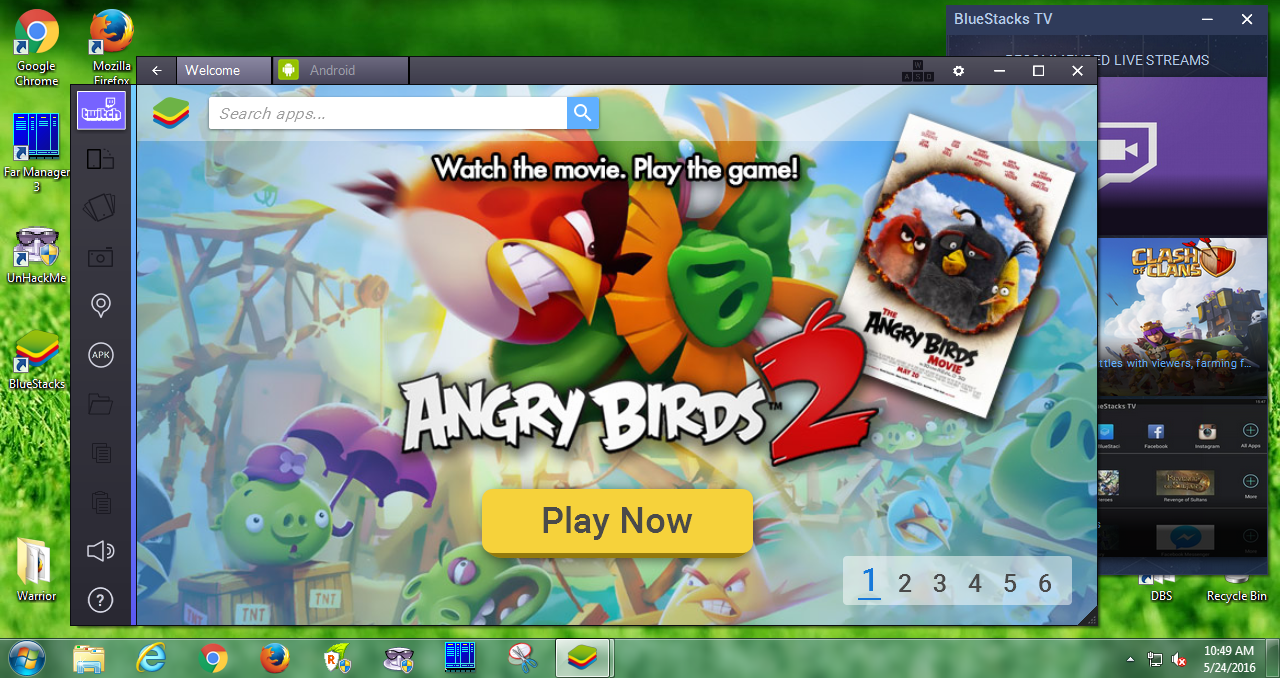
BlueStacks for Windows 7: Enhancing Your Android Experience on PC
BlueStacks is a popular Android emulator that allows users to run Android applications on their Windows PC. With the ability to emulate an Android device, BlueStacks provides a seamless experience for those who want to enjoy their favorite mobile apps and games on a larger screen.
For Windows 7 users, BlueStacks offers a convenient way to access the vast library of Android apps without needing an actual Android device. Whether you want to use messaging apps, social media platforms, or productivity tools, BlueStacks makes it possible to do so on your Windows 7 computer.
Installing BlueStacks on Windows 7 is straightforward and user-friendly. Simply download the BlueStacks installer from the official website, run the setup process, and follow the on-screen instructions. Once installed, you can launch BlueStacks and sign in with your Google account to access the Google Play Store and download your favorite apps.
One of the key benefits of using BlueStacks on Windows 7 is the ability to customize settings to optimize performance. Users can adjust resolution, RAM allocation, CPU cores, and other parameters to ensure smooth operation of Android apps on their PC.
Whether you want to play graphics-intensive games, test new applications, or simply enjoy a more comfortable browsing experience, BlueStacks for Windows 7 opens up a world of possibilities for users looking to bridge the gap between mobile and desktop computing.
Overall, BlueStacks for Windows 7 is a versatile tool that enhances your Android experience on PC. By providing seamless integration between mobile and desktop platforms, BlueStacks offers convenience and flexibility for users who want to make the most of their favorite Android apps without switching devices.
Top 6 Benefits of Using BlueStacks on Windows 7: Bringing Android Apps to Your PC
- 1. Access to a vast library of Android apps on your Windows 7 PC.
- 2. Seamless integration between mobile and desktop platforms.
- 3. Customizable settings for optimizing performance based on user preferences.
- 4. Convenient way to enjoy mobile games and applications on a larger screen.
- 5. Easy installation process with user-friendly interface.
- 6. Ability to use messaging apps, social media platforms, and productivity tools without needing an actual Android device.
Challenges of Using Bluestacks on Windows 7: Resource Demands, Compatibility Limits, and Stability Concerns
1. Access to a vast library of Android apps on your Windows 7 PC.
By using BlueStacks on your Windows 7 PC, you gain access to a vast library of Android apps that would otherwise be limited to mobile devices. This capability allows you to explore and enjoy a wide range of applications, from productivity tools to entertainment options, all conveniently accessible on your desktop or laptop. With BlueStacks, the boundaries between mobile and desktop computing blur, offering you the flexibility to leverage the extensive ecosystem of Android apps right at your fingertips on your Windows 7 platform.
2. Seamless integration between mobile and desktop platforms.
BlueStacks for Windows 7 offers a significant advantage with its seamless integration between mobile and desktop platforms. This feature allows users to effortlessly transition between their Android apps on a mobile device and their Windows PC. By bridging the gap between these two platforms, BlueStacks provides a unified experience that enhances productivity and convenience. Whether you are checking messages, editing documents, or playing games, the seamless integration of BlueStacks ensures a smooth and consistent user experience across different devices.
3. Customizable settings for optimizing performance based on user preferences.
One of the standout advantages of BlueStacks for Windows 7 is its customizable settings feature, which allows users to optimize performance according to their preferences. By adjusting parameters such as resolution, RAM allocation, CPU cores, and more, users can tailor their BlueStacks experience to ensure smooth operation of Android apps on their PC. This level of customization not only enhances performance but also provides users with greater control over their virtual Android environment, making it easier to achieve the desired balance between speed and visual quality.
4. Convenient way to enjoy mobile games and applications on a larger screen.
BlueStacks for Windows 7 offers a convenient way to enjoy mobile games and applications on a larger screen. By emulating an Android device on your PC, BlueStacks allows users to seamlessly transition their favorite mobile games and apps to a more immersive viewing experience. Whether you’re playing graphics-intensive games or using productivity tools, the ability to access these applications on a larger screen enhances both visual clarity and overall enjoyment, making BlueStacks a valuable tool for Windows 7 users seeking a more expansive and engaging mobile experience.
5. Easy installation process with user-friendly interface.
One of the standout advantages of BlueStacks for Windows 7 is its easy installation process coupled with a user-friendly interface. Setting up BlueStacks on your Windows 7 computer is a straightforward task that doesn’t require technical expertise. The step-by-step installation guide and intuitive interface make it accessible for users of all levels to get started quickly and effortlessly. This seamless setup process ensures that users can begin enjoying their favorite Android apps on their PC without any hassle, enhancing the overall user experience and convenience.
6. Ability to use messaging apps, social media platforms, and productivity tools without needing an actual Android device.
BlueStacks for Windows 7 provides users with the valuable advantage of being able to access messaging apps, social media platforms, and productivity tools without the necessity of owning an actual Android device. This feature allows users to stay connected, productive, and engaged with their favorite applications directly on their Windows 7 computer. By eliminating the need for a physical Android device, BlueStacks offers convenience and flexibility, enabling users to seamlessly integrate their digital activities across different platforms for a more streamlined experience.
Resource Intensive
One notable drawback of BlueStacks for Windows 7 is its resource-intensive nature, which can pose challenges for older PCs with limited RAM or processing power. Running BlueStacks may lead to sluggish performance and system slowdowns on these devices, impacting the overall user experience. Users of older Windows 7 computers should be cautious when using BlueStacks and consider upgrading their hardware to ensure smooth operation of the Android emulator.
Limited Compatibility
One drawback of using BlueStacks for Windows 7 is its limited compatibility with certain Android apps. Users may encounter issues where some apps do not function as intended due to compatibility issues or lack of optimization within the emulator. This can be frustrating for users who rely on specific apps for work or entertainment purposes, as they may experience glitches, crashes, or performance issues when trying to use them on BlueStacks. It is important for users to be aware of this limitation and potentially explore alternative solutions if they rely heavily on Android apps that may not work seamlessly with BlueStacks on Windows 7.
Occasional Stability Issues
Occasional Stability Issues: While BlueStacks for Windows 7 offers a convenient way to run Android apps on PC, users may experience occasional stability issues. These can manifest as crashes or performance hiccups, especially when running certain apps or games. These interruptions can disrupt the user experience and may require troubleshooting to address. It’s important for users to be aware of these potential challenges and to seek solutions to ensure a smoother and more reliable performance while using BlueStacks on Windows 7.
Tags: android apps, bluestacks, cpu cores, customizable settings, entertainment options, experience, graphics-intensive games, larger screen, mobile devices, optimize performance, pc, productivity tools, ram allocation, resolution, seamless integration, windows 7