
The Importance of Malicious Software Removal Tool
Malicious software, also known as malware, poses a significant threat to the security and privacy of computer systems. From viruses and trojans to spyware and ransomware, these malicious programs can cause havoc on your device and compromise your sensitive data.
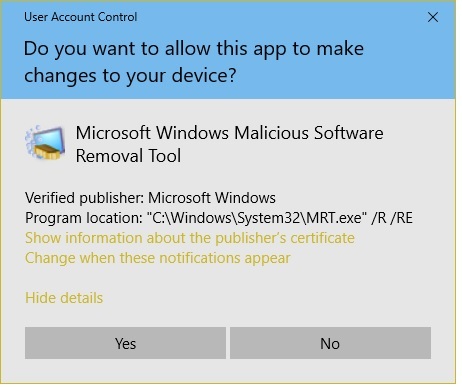
One essential tool in combating malware is the Malicious Software Removal Tool (MSRT) developed by Microsoft. This tool is designed to scan for and remove specific prevalent malicious software from Windows-based computers.
MSRT is not a replacement for antivirus software, but it serves as an additional layer of defense against known malware threats. It is regularly updated by Microsoft to detect and remove the latest malicious programs that may be circulating in the wild.
Using MSRT is simple – you can either download it manually from Microsoft’s website or let Windows Update automatically download and run it on your system. Once executed, the tool scans your computer for common types of malware and helps you eliminate them effectively.
Regularly running the Malicious Software Removal Tool can help keep your system clean and secure. It complements your existing antivirus software by targeting specific types of malware that may evade detection by traditional security tools.
Remember, prevention is always better than cure when it comes to cybersecurity. By using tools like MSRT in conjunction with a reliable antivirus program, you can significantly reduce the risk of falling victim to malicious attacks and safeguard your digital assets.
Stay proactive in protecting your computer against malware threats – make sure to run the Malicious Software Removal Tool periodically and keep your security software up-to-date!
8 Essential Tips for Effective Malicious Software Removal and Prevention
- Regularly update your malicious software removal tool to ensure it can detect and remove the latest threats.
- Run full system scans at least once a week to thoroughly check for any malicious software on your computer.
- Be cautious when downloading files or programs from the internet to prevent malware infections.
- Enable real-time protection if your malicious software removal tool offers this feature to prevent malware from infecting your system in real-time.
- Use additional security measures like firewalls and anti-virus software in conjunction with the removal tool for comprehensive protection.
- Create regular backups of important files to mitigate data loss in case of a malware attack that damages or encrypts your data.
- If you suspect an infection, disconnect your device from the network to prevent the spread of malware and then run a scan with the removal tool.
- Educate yourself on common phishing techniques and avoid clicking on suspicious links or email attachments that could introduce malware into your system.
Regularly update your malicious software removal tool to ensure it can detect and remove the latest threats.
Regularly updating your malicious software removal tool is crucial in maintaining the effectiveness of your cybersecurity defenses. By keeping the tool up-to-date, you ensure that it has the latest definitions and capabilities to detect and remove the most recent malware threats. Cybercriminals are constantly evolving their tactics, creating new forms of malicious software that can bypass outdated security measures. Therefore, by staying vigilant with updates, you enhance your system’s resilience against emerging threats and bolster its overall protection against cyber attacks.
Run full system scans at least once a week to thoroughly check for any malicious software on your computer.
It is highly recommended to run full system scans using a Malicious Software Removal Tool at least once a week to conduct a comprehensive check for any malicious software that may have infiltrated your computer. By performing regular scans, you can proactively detect and eliminate any potential threats, ensuring the security and integrity of your system. This proactive approach helps in maintaining a clean and secure computing environment, safeguarding your data and privacy from the harmful impacts of malware.
Be cautious when downloading files or programs from the internet to prevent malware infections.
To safeguard your computer from malware infections, it is crucial to exercise caution when downloading files or programs from the internet. Malicious software can often be disguised as legitimate downloads, so it is essential to only download from trusted sources and verify the authenticity of the files before opening them. By being vigilant and selective about what you download, you can significantly reduce the risk of falling victim to malware attacks and keep your system secure.
Enable real-time protection if your malicious software removal tool offers this feature to prevent malware from infecting your system in real-time.
Enabling real-time protection on your malicious software removal tool is a crucial step in safeguarding your system against malware threats. By activating this feature, the tool can actively monitor and block malicious activities in real-time, preventing malware from infecting your system before it causes any harm. This proactive approach adds an extra layer of defense to your cybersecurity strategy, ensuring that your device remains secure and protected from evolving malware attacks.
Use additional security measures like firewalls and anti-virus software in conjunction with the removal tool for comprehensive protection.
For comprehensive protection against malware threats, it is advisable to complement the use of a Malicious Software Removal Tool with additional security measures such as firewalls and anti-virus software. Firewalls act as a barrier between your computer and potential threats from the internet, while anti-virus software helps detect and remove a wide range of malicious programs. By combining these tools, you create a multi-layered defense system that enhances your overall cybersecurity posture and reduces the likelihood of falling victim to cyber attacks.
Create regular backups of important files to mitigate data loss in case of a malware attack that damages or encrypts your data.
Creating regular backups of important files is a crucial step in mitigating the potential data loss caused by a malware attack. In the event that malicious software damages or encrypts your data, having up-to-date backups ensures that you can restore your files and recover valuable information without significant disruption. By implementing a robust backup strategy, you can safeguard against the devastating consequences of malware attacks and maintain the integrity of your critical data.
If you suspect an infection, disconnect your device from the network to prevent the spread of malware and then run a scan with the removal tool.
If you suspect that your device has been infected with malware, it is crucial to act swiftly to prevent further damage. One important tip is to immediately disconnect your device from the network to contain the spread of malicious software. Once isolated, run a thorough scan using a reliable Malicious Software Removal Tool to detect and remove any harmful programs. Taking these proactive steps can help mitigate the impact of the infection and protect other devices on the network from being compromised.
Educate yourself on common phishing techniques and avoid clicking on suspicious links or email attachments that could introduce malware into your system.
It is crucial to educate yourself on common phishing techniques to enhance your cybersecurity defenses. By being aware of the red flags and tactics used by cybercriminals, such as deceptive emails or fake websites, you can better protect yourself from falling victim to phishing attacks. Avoid clicking on suspicious links or opening email attachments from unknown sources, as they could potentially introduce malware into your system. Stay vigilant and exercise caution when interacting with online content to prevent unauthorized access to your sensitive information and maintain the security of your devices.
Tags: antivirus software, computer systems, cyber attacks, defense, detection, malware, microsoft, privacy, ransomware, removal, security, spyware, threats, trojans, viruses, windows-based computers