
BlueStacks for Windows 7: Enhancing Your Android Experience on PC
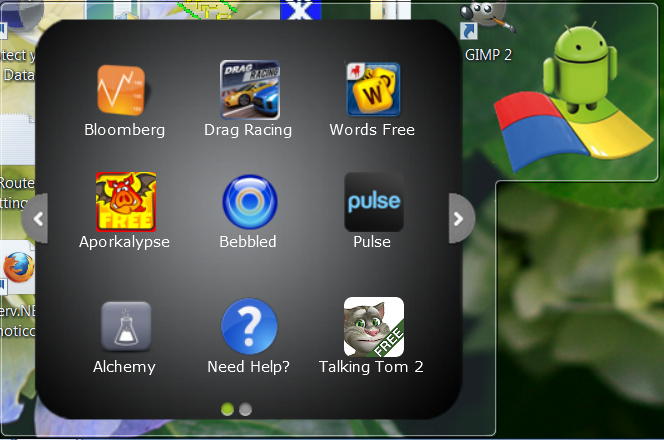
If you’re an Android enthusiast who enjoys the convenience of using mobile apps on a larger screen, BlueStacks for Windows 7 is a game-changer. BlueStacks is a popular Android emulator that allows you to run your favorite Android apps and games on your PC seamlessly.
Windows 7 users can now enjoy the benefits of BlueStacks, transforming their desktop or laptop into a powerful Android device. Whether you want to play mobile games, use social media apps, or test new software, BlueStacks provides a smooth and reliable platform for all your Android needs.
One of the key advantages of using BlueStacks on Windows 7 is the ability to multitask effortlessly. With BlueStacks’ intuitive interface and customizable settings, you can easily switch between different apps and windows without any lag or performance issues.
Furthermore, BlueStacks offers advanced features such as keyboard mapping and gamepad support, enhancing your gaming experience on Windows 7. You can customize controls to suit your preferences and enjoy playing Android games with precision and ease.
Installing BlueStacks on Windows 7 is simple and straightforward. Just download the software from the official website, follow the installation instructions, and within minutes, you’ll have access to a vast library of Android apps at your fingertips.
Whether you’re a casual user looking to explore new apps or a tech-savvy individual interested in testing software compatibility, BlueStacks for Windows 7 opens up a world of possibilities for Android enthusiasts. Say goodbye to limitations and embrace the freedom of enjoying your favorite mobile apps on your PC with BlueStacks.
Frequently Asked Questions About Using BlueStacks on Windows 7
- How to get an older version of BlueStacks?
- Is BlueStacks 5 safe for Windows 7?
- Will BlueStacks run on Windows 7?
- How to install BlueStacks 5 in Windows 7?
- Which Android emulator is best for Windows 7?
- Can I run emulator on Windows 7?
- Is BlueStacks suitable for Windows 7?
- Which version of BlueStacks is best for a low-end PC?
How to get an older version of BlueStacks?
If you are looking to get an older version of BlueStacks for Windows 7, the process is relatively simple. You can visit the official BlueStacks website and navigate to the “Downloads” section. From there, you should be able to find a list of previous versions of the software available for download. Select the version that you prefer and follow the on-screen instructions to install it on your Windows 7 PC. Keep in mind that using an older version of BlueStacks may limit access to certain features or apps, but it can be useful for compatibility reasons or personal preferences.
Is BlueStacks 5 safe for Windows 7?
Many users frequently ask, “Is BlueStacks 5 safe for Windows 7?” Rest assured, BlueStacks 5 is designed to be safe and secure for Windows 7 users. The latest version of BlueStacks undergoes rigorous testing to ensure compatibility and stability on the Windows 7 operating system. With regular updates and security patches, BlueStacks prioritizes the safety of its users’ data and devices. You can confidently enjoy using BlueStacks 5 on Windows 7 to enhance your Android experience on your PC without compromising on security.
Will BlueStacks run on Windows 7?
Yes, BlueStacks is compatible with Windows 7. Users of Windows 7 can easily install and run BlueStacks to enjoy a seamless Android experience on their PC. Whether you want to play games, use social media apps, or explore new software, BlueStacks provides a reliable platform for running Android apps on Windows 7. With its user-friendly interface and advanced features, BlueStacks enhances the functionality of Windows 7 by allowing users to access a wide range of Android applications without any compatibility issues.
How to install BlueStacks 5 in Windows 7?
Installing BlueStacks 5 on Windows 7 is a straightforward process that allows users to seamlessly enjoy Android apps on their PC. To install BlueStacks 5 on Windows 7, start by downloading the setup file from the official BlueStacks website. Once the download is complete, run the installer and follow the on-screen instructions to complete the installation process. After installation, launch BlueStacks 5 and sign in with your Google account to access the Google Play Store and download your favorite Android apps and games. With BlueStacks 5 installed on Windows 7, users can experience enhanced performance, improved compatibility, and a user-friendly interface for a seamless Android experience on their desktop or laptop.
Which Android emulator is best for Windows 7?
When it comes to choosing the best Android emulator for Windows 7, BlueStacks often stands out as a top contender. With its user-friendly interface, robust performance, and wide range of features, BlueStacks offers a seamless Android experience on PC. Whether you’re a gamer looking for smooth gameplay, a developer testing apps, or a casual user exploring new software, BlueStacks provides the reliability and versatility needed to enhance your Android experience on Windows 7.
Can I run emulator on Windows 7?
One frequently asked question about BlueStacks for Windows 7 is, “Can I run an emulator on Windows 7?” The answer is a resounding yes. BlueStacks is specifically designed to work seamlessly on Windows 7, allowing users to emulate the Android operating system on their PC. By installing BlueStacks on Windows 7, you can enjoy the convenience of running Android apps and games without any compatibility issues. Whether you’re a gaming enthusiast, app developer, or simply looking to explore the world of Android on your desktop or laptop, BlueStacks provides a reliable and efficient emulator solution for Windows 7 users.
Is BlueStacks suitable for Windows 7?
Many users often wonder, “Is BlueStacks suitable for Windows 7?” The answer is a resounding yes. BlueStacks is fully compatible with Windows 7, offering a seamless Android emulation experience on this operating system. Whether you’re looking to run Android apps, play games, or test software on your Windows 7 PC, BlueStacks provides a reliable and efficient platform to meet your needs. With its user-friendly interface and advanced features, BlueStacks enhances the Android experience on Windows 7, making it a popular choice for those seeking to bridge the gap between mobile and desktop computing.
Which version of BlueStacks is best for a low-end PC?
When it comes to choosing the best version of BlueStacks for a low-end PC, opting for an older version such as BlueStacks 4 might be more suitable. BlueStacks 4 is known for its lighter system requirements compared to the newer versions, making it a better choice for low-end PCs with limited resources. By selecting BlueStacks 4, users can enjoy a smoother performance and better compatibility on their low-end machines while still being able to run their favorite Android apps and games without significant slowdowns or issues.
Tags: android, bluestacks, bluestacks for windows 7, compatibility, emulator, gamepad support, games, installation, keyboard mapping, mobile apps, multitask, older version, pc, safety, security, updates, windows 7