
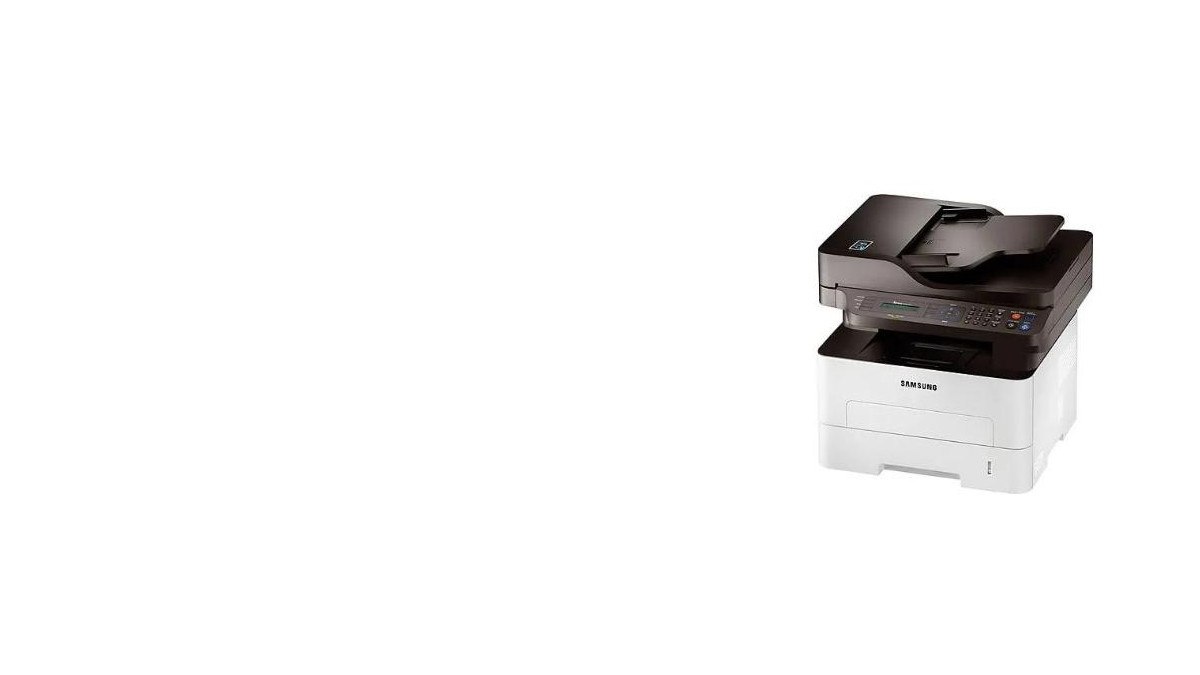
The Ultimate Guide to Samsung Printer Drivers
Printers are essential devices for both homes and offices, and Samsung printers are known for their reliability and quality. To ensure your Samsung printer functions properly with your computer, you need to install the correct drivers. In this guide, we will walk you through everything you need to know about Samsung printer drivers.
What are Printer Drivers?
Printer drivers are software that acts as a bridge between your computer and the printer. They enable your computer’s operating system to communicate with the printer and send print jobs effectively. Without the proper driver installed, your computer may not recognize or work with the printer.
How to Install Samsung Printer Drivers
Installing Samsung printer drivers is a straightforward process. You can typically download the drivers from the official Samsung website or use the installation CD that came with your printer. Follow these steps to install Samsung printer drivers:
- Visit the Samsung website’s support section.
- Search for your specific printer model.
- Download the appropriate driver for your operating system (Windows, macOS, etc.).
- Run the downloaded driver file and follow the on-screen instructions to complete the installation.
- Restart your computer to apply the changes.
Troubleshooting Printer Driver Issues
If you encounter any issues with your Samsung printer drivers, such as printing errors or connectivity problems, try these troubleshooting steps:
- Ensure you have installed the correct driver for your printer model and operating system.
- Check for any updates or patches available on the Samsung website.
- Cleanse any print queue or pending print jobs on your computer.
- Restart both your computer and printer.
- Contact Samsung customer support for further assistance if needed.
In Conclusion
Having the right Samsung printer drivers installed is crucial for optimal printing performance. By following this guide and keeping your drivers up-to-date, you can ensure seamless communication between your computer and Samsung printer. If you encounter any issues, don’t hesitate to seek help from official support channels or online resources.
Essential Guide: Frequently Asked Questions About Samsung Printer Drivers
- How do I find my printer driver?
- How do I connect my Samsung wireless printer to my computer?
- How do I install the Samsung universal printer driver?
- Where do I find the Samsung Easy printer Manager?
- How do I reinstall my Samsung printer driver?
How do I find my printer driver?
Finding your printer driver is essential to ensure your printer functions correctly with your computer. To locate your printer driver, you can visit the official Samsung website and navigate to the support section. Once there, search for your specific printer model and download the appropriate driver for your operating system (such as Windows or macOS). Alternatively, you can use the installation CD that came with your printer to install the driver. It’s crucial to have the correct driver installed to enable seamless communication between your computer and Samsung printer, allowing you to print efficiently and without errors.
How do I connect my Samsung wireless printer to my computer?
To connect your Samsung wireless printer to your computer, follow these simple steps. First, ensure that your printer is turned on and within range of your Wi-Fi network. Next, access the printer’s settings menu either directly on the printer or through a web browser on a connected device. Locate the wireless or network settings and select the option to connect to a wireless network. Choose your Wi-Fi network from the list of available networks and enter the password if required. Once connected, install the necessary Samsung printer drivers on your computer by downloading them from the official Samsung website or using the installation CD provided with the printer. After installing the drivers, your computer should recognize the wireless printer, allowing you to start printing wirelessly with ease.
How do I install the Samsung universal printer driver?
Installing the Samsung Universal Printer Driver is a convenient way to ensure compatibility with multiple Samsung printer models. To install the Samsung Universal Printer Driver, you can visit the official Samsung website and locate the driver download section. From there, select the Universal Printer Driver for your operating system and printer model. Download the driver file and run the installation wizard, following the on-screen instructions to complete the setup process. The Samsung Universal Printer Driver offers a versatile solution for users who need to connect and print from various Samsung printers without having to install specific drivers for each model.
Where do I find the Samsung Easy printer Manager?
To locate the Samsung Easy Printer Manager, you can typically find it installed on your computer along with the Samsung printer drivers. After installing the drivers, you can access the Easy Printer Manager by searching for it in your computer’s programs or applications menu. Alternatively, you may also find a shortcut to the Easy Printer Manager on your desktop or in the system tray. If you are unable to locate the Easy Printer Manager, you can download and install it from the official Samsung website to gain access to additional printer management features and settings for your Samsung printer.
How do I reinstall my Samsung printer driver?
Reinstalling your Samsung printer driver is a common troubleshooting step to resolve issues with printer connectivity or performance. To reinstall your Samsung printer driver, first, uninstall the existing driver from your computer. You can do this by accessing the “Devices and Printers” section in your computer’s Control Panel, locating your Samsung printer, right-clicking on it, and selecting “Remove device” or “Uninstall driver.” Once the old driver is uninstalled, visit the official Samsung website to download the latest driver for your specific printer model and operating system. Run the downloaded file and follow the on-screen instructions to complete the installation process. Restart your computer to apply the changes, and your Samsung printer should now be ready to use with the newly installed driver.
Tags: communication, computer, connection, connectivity, installation, operating system, printer drivers, printing performance, samsung, samsung printer drivers, support, troubleshooting, updates, wi-fi network, wireless printer